AI mode
In AI mode you ask for posts in a chat instead of opening the composer. The AI drafts, checks and schedules posts with Refract's own tools, as you, with your role. It shows every step, a preview of every post it makes or changes, and every change it made, with Undo.
AI mode is in beta: beta testers have it first.
Turn on AI mode
Select Try AI mode in the header, next to New post. You see it in workspaces where you can write posts, so not as a Viewer.
The first time, a short dialog says what changes and how many messages your plan includes a day. Select Start AI mode.
From then on, Refract opens on the chat instead of Home. Everything else stays where it is: search (⌘K), New post, Help and your notifications are in the header, and posts open over the chat.
To go back, select Back to classic in the header. To tell us why, select the arrow next to it and pick a reason. It's optional, and it helps us make AI mode better. On classic pages, Open AI mode takes you back to the chat.
Ask for posts
Type what you want in the field at the bottom and press Enter. Shift+Enter adds a new line. Write as you would to a colleague, in any language:
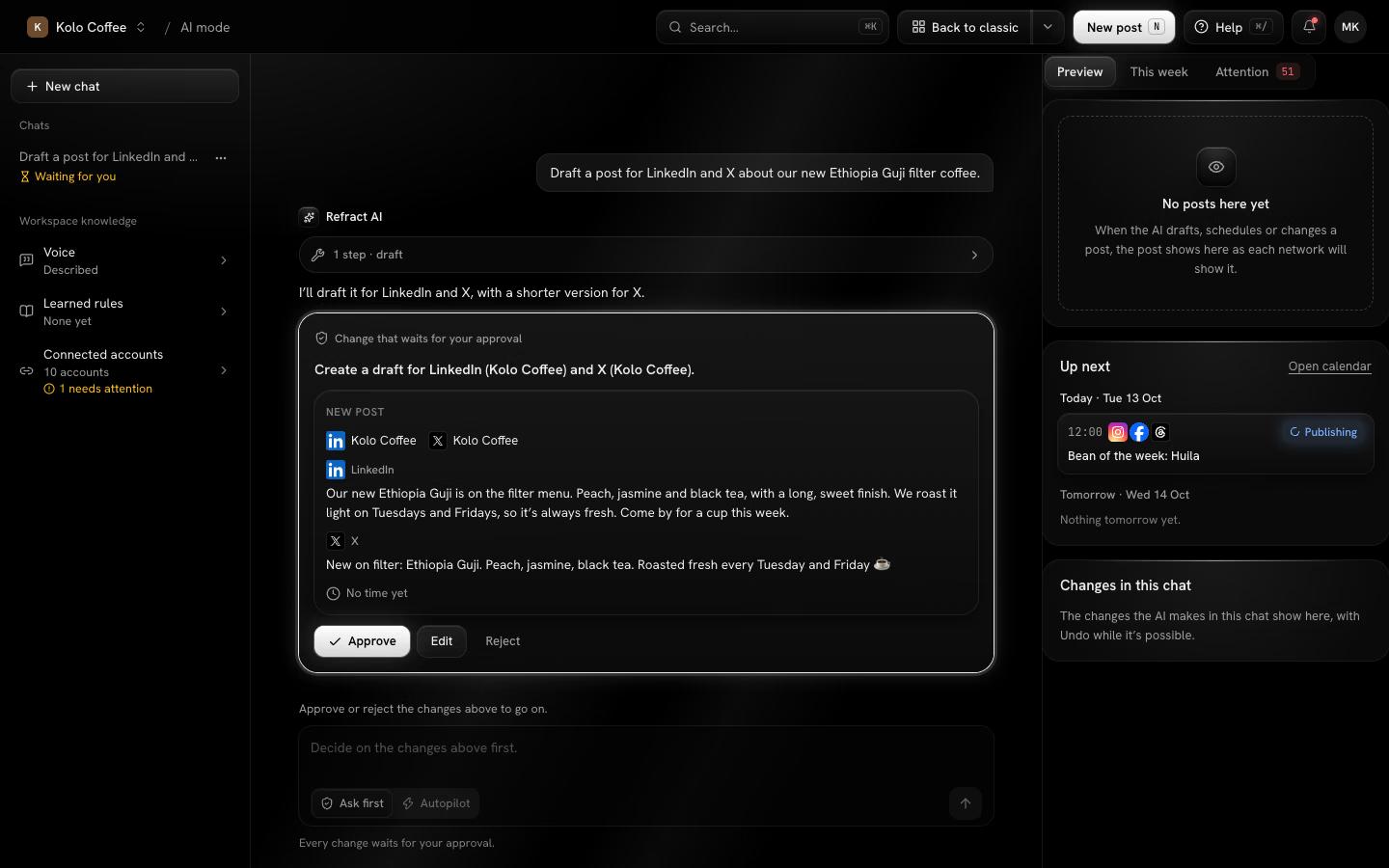
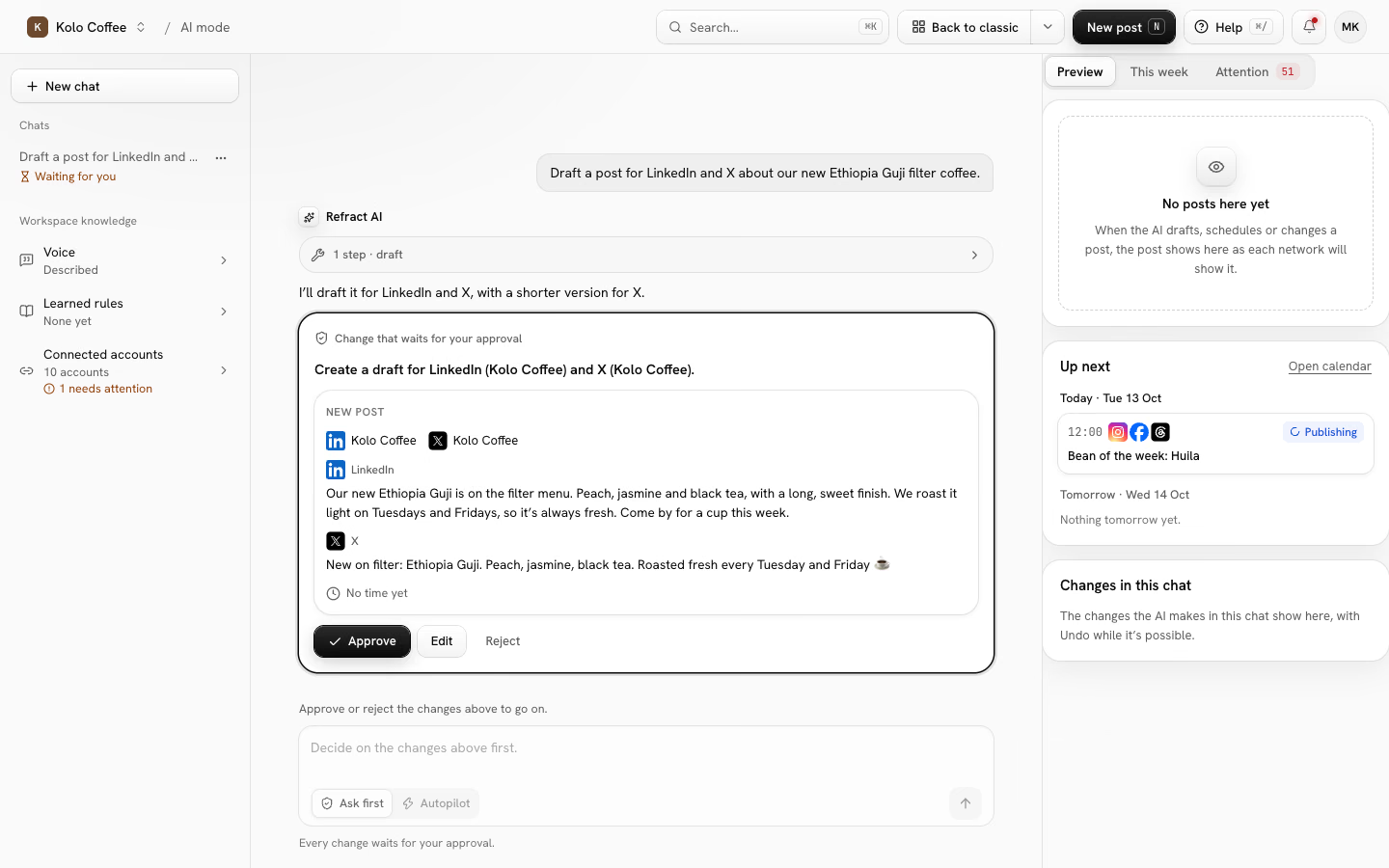
- "Draft a LinkedIn post about our new Ethiopia Guji filter coffee."
- "Schedule it for tomorrow at 9:00, and put a shorter version on X."
- "Put a post about Saturday's cupping session in the next free slot."
- "What's scheduled this week?"
AI mode writes in your workspace's voice and follows its learned rules. It can:
- Draft a post for one or more accounts, with a different text for each network when one needs it.
- Change a post that hasn't gone out: its text, the text for one network, or its accounts. A scheduled post keeps its time.
- Run the composer's Checks on a post.
- Find your next free posting times.
- Schedule a post, move it to another time, take it off the schedule, or delete a draft.
- Send a post for approval, if your role can't schedule (Contributors).
- Tell you what's scheduled or waiting.
- Change or remove a post that's already published. This always asks first.
It can't attach photos or video yet, make images in Studio, read your analytics, publish now, connect accounts or change settings. It says so, and tells you where to do it in Refract.
While the AI is working, the send button becomes Stop.
Ask first and Autopilot
Pick the chat's mode under the message field:
| Change | Ask first | Autopilot |
|---|---|---|
| Read your accounts and posts, run Checks, find free times | Runs | Runs |
| Create a draft, or change a post that hasn't gone out | Asks | Runs, with Undo |
| Schedule, move, take off the schedule, send for approval | Asks | Runs, with Undo until it publishes |
| Delete a draft | Asks | Runs, with Undo |
| Change a post that's waiting for approval | Asks | Asks |
| Change or remove a published post | Asks | Asks |
Your role and your team's approval rules always apply: a Contributor's post still goes to a teammate for approval, as it does from the composer.
In Autopilot the message field has an accent border and an Autopilot chip. You can change the mode in the middle of a chat; it applies from the AI's next step. A new chat starts in the mode you picked last.
If an admin turned Autopilot off for the workspace, Autopilot can't be picked, and every change asks first (see Turn Autopilot off for a workspace).
Approve, edit or reject a change
When a change waits for you, the chat shows a card with exactly what it would do: the accounts, the text for each network, how many files, the time, and the composer's Checks on the post as it would be saved. A check marked Blocks scheduling stops the post from being scheduled until it's fixed.
- Approve makes the change, and the AI goes on.
- Edit opens the text (for each network, when the post has more than one) and the time. Change them and select Approve with changes.
- Reject doesn't make the change. Add a reason under Why? (optional), such as "Make it shorter and mention the oat milk": the AI reads it and tries again.
When the AI asks about several changes at once, they come as one card, such as 3 changes, with Approve all and Review one by one.
While a change waits for you, you can't send a new message: approve or reject it first. The chat keeps the card if you leave the page, so you can decide later.
See what the AI did
- Steps. Above the AI's answer, a line such as 2 steps · draft · schedule lists what it did. Select it to see each step, what the AI asked for and what came back.
- Post cards. After a change, the chat shows the post with its accounts, status and time. Select a card to open the post.
- Preview. On the right, Preview shows the post the AI is working on as each network will show it.
- This week lists this week's posts by day, and Attention shows failed posts, accounts to reconnect and approvals waiting, as on Home.
- Up next shows today's and tomorrow's posts.
- Changes in this chat lists every change the AI made, newest first: whether it ran on Autopilot or you approved it, and what it did.
On a narrow screen, select Week and changes to open the right side, and Chats to switch chats.
Undo a change
Select Undo next to a change in Changes in this chat.
| Change | Undo |
|---|---|
| Created a draft | Deletes the draft |
| Scheduled, or sent for approval | Moves the post back to the drafts |
| Changed a post | Brings back its text, accounts and settings as they were |
| Moved to another time | Moves it back to its earlier time, if that time hasn't passed |
| Took off the schedule | Schedules it again at its earlier time, if that time hasn't passed |
| Deleted a draft | Brings back the post and its files |
Undo isn't there when:
- The post has gone out.
- A later change in the same chat changed the same post. Undo that one first.
- The change was to a published post, which already reached the network.
Some things don't come back with the post, and the change says so: when a post that was waiting for approval comes back, it comes back without its approval request.
Your chats
The left side lists your chats in this workspace, newest first. Waiting for you marks a chat with a change to decide on. Select New chat to start again.
To rename or delete a chat, select … next to it. Deleting a chat removes its messages at once. The changes it made to posts stay.
Your chats are yours alone: other people in your workspace, admins included, can't read them. Chats are deleted automatically 90 days after their last message.
Under Workspace knowledge, the left side also shows what the AI writes with: your voice, your learned rules and your connected accounts. Select one to open its settings.
Daily messages
Chatting in AI mode never uses AI credits. Each plan includes a number of messages a day for each person, and for the whole organization:
| Plan | Messages a day for each person | For the whole organization |
|---|---|---|
| Free trial and Creator | 10 | 10 |
| Business | 50 | 150 |
| Agency | 200 | 1,000 |
| Agency Plus | 500 | 5,000 |
- A message counts when the AI finishes, or stops to wait for your approval. Approving, editing or rejecting a change doesn't count, and neither does a message the AI couldn't answer.
- Your count starts again at midnight in your workspace's time zone. When your plan includes 10 messages a day or fewer, or you have 5 or fewer left, the line under the message field says how many are left.
- At the limit, the chat says when it starts again, and See plans shows a plan that includes more.
- With your organization's own Anthropic key, AI mode uses that key and there's no daily limit (see Use your own AI keys).
- Anyone can send up to 10 messages a minute.
Turn Autopilot off for a workspace
Admins can make AI mode ask before every change in a workspace:
- Open Settings › API and agents.
- Under Autopilot in AI mode, turn off the switch for the workspace.
Chats in Autopilot then ask first from their next change.
Related
- Writing posts for the composer
- Team and approvals for roles and approvals
- Voice and rules for what the AI writes with
- Asking Help for questions about using Refract