Billing and AI credits
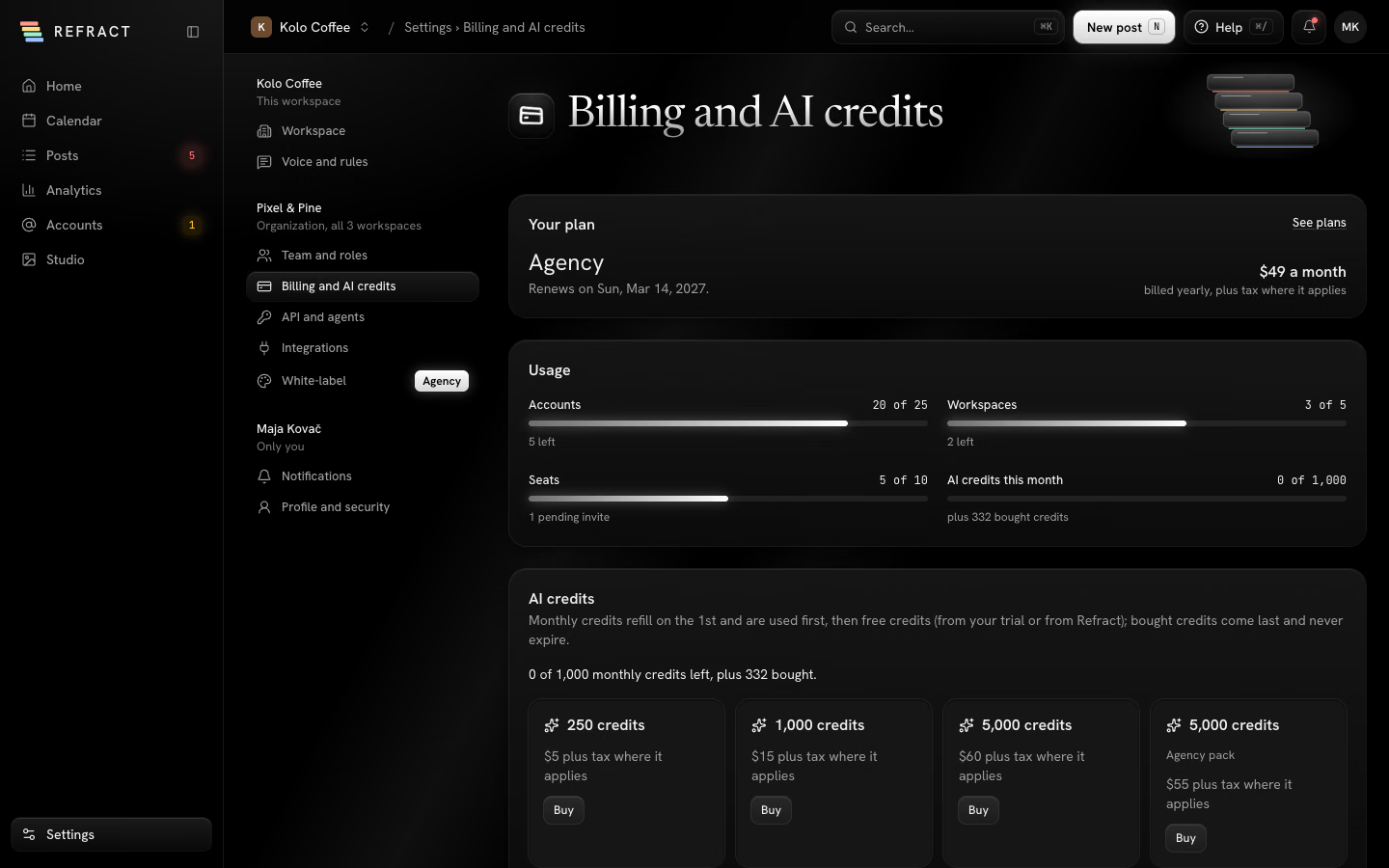
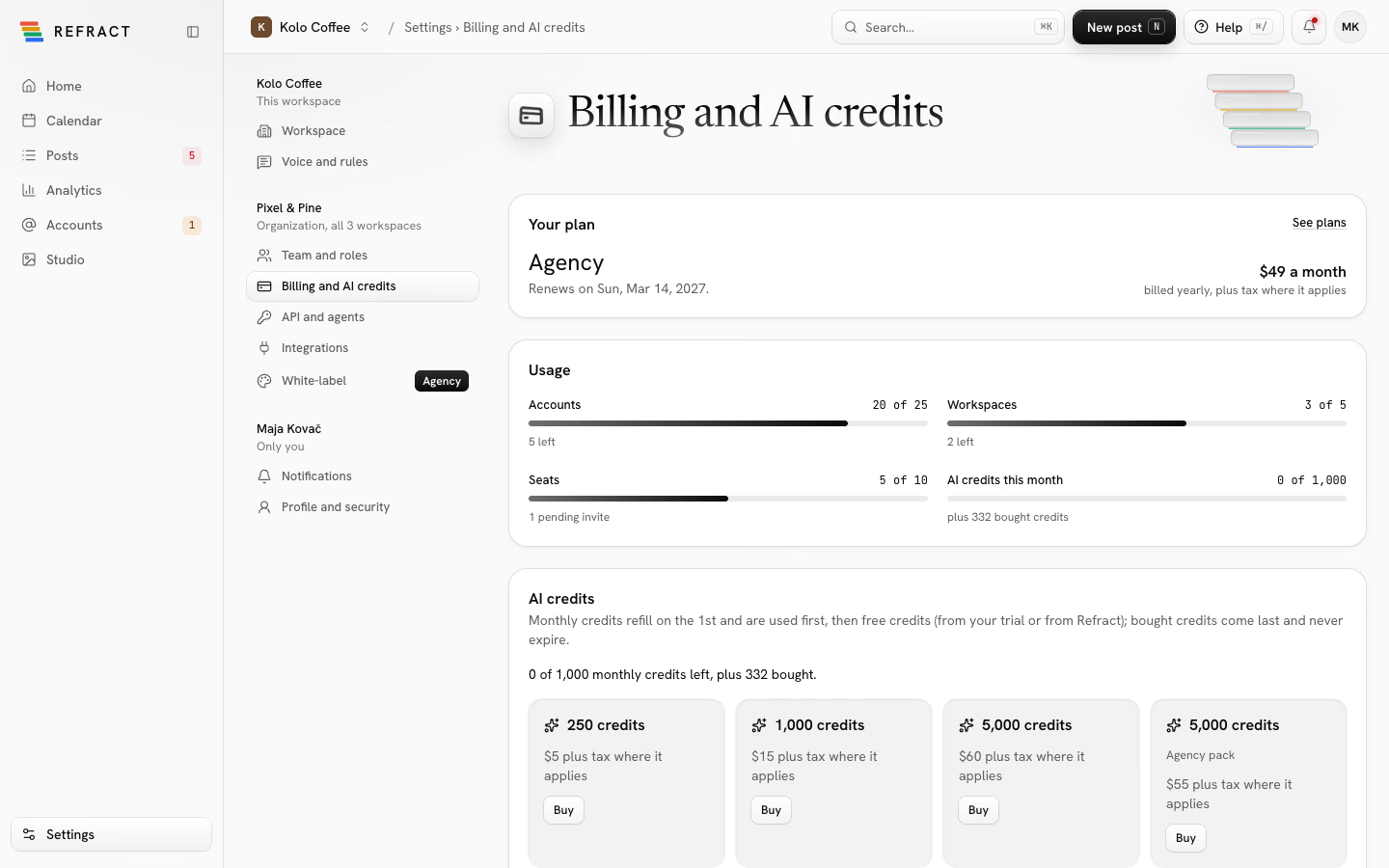
This page explains Refract's plans and free trial, how to change or cancel a plan, and how AI credits work: what they pay for, how to buy more, how to share them across your team and how to use your own AI keys instead.
Everything here lives in Settings › Billing and AI credits. Only admins can change the plan, buy credits or open Manage billing.
Plans
Every plan has the API, MCP and webhooks. Prices are in US dollars, plus tax where it applies (VAT or sales tax for your country, worked out by Stripe).
| Creator | Business | Agency | Agency Plus | |
|---|---|---|---|---|
| Monthly | $12 a month | $29 a month | $59 a month | $119 a month |
| Yearly, per month | $10 | $24 | $49 | $99 |
| Accounts | 8 | 15 | 25 | 50 |
| Workspaces | 1 | 2 | 5 | 15 |
| Seats | 1 | 3 | 10 | 25 |
| AI credits a month | 150 | 400 | 1,000 | 3,000 |
| Analytics history | 90 days | 365 days | 2 years | 2 years |
| Approvals | No | Yes | Yes | Yes |
| Client connect links | No | No | Yes | Yes |
| White-label | No | No | Yes | Yes |
Approvals start at Business; client connect links and white-label come with Agency and Agency Plus. See Team and approvals for what approvals do.
Note: Clients who only approve posts by link don't need a seat.
Your free trial
A new account starts with a 14-day free trial. No card is needed to start.
- You get 25 AI credits once, for the whole trial. They never expire.
- Trial credits work with the Draft models in Studio only, and AI video is for paid plans only (Studio shows Paid plans only).
- No monthly credits come while the trial runs.
You can choose a plan any time during the trial. You pay nothing until the trial ends.
Refract emails you during the trial:
- A welcome when you sign up, with the first two steps.
- On day 5, a short note asking if you need a hand. Its unsubscribe link stops it, and our product news too.
- 3 days before the trial ends, and again once it has ended, an email to the organization's admins saying what happens next. These stop once you choose a plan.
Reply to any of them to reach a person.
Choose or change a plan
- Open Settings › Billing and AI credits.
- Under Your plan, select See plans.
- Pick Monthly or Yearly under Billing.
- Select Upgrade for a bigger plan or Switch for a smaller one.
You pay on Stripe's secure page, which works out the tax for your country.
Upgrade
An upgrade starts at once. The dialog shows what's due today, prorated for the rest of your billing month or year, and the price from your next renewal. New limits and credits apply at once, including the extra monthly credits for the rest of the month. Confirm with Pay … and upgrade.
If your bank wants to confirm the payment, it can't be done in the dialog: use another card in Manage billing, then try again. Nothing is charged when a payment doesn't go through.
Switch to a smaller plan
A smaller plan takes effect at the end of the term. Until then you keep everything in your current plan.
If you have more workspaces or accounts than the smaller plan allows, Refract asks you to pick what to keep. Nothing is deleted:
- Accounts you don't keep stay connected and keep their posts, but nothing goes out on them.
- Workspaces you don't keep are archived with everything in them.
- If you have more people than seats, everyone keeps access, but you can't invite anyone until a seat is free.
Pick them again any time there's room with Change what to keep. To stay on your plan after all, select Keep and your current plan's name.
Manage your card, invoices and cancellation
Select Manage billing under Payment and billing. It opens Stripe's secure page, where you change your payment method and billing address, see invoices and cancel your plan. Invoices are also listed at the bottom of the billing page, with Download.
If a payment fails, a banner asks you to update the card in Manage billing. Stripe tries again, and your plan keeps running in the meantime.
Cancel your plan
- Select Manage billing.
- Cancel the plan on Stripe's page.
The plan runs to the end of the term you paid for. The plan card shows Cancelled and the date you keep it until, and nothing more is charged. While it's cancelled you can't upgrade or switch plans; to keep the plan, renew it in Manage billing.
When a trial or plan ends
When your trial ends without a plan, or a paid plan ends, the billing page says Your trial ended or Your plan ended:
- Scheduling is paused and nothing is deleted.
- No monthly AI credits come. Credits you bought stay.
If posts missed their time while scheduling was paused, Refract asks what should happen to them:
- Post them right away: they go out within a minute of choosing a plan.
- Move them to drafts: nothing goes out, and you pick new times when you're ready.
Then choose a plan below to start scheduling again.
How AI credits work
AI credits pay for the AI features in Refract. There are three kinds, used in this order:
- Monthly credits come with your plan. They refill on the 1st of each month, and unused monthly credits expire then.
- Free credits (trial credits, or credits Refract gave you) never expire.
- Bought credits come last and never expire.
The AI credits card on the billing page shows what's left of each, and Usage shows AI credits this month.
If a feature fails or you cancel it, its credits come back. When you run out, Refract shows Not enough credits, with Buy credits and Use your own AI key.
What costs credits
| Feature | Cost |
|---|---|
| Assist: Write from a brief, Rewrite, Shorten, Add hashtags, Translate | 1 credit each time |
| Assist: Adapt for each platform | 1 credit per platform |
| A version written from a note | 1 credit per network (Notes and versions), also for blog posts from WordPress (Blog posts from WordPress) |
| Studio images | Depends on the model and quality tier; Studio shows the cost before you select Generate |
| Studio AI video (Animate a photo, From a description) | Depends on the model, length and sound; shown before you generate |
| Captions for a video | Per minute of speech |
| Slideshows | Free |
Credits for images, video and captions are set aside while they're being made, and come back if they fail. A version from a note that fails a check is rewritten once for free.
Tip: In Studio, fewer images, another model or the Draft tier cost less.
Your organization also has a daily limit on AI credits. If you reach it, Refract says so and it resets the next day.
Buy credits
- Open Settings › Billing and AI credits.
- Under AI credits, select Buy next to a pack.
- Pay on Stripe's secure page.
| Pack | Price |
|---|---|
| 250 credits | $5 |
| 1,000 credits | $15 |
| 5,000 credits | $60 |
| 5,000 credits, Agency pack | $55, for organizations on the Agency or Agency Plus plan |
Prices are in US dollars, plus tax where it applies. Bought credits never expire.
Give each person a monthly allowance
Admins can limit how many AI credits each person uses a month, so one person can't use up the whole team's credits.
- Open Settings › Team and roles.
- Open the menu next to the person and select Change role and access….
- Set Monthly AI credits to an amount, or No AI.
- Select Save.
You can set the same allowance when you invite someone. The team list shows each person's AI credits this month. Admins have no credit limit. If allowances add up to more than your plan's monthly credits, Refract warns you that people may run out before the 1st.
Use your own AI keys
With your own OpenAI, Anthropic, Google Gemini or fal.ai account, whatever the key pays for costs no credits. Your AI provider bills you directly.
- Open Settings › API and agents and find Your own AI keys.
- Select Add key next to the provider.
- Paste the key under API key and select Check and save. Refract checks it with the provider, then stores it encrypted; only the last four characters are shown again.
- Under Use it for, choose Text, in Assist and/or Images, in Studio.
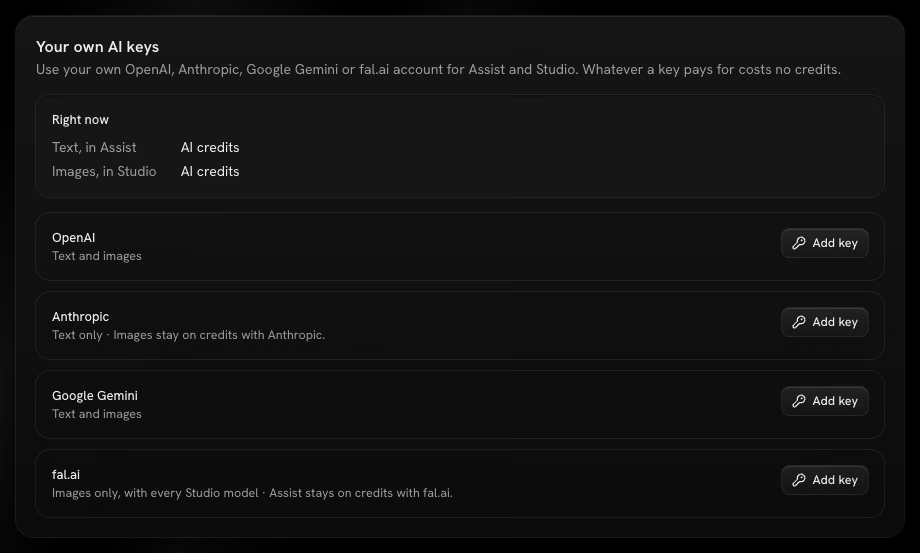
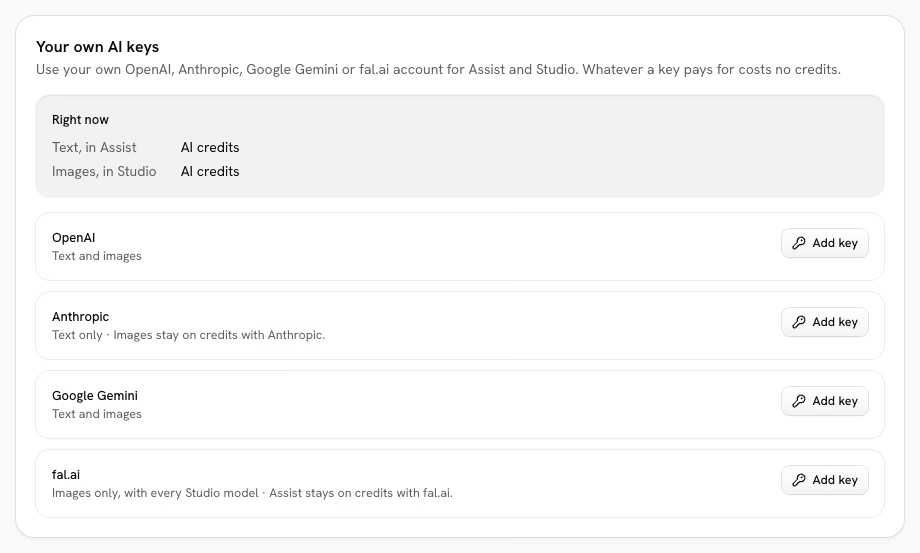
Right now sums up what each use is paid with: your key or AI credits. A text key also writes the versions from a note. Not every provider does both: Anthropic writes text only, so images stay on credits with it, and fal.ai makes images only, so Assist stays on credits with it.
To stop using a key, select Remove. What it paid for goes back to AI credits right away. The key is deleted from Refract, but it still works at the provider.
Related
- Writing posts for Assist and Studio
- Team and approvals for roles and seats
- Troubleshooting and FAQ