Writing posts
This page shows you how to write a post in the composer, tailor it for each network, add media and choose when it goes out.
Open the composer
Select New post anywhere in Refract. The composer opens over the page you're on, so you can close it and carry on where you were.
At the top, Start from lets you choose how to write:
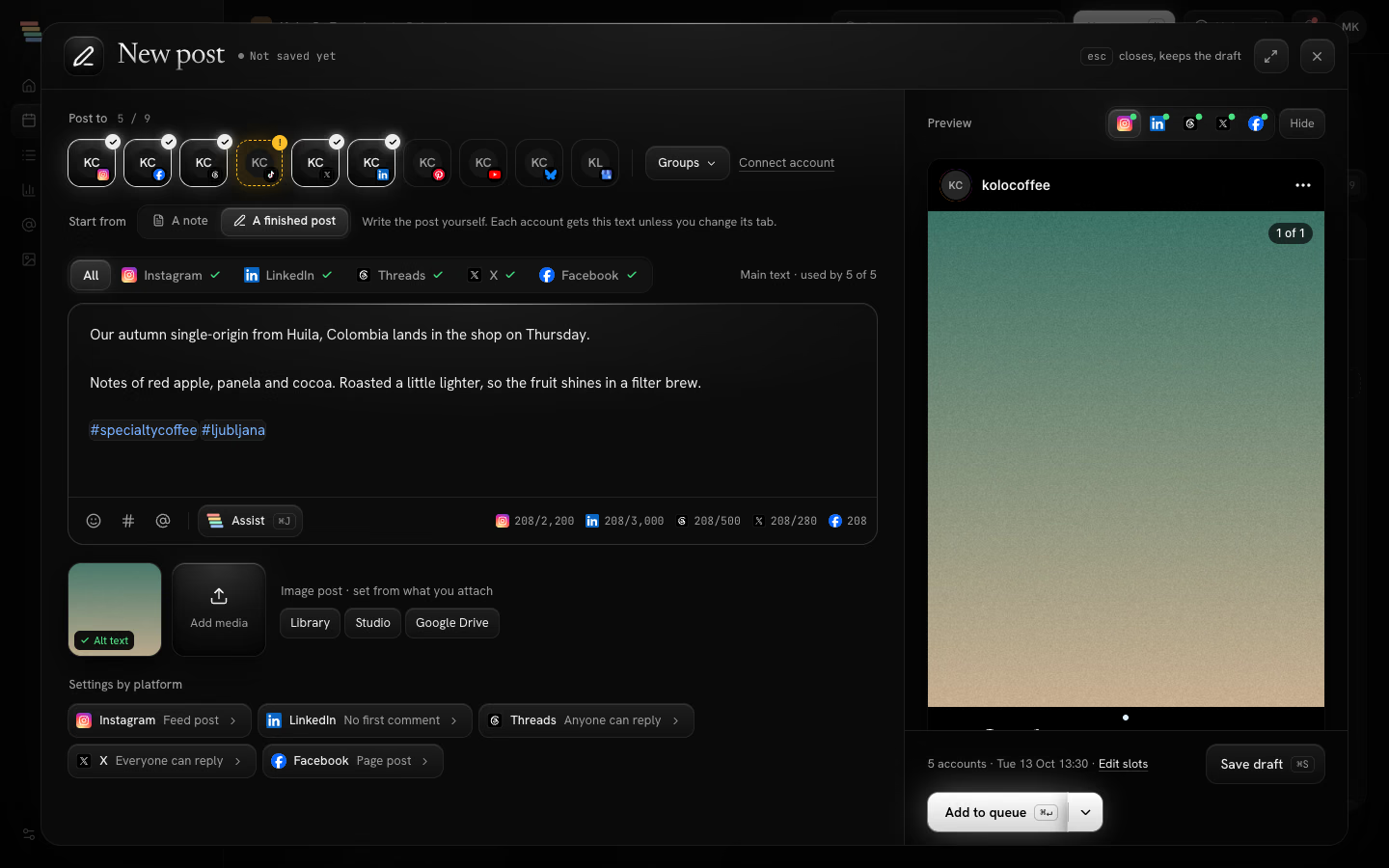
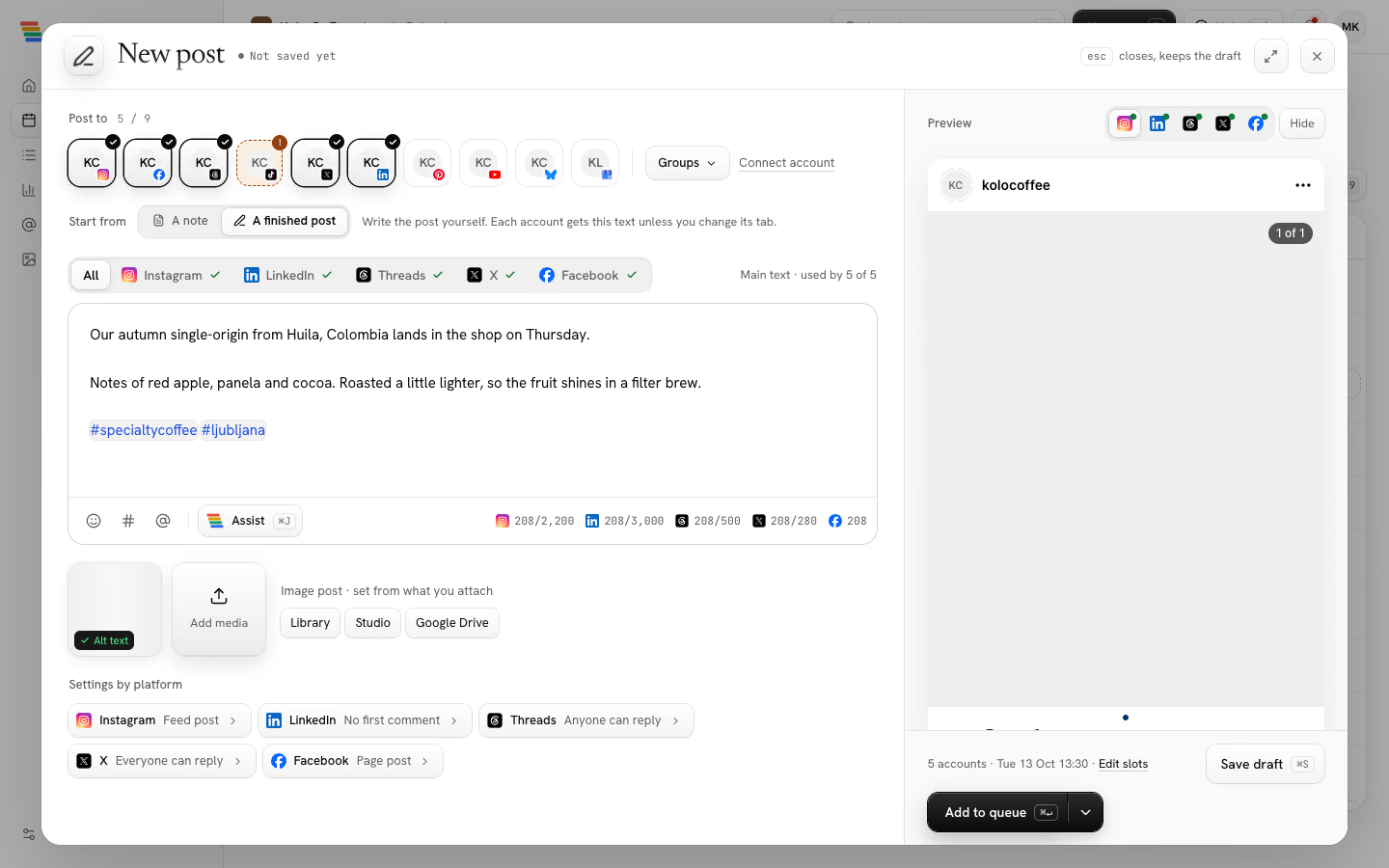
- A finished post: you write the post yourself. Each account gets this text unless you change its tab. Most of this page covers this way.
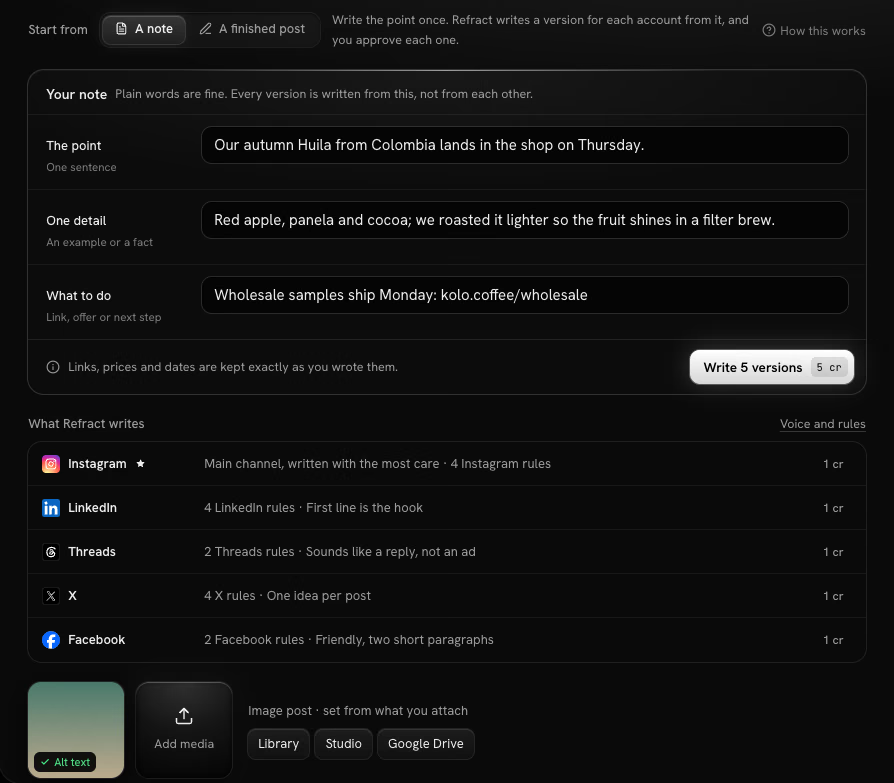
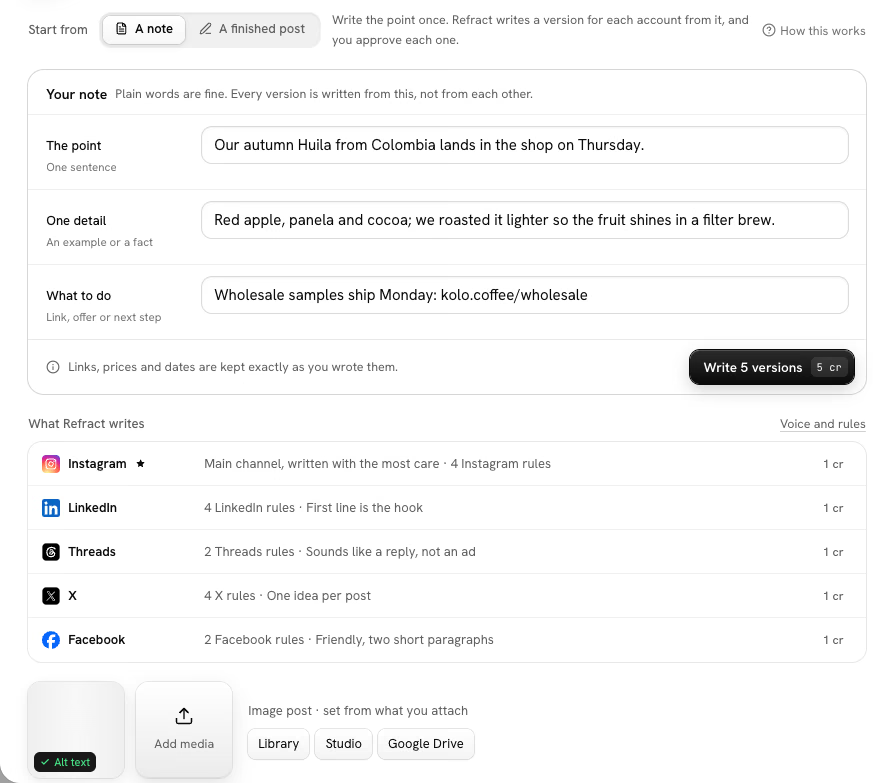
- A note: you write the point once, and Refract writes a version for each network, in your voice, for you to approve. See Start from a note below.
Refract remembers your choice for your next post.
Start from a note
When one message goes to several networks, let Refract do the rewording:
- Pick your accounts under Post to, then select A note under Start from.
- Fill in The point (one sentence). Add One detail and What to do if you have them, such as a fact and a link. Links, prices and dates are kept exactly as you wrote them.
- Check What Refract writes: one line per network, with the rules it follows. Your main channel comes first.
- Select Write 5 versions (the number matches your networks). Each version costs 1 AI credit.
- Read each version. Select Approve, or Edit it and select Done. Not happy? Write again rewrites the ones you haven't approved or edited.
- Choose when it goes out and select Approve all and add to queue (or Approve all and schedule, and so on).
Nothing written from a note posts until it's approved. How each network's version sounds comes from Settings › Voice and rules, and Refract can learn rules from your edits. The full guide: Notes and versions.
Pick accounts
Under Post to, select the accounts the post goes to. Each account you pick gets its own tab in the editor.
Until you pick one, the count next to Post to turns amber and each account has a dashed outline with a +. At the bottom, Pick at least one account shows next to the greyed-out button: select it to jump back to your accounts.
To pick several at once, open Groups and choose a saved group. Choose the same group again to remove its accounts.
An account that's signed out shows a warning; select it to reconnect. No accounts yet? Select Connect account.
Write once, then tailor each network
- With All selected, write in the main text. Every account you picked uses it.
- To change the text for one network, select its tab and edit it. The tab is marked Customised.
- To go back, select Reset to main text on that tab.
Each tab shows how it stands: ready, has a warning, blocked, or nothing written yet. The character counter below the editor shows how much room each network has.
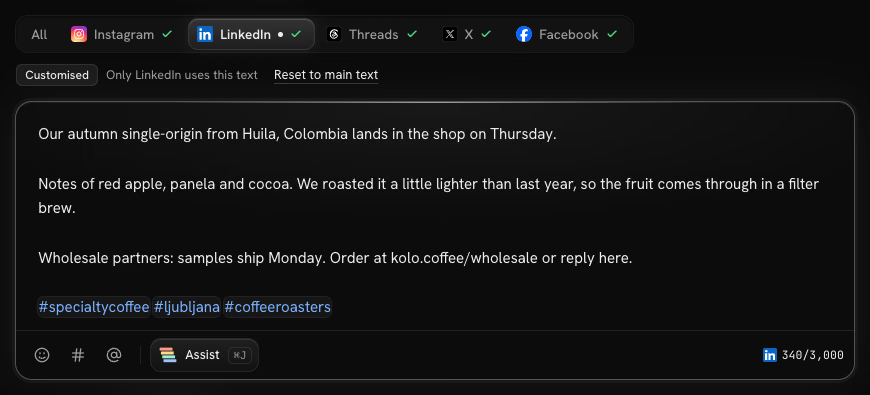
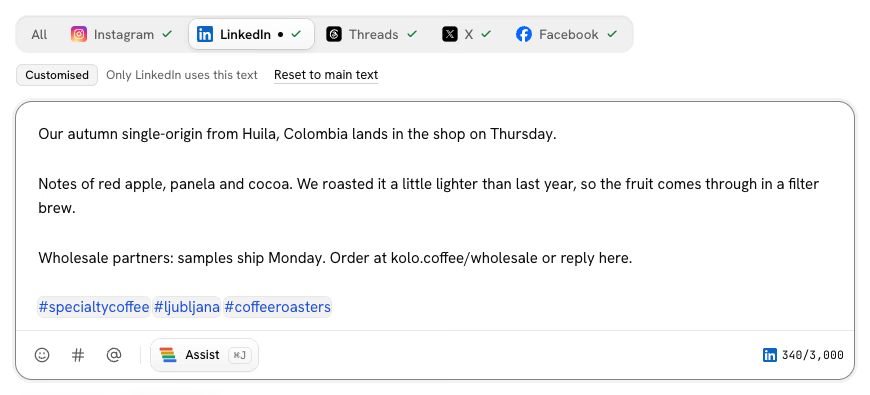
The preview on the right shows the post as it will look on each network.
Settings by platform
Under the media on All, Settings by platform sums up each network's choices. Open a network's tab to change them:
| Network | What you can set |
|---|---|
| Post as Feed, Reel or Story (a video goes out as a Reel), Collaborators (up to 3) and a First comment | |
| Page post or Reel, and a First comment | |
| Mention a company | |
| Threads, X | Who can reply; on X, also Split into a thread instead of blocking for long text |
| TikTok | Who can view (required), whether viewers can Comment, Duet and Stitch, and Content disclosure |
| YouTube | Title, Privacy, Tags, Playlist and Made for kids |
| Board (required), Pin title and Link | |
| Google Business | Post type (Update, Event or Offer) and a Button |
| Mastodon | Visibility and a Content warning |
| Telegram | Send silently |
| WordPress | Title (required), Excerpt, Featured image, Categories, Tags and Status. See below. |
| Tumblr | Title, Tags and Send as a draft |
| Discord | Post as |
| Pixelfed | Who can see it: public, unlisted or followers only |
| DEV | Title (required), Tags, Canonical link, Series and Send as a draft |
WordPress
A WordPress site's tab turns the post into a blog post:
- Title is required. Leave a blank line between paragraphs. The buttons above the text add a heading (a line starting with
##), a list (lines starting with-), Bold, Italic and a Link. - Excerpt is a short summary. Your theme may show it in post lists.
- Featured image is one of the post's images, shown at 1.91:1; select Crop to change what shows. Other images go into the post as they are.
- Categories and Tags come from your site. Type a new tag's name to add it. With no category picked, the post goes in the site's default category.
- Status: Publish, or Send as a draft to finish it in WordPress. Refract publishes it at the time you choose, like any other post.
The tab shows who the post appears as (Posts as a name). If the site takes drafts only, or publishing from Refract is turned off, the tab says so; change it in Refract › Settings on your site. See Accounts and networks.
Posts Refract publishes to your site are never sent back to Refract as notes.
Title, tags and other fields
Some networks take more than text and media. Their tab shows only the fields that network uses:
- Title: the counter shows the most that network takes. On networks that need a title, the post can't go without one.
- Tags: type a tag and press Enter. Leave out the
#; Refract adds it where the network uses one. The field stops at the most tags the network takes. - Community: type to search the communities on your server, then pick one. Every post on these networks goes to a community. If the community has rules, Read this community's rules opens them.
- Canonical link: points search engines to your original post, for example the blog post an article first appeared in.
- Send as a draft: the post goes to your drafts on that network instead of going live, at the time you choose.
- Post as: a name and a picture from your library that the post goes out under. Leave them empty to use the account's default, or your workspace's name and logo.
To set an account's default community or Post as, go to Accounts, open the menu at the end of the account's row and select Defaults. New posts for that account start with them, and you can change them on each post.
Fix what the checks find
Checks on the right run as you write. Each network is Ready, or has an issue:
- Blocks: the post can't go to that network until you fix it. For example, the text is over the character limit, Pinterest needs a board, or TikTok needs you to choose who can view the video.
- Warning: it can go, but take a look. For example, an image has no alt text, or the post would go over a network's daily limit. A post over a daily limit waits until the limit resets.
Most issues have a fix button next to them, such as Shorten with Assist, Add alt text or Choose board. A title that's too long has Shorten the title, and a tag the network doesn't take has Remove tag. When a network takes fewer files than the post has, Keep the first 4 (or that network's limit) leaves the rest off that network only, and a file a network can't post has Leave it off. See Leave a file off one network.
If you post to several accounts on a server that sets its own limits, Checks use the strictest one.
If one network is blocked, you can still send the post to the others: the button changes to, for example, Queue the other 3. The blocked network stays as a draft.
Write with Assist
Assist helps you write. Select Assist in the editor (or Write with Assist when the editor is empty) and pick an action:
| Action | What it does | Credits |
|---|---|---|
| Write from a brief | Writes the post from a sentence about it | 1 |
| Rewrite | Same length, fresher | 1 |
| Shorten | Fits the tightest limit | 1 |
| Adapt for each platform | One version per tab | 1 per platform |
| Add hashtags | Up to 5, per platform | 1 |
| Translate | Into any language | 1 |
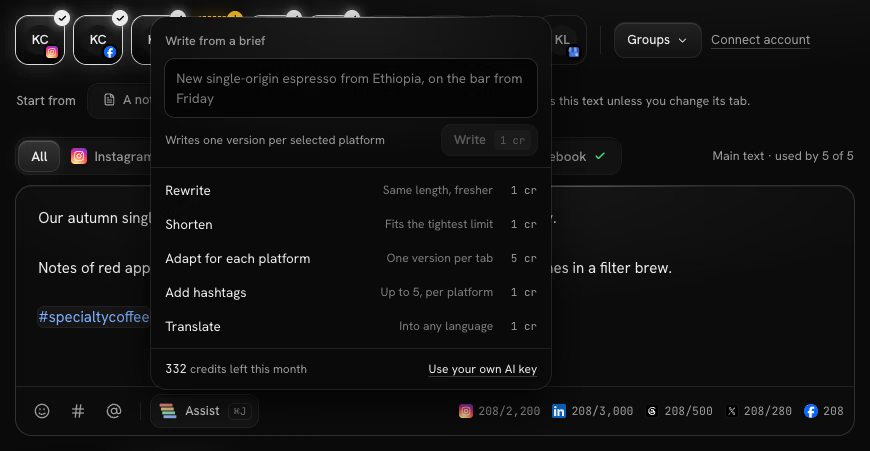
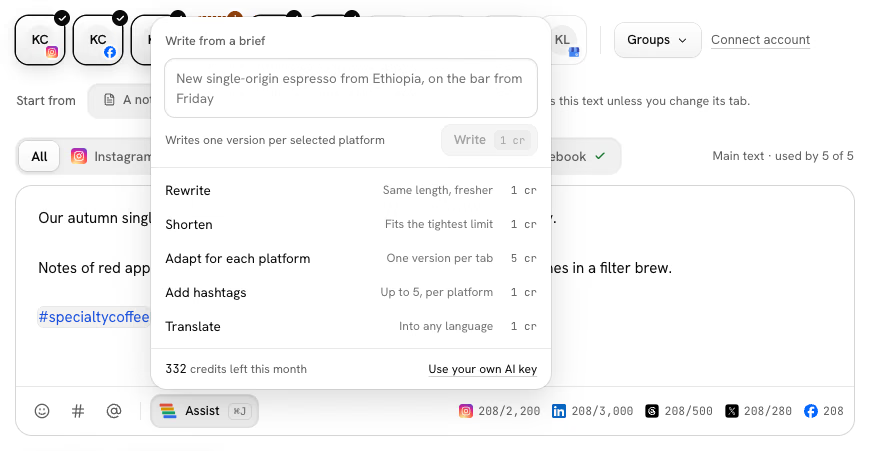
Nothing changes until you choose: Accept (or Accept all), Try again or Discard. If Assist can't write something, nothing is charged.
The menu shows how many credits you have left this month. If your organization uses its own AI key, Assist costs no credits. See Billing and AI credits.
Add media
Select Add media, or drop or paste files straight into the composer. You can add photos and videos from:
- Upload files: JPEG, PNG, WebP, GIF, MP4, MOV or WebM.
- Library: everything uploaded to this workspace.
- Studio: images made in Studio.
- Google Drive: always listed. If your organization hasn't connected it yet, selecting it tells you how; an admin connects it in Settings › Integrations.
- Dropbox: listed once it's connected in Settings › Integrations.


The post type follows what you attach (an image post, a carousel, a video post). On each file you can:
- Add Alt text, which describes the picture for people who can't see it.
- Crop it for each network. The original file stays as it is.
- Drag it to change the order, or remove it.
Make images in Studio and they're ready to post.
Leave a file off one network
Every network posts every file unless you leave one off it, for example when Bluesky takes 4 files and the post has 5:
- Select the network's tab.
- Select the eye on a file. The file is dimmed and says Off for Bluesky. Under the files, the composer says how many go to that network.
- To put it back, select the eye again.
The other networks still post the file. On All, a file left off some networks shows their icons. The preview and Checks for each network show only its own files.
When a network doesn't take a picture's format, such as WebP on Pinterest or Instagram, Refract sends that network a JPEG copy, so you don't need to leave the picture off. The file in your library stays as it is.
Make images in Studio
Studio in the sidebar makes images and videos with AI, using your credits. What you make is saved in your Library, ready to add to a post.
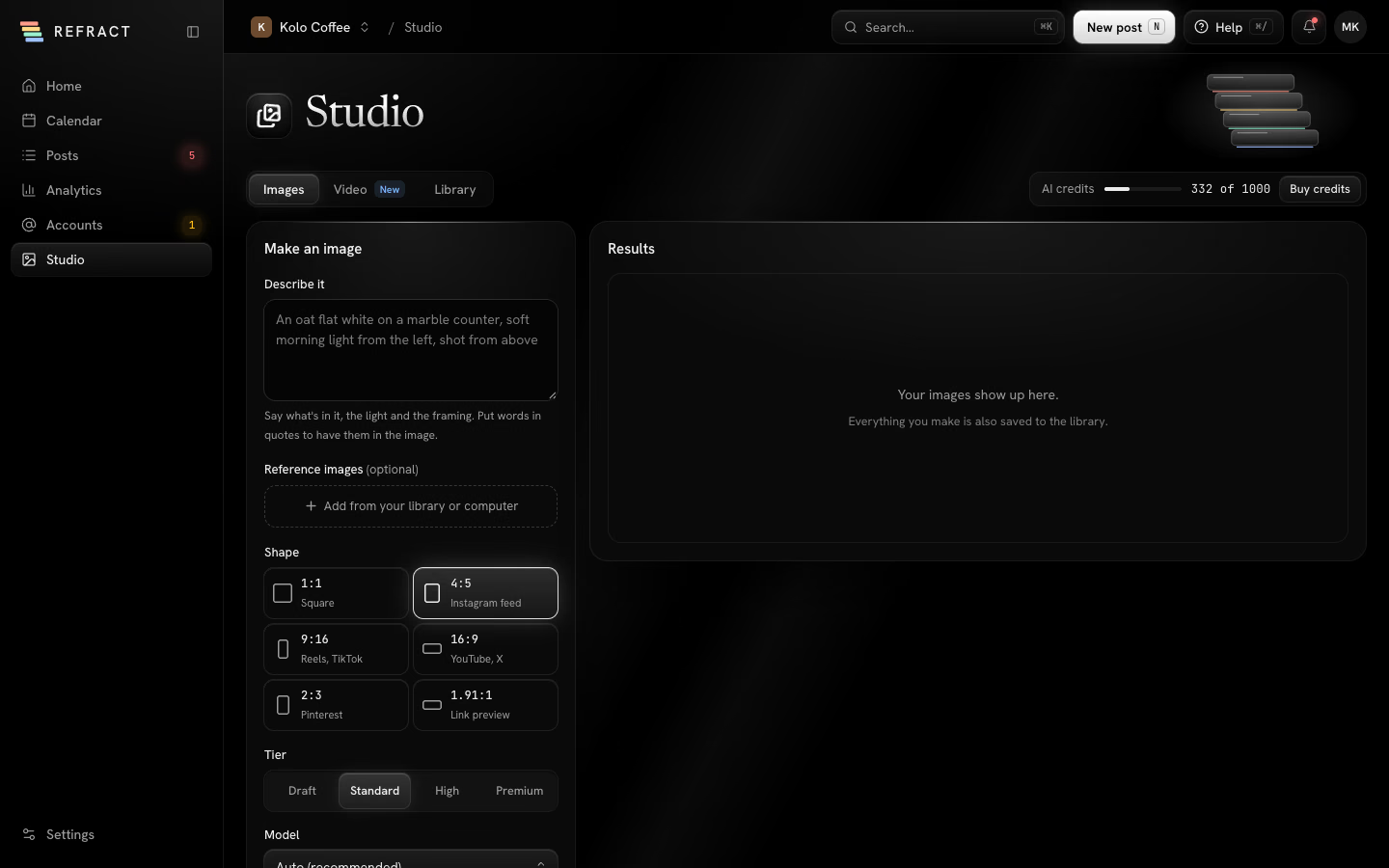
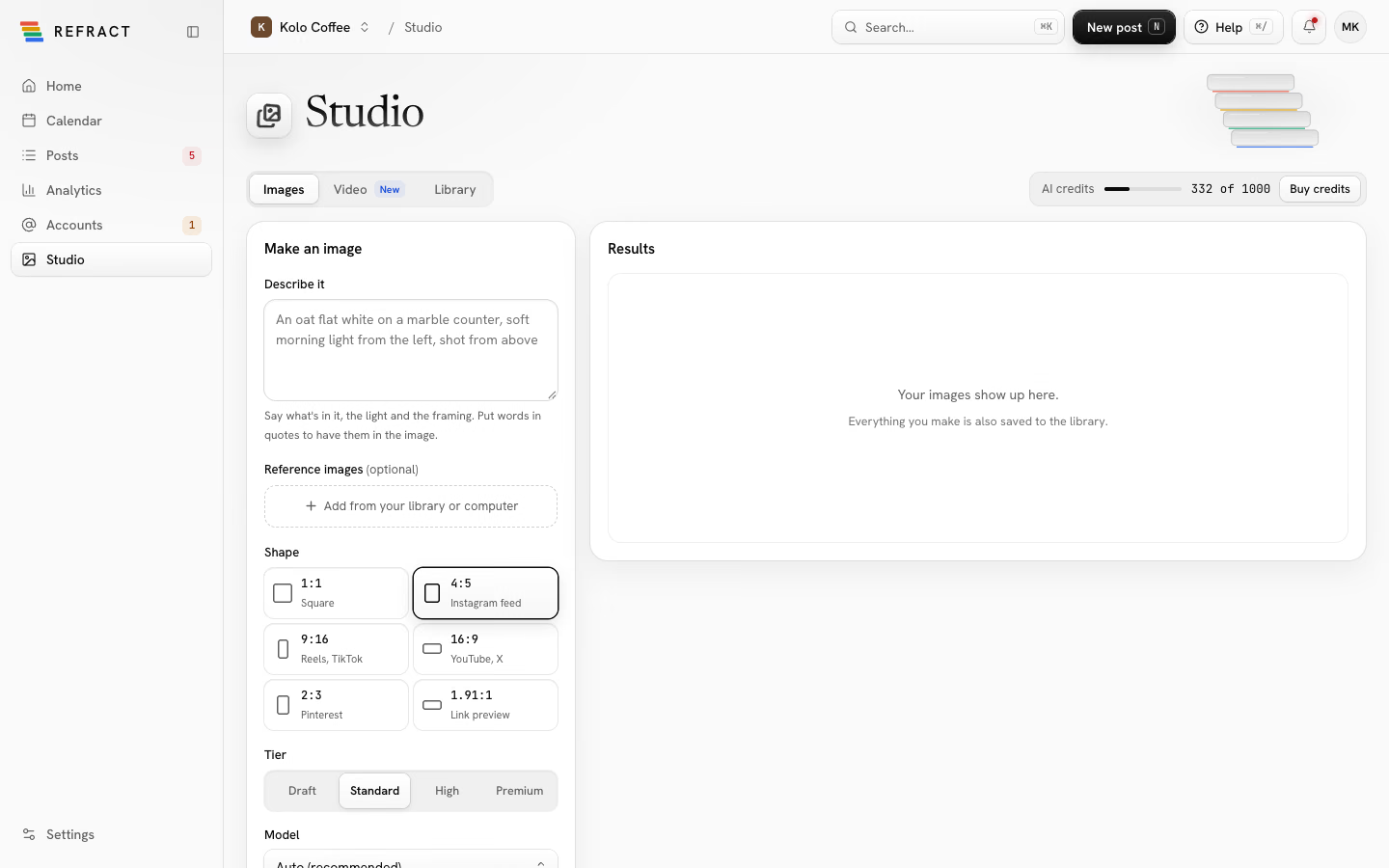
The AI label
When a post has a file made with AI, the composer shows Labelled as AI-generated, switched on. Refract turns the label on itself for the networks that support it, such as TikTok, Instagram, YouTube and Facebook Reels. For the others, the composer tells you to add the label in that network's app after posting. A network you left the AI file off doesn't get the label.
Choose when it goes out
Open the When menu on the send button and choose:
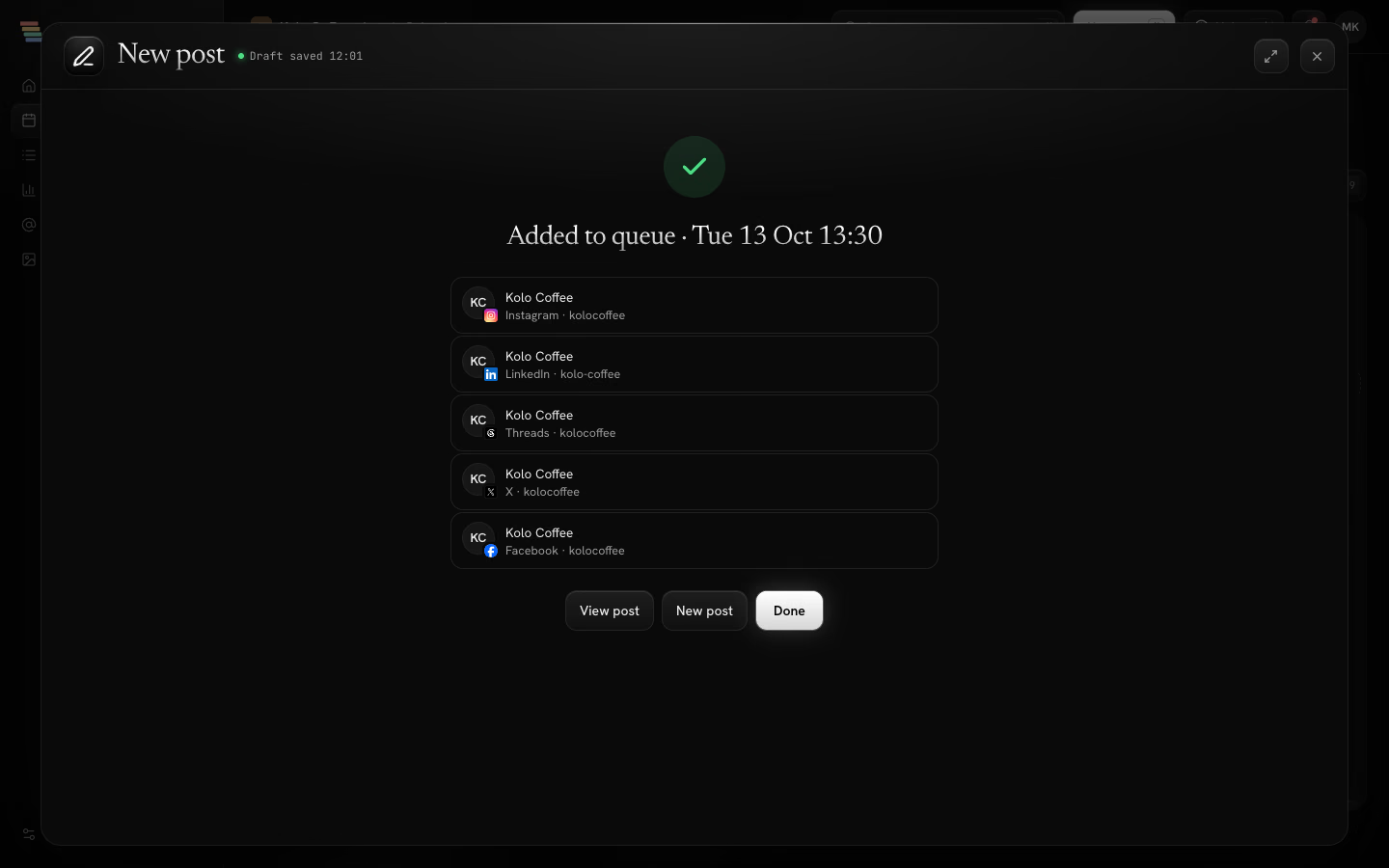
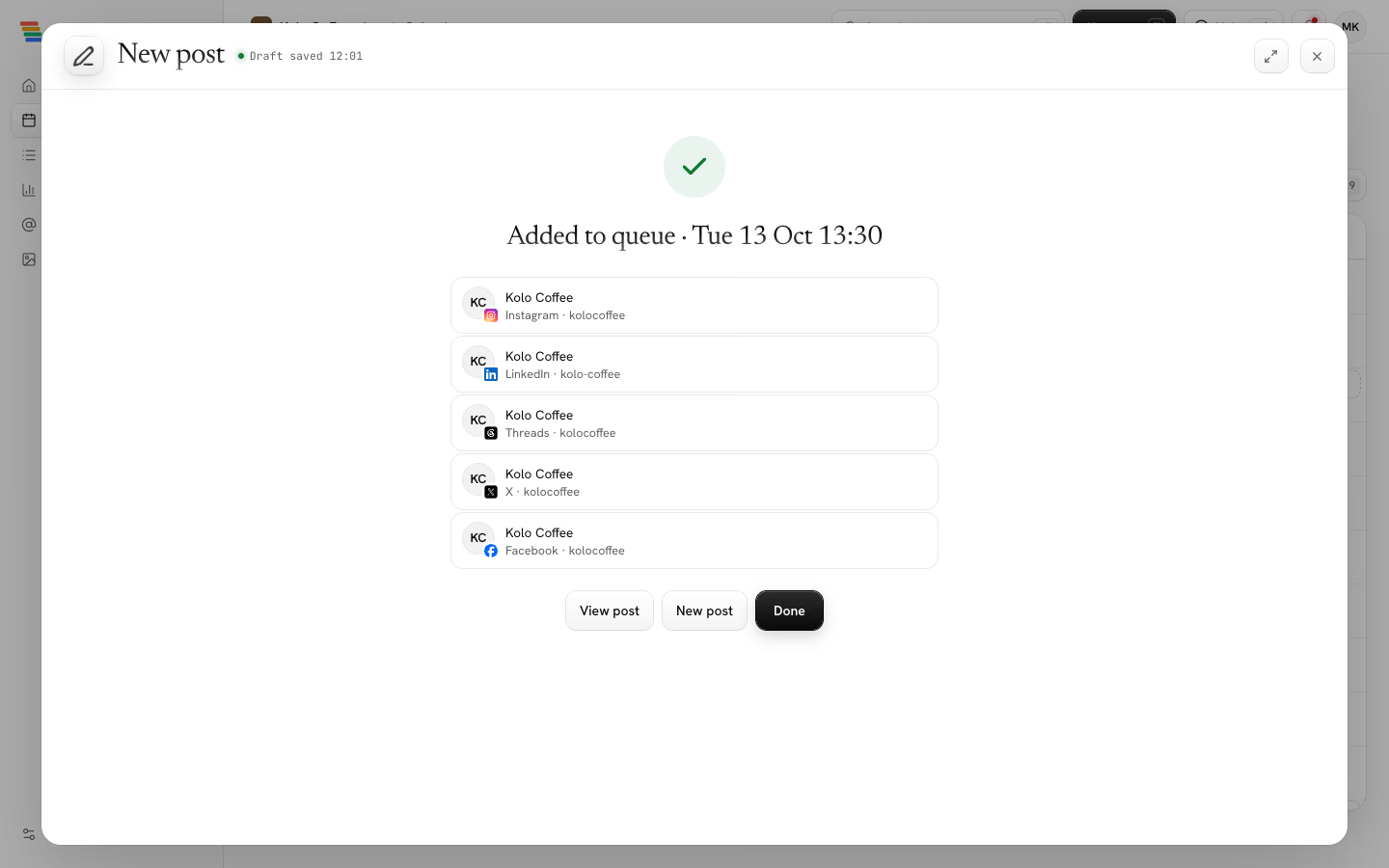
- Add to queue: the next free posting time. Set your times in Settings › Workspace (see Getting started).
- Pick date and time: a time you choose, in the workspace's time zone. Suggested times help you pick.
- Repeat: posts Every day, week, month or year, at a set time, until it Ends (Never, On a date, or After a number of posts).
- Publish now: goes out right away. Refract asks you to confirm, because once it's out it can only be removed on each network.
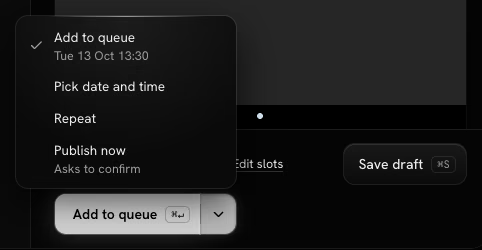
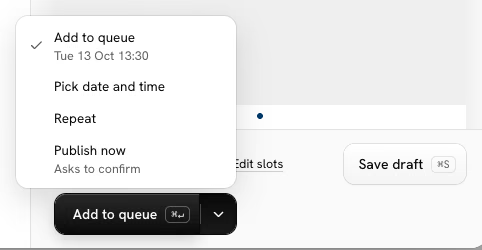
The button then says what it will do: Add to queue, Schedule, Schedule series or Publish now.
Drafts and autosave
The composer saves your draft a moment after you stop typing. The header shows Draft saved with the time, or Saving…. Close the composer (or press Esc) and the draft is kept; you'll find it in Posts under Drafts. You can also select Save draft.
Note: If the draft can't be saved, the composer stays open so you don't lose anything. Check your connection and try again.
Send for approval
If you're a contributor and your workspace asks for approval, the send button says Send for approval. Choose Next free time or Pick date and time, then send it. An admin or editor approves it before it goes out. See Team and approvals.
After you send
The composer shows what happened, such as Added to queue, Scheduled for, Sent for approval or Published to 3 accounts, with the status of each account. From there, select View post, New post or Done.
To change or move a post later, see Calendar and posts.