Team and approvals
Bring your team into Refract, decide who can do what, and make sure posts get a second look before they go out. Agencies can also let clients approve posts by link.
Roles and what they can do
Everyone in your organization has one of four roles. You'll find them under Settings › Team and roles.
| Admin | Editor | Contributor | Viewer | |
|---|---|---|---|---|
| See the calendar, posts and analytics | Yes | Yes | Yes | Yes |
| Write posts and drafts | Yes | Yes | Yes | No |
| Schedule and publish | Yes | Yes | Only when approvals are off, and never Publish now | No |
| Approve posts | Yes | Yes | No | No |
| Connect and manage accounts | Yes | Yes | No | No |
| Change workspace settings (posting times, signature, approvals) | Yes | Yes | No | No |
| Billing, the team, API tokens, white-label | Yes | No | No | No |
| Delete a workspace | Yes | No | No | No |
- Admin: everything, including billing, the team and API tokens. Admins see every workspace.
- Editor: writes, schedules and publishes in their workspaces, and approves posts.
- Contributor: writes drafts and sends them for approval. Can't publish. Contributors can only change their own drafts and their posts waiting for approval.
- Viewer: sees the calendar, posts and analytics. Changes nothing.
There's always at least one admin, so you'll need to make someone else an admin before the last one can step down.
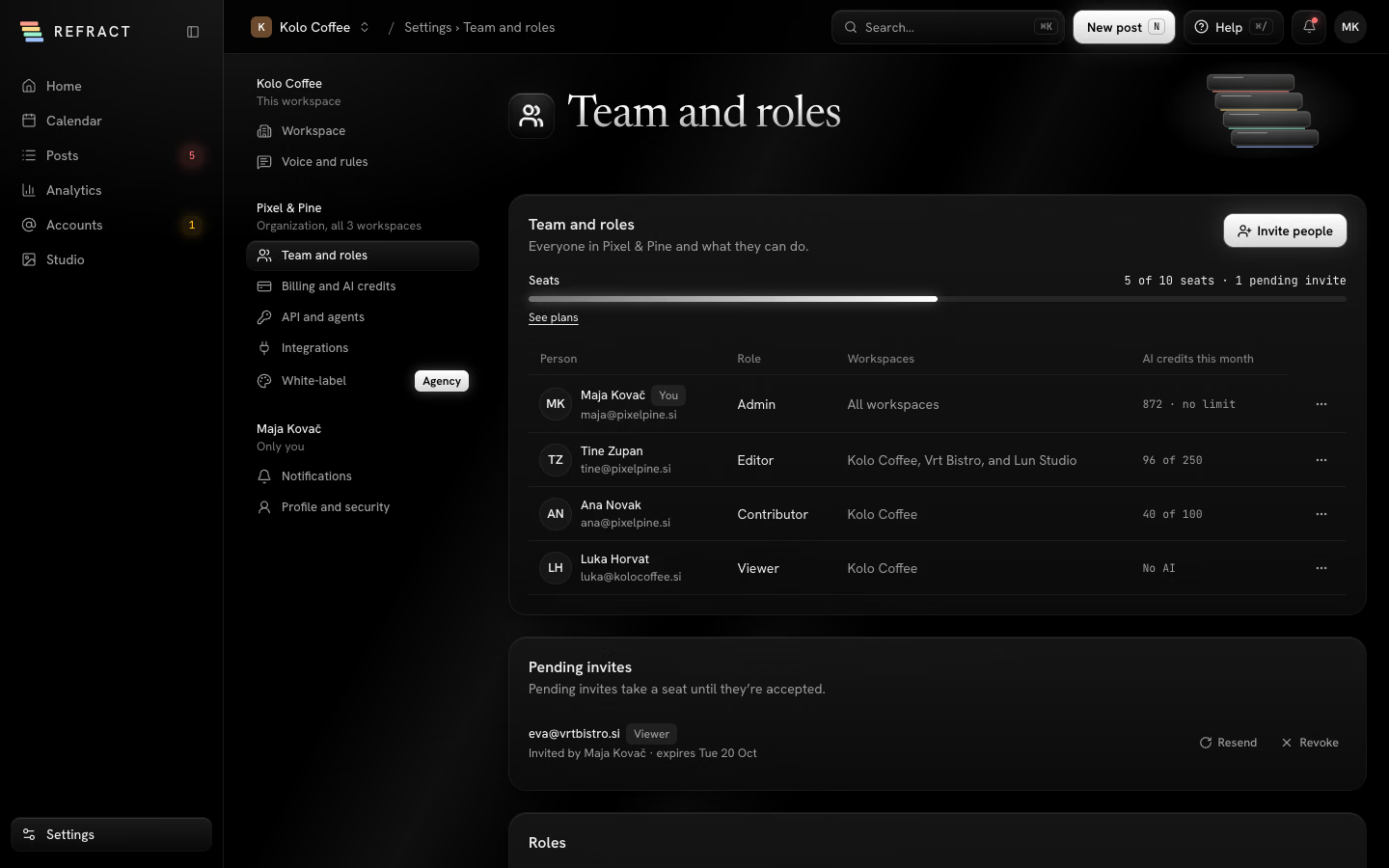
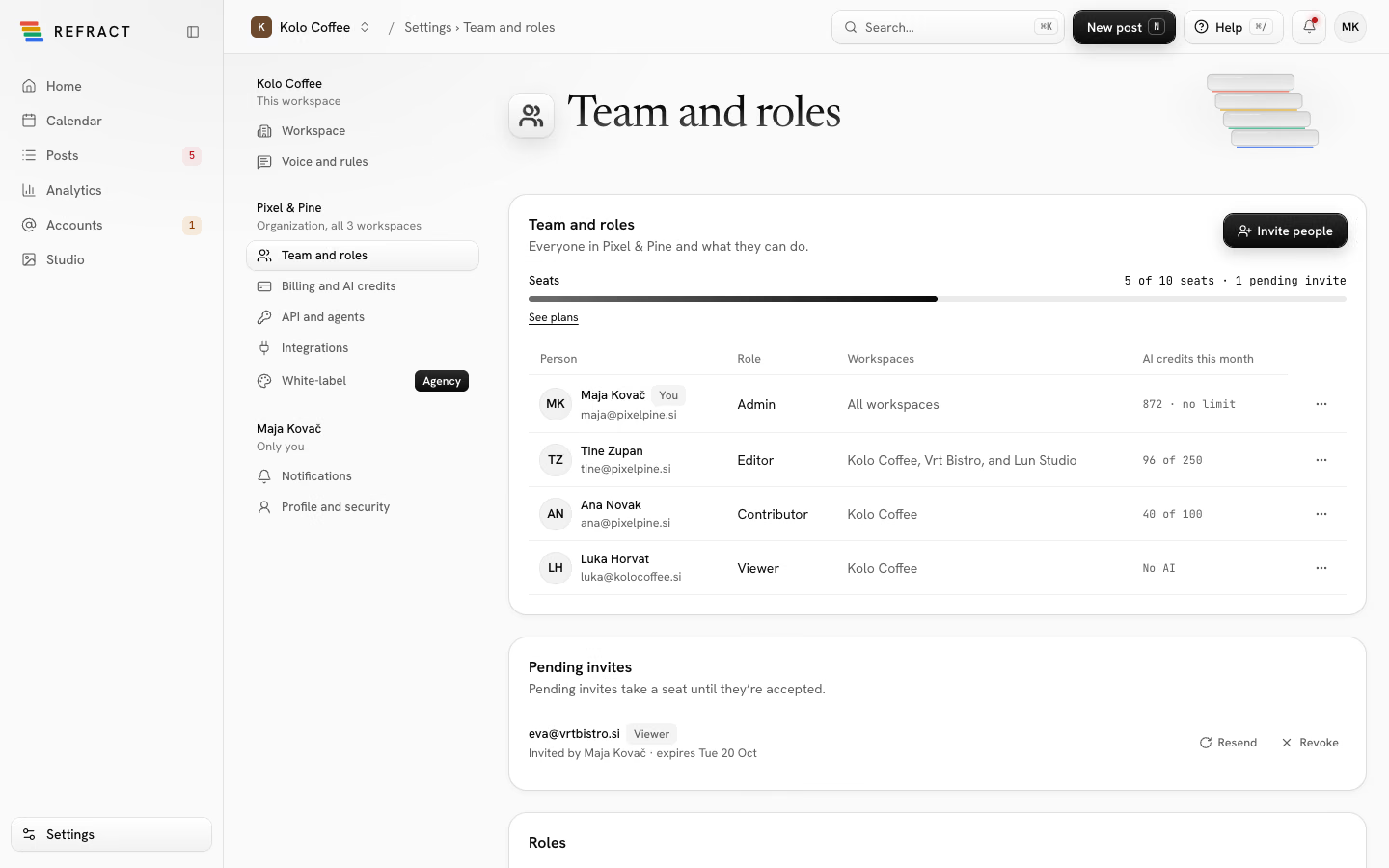
Invite people
- Go to Settings › Team and roles and click Invite people.
- Type one or more email addresses. Press Enter or a comma after each.
- Pick a Role and the Workspaces they can open.
- Set their Monthly AI credits (see below).
- Click Send invite.
Each person gets an email with a link to sign in or sign up with an email code and join. No password needed. Invites wait under Pending invites, where you can Resend or Revoke them.
Your plan includes a number of seats, shown as a meter at the top. Pending invites take a seat until they're accepted. Clients who only approve posts by link don't need a seat.
Only admins can invite people or change roles.
Change someone's role or access
- In the team list, open the person's Actions menu.
- Choose Change role and access….
- Pick their role, workspaces and monthly AI credits, then click Save.
To take someone off the team, choose Remove from team…. Their access ends right away on every device. Their drafts move to you; their scheduled posts and posts waiting for approval stay. You can Undo for a few seconds afterwards.
Give each person an AI credit allowance
AI features like writing versions and Assist use AI credits from your organization's monthly pool. You can cap how many each person uses:
- Under Monthly AI credits, pick an amount a month, or No AI to turn AI off for them.
- Admins see every workspace and have no credit limit.
- The AI credits this month column shows what each person has used so far.
An allowance is a cap, not credits set aside for that person: everyone draws from the same pool. So allowances may add up to more than your plan's monthly credits, for example when you also buy credits or not everyone uses theirs. When they do, Refract warns you that people may run out before the 1st. See Billing and AI credits.
Turn on approvals
Approvals start on the Business plan. On Creator, posts go out without waiting for anyone.
- Go to Settings › Workspace and find Approvals.
- Switch on the posts that should wait for an admin or editor:
- Posts from contributors. When it's off, contributors schedule their posts themselves, but they still can't publish right away.
- Posts from AI agents and tokens: Claude, other AI tools, API tokens and WordPress sites connected with the Refract plugin.
- Clients approve by link: posts can wait for a client's OK from a link.
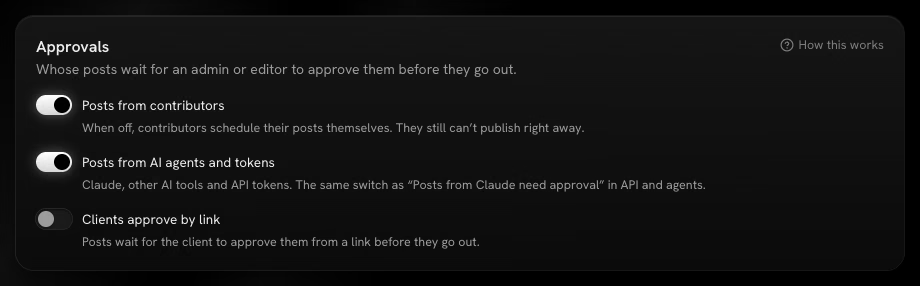
Admins and editors can change these switches. They apply to the workspace you're in, so each brand or client can have its own.
Send a post for approval
If your posts need approval, the composer's main button says Send for approval instead of scheduling.
- Write the post and pick a time, or let it take the next free time in the queue.
- Click Send for approval.
The post shows as Awaiting approval on the calendar and in Posts › Queue. Everyone who can approve gets a notification. If someone who can't approve changes the post while it's waiting, it goes back to draft and needs sending again.
Approve a post or ask for changes
Posts waiting for you appear on Home under Needs attention, marked Approval. You can also open the post from the calendar or Posts: its panel starts with Waiting for your approval, showing who asked and when.
- Read the post and check its time.
- Click Approve. It's scheduled for the time asked for.
- Or click Request changes, pick what needs to change (Text needs edits, Photo or video, Different time, Off brand), add a comment, and click Send back. The post goes back to its author as a draft.
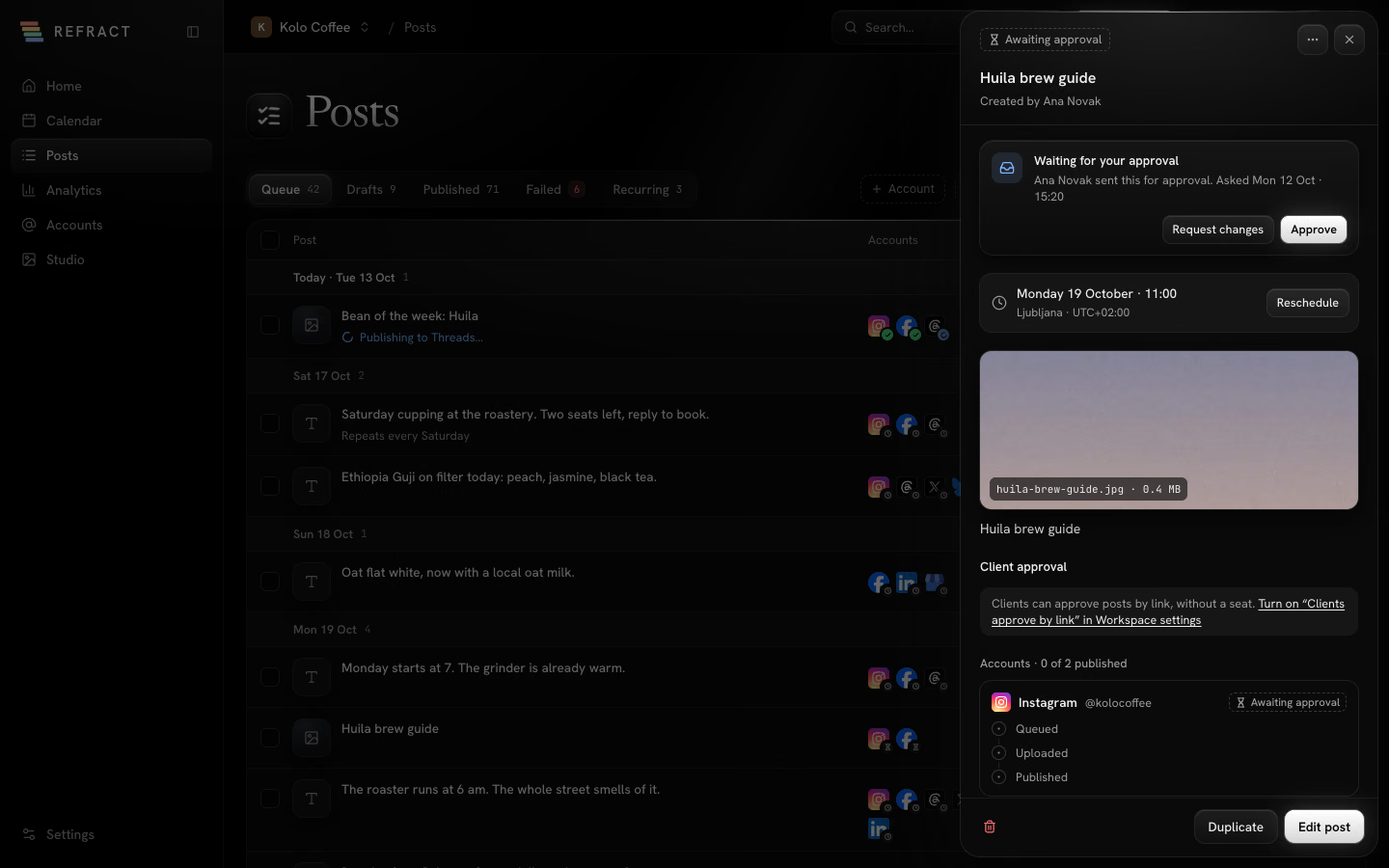
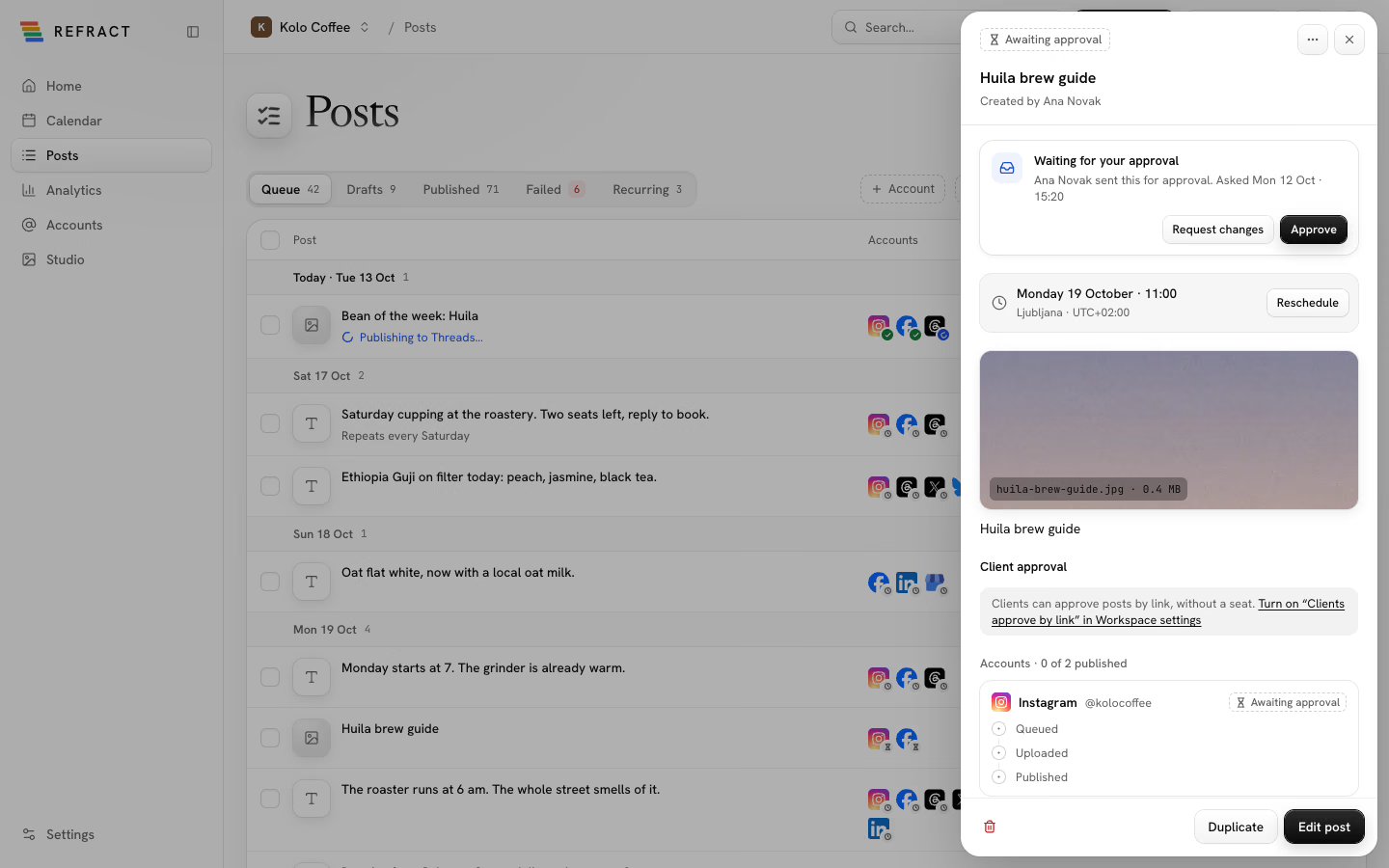
If the time asked for has passed, pick a new one, then approve. Editors and admins can also open the post, change it and schedule it themselves; that approves it too.
Get a client's approval by link
On Business and above, with Clients approve by link switched on, you can ask a client to approve a post without giving them an account.
- Open the post's details (click it on the calendar or in Posts).
- Under Client approval, click Send approval link.
- Fill in the Client's name, an Email (optional) and a Message (optional), and check When it goes out.
- Click Send link to email it, or leave the email empty and click Create link to copy it yourself. Copy it right away: it shows only once.
The post waits for your client and won't go out until they approve it. The panel shows Waiting for your client's name and how long the link works.
Your client sees the post as each network will show it, and chooses Approve or Request changes. Approving schedules it for that time. You get a notification either way.
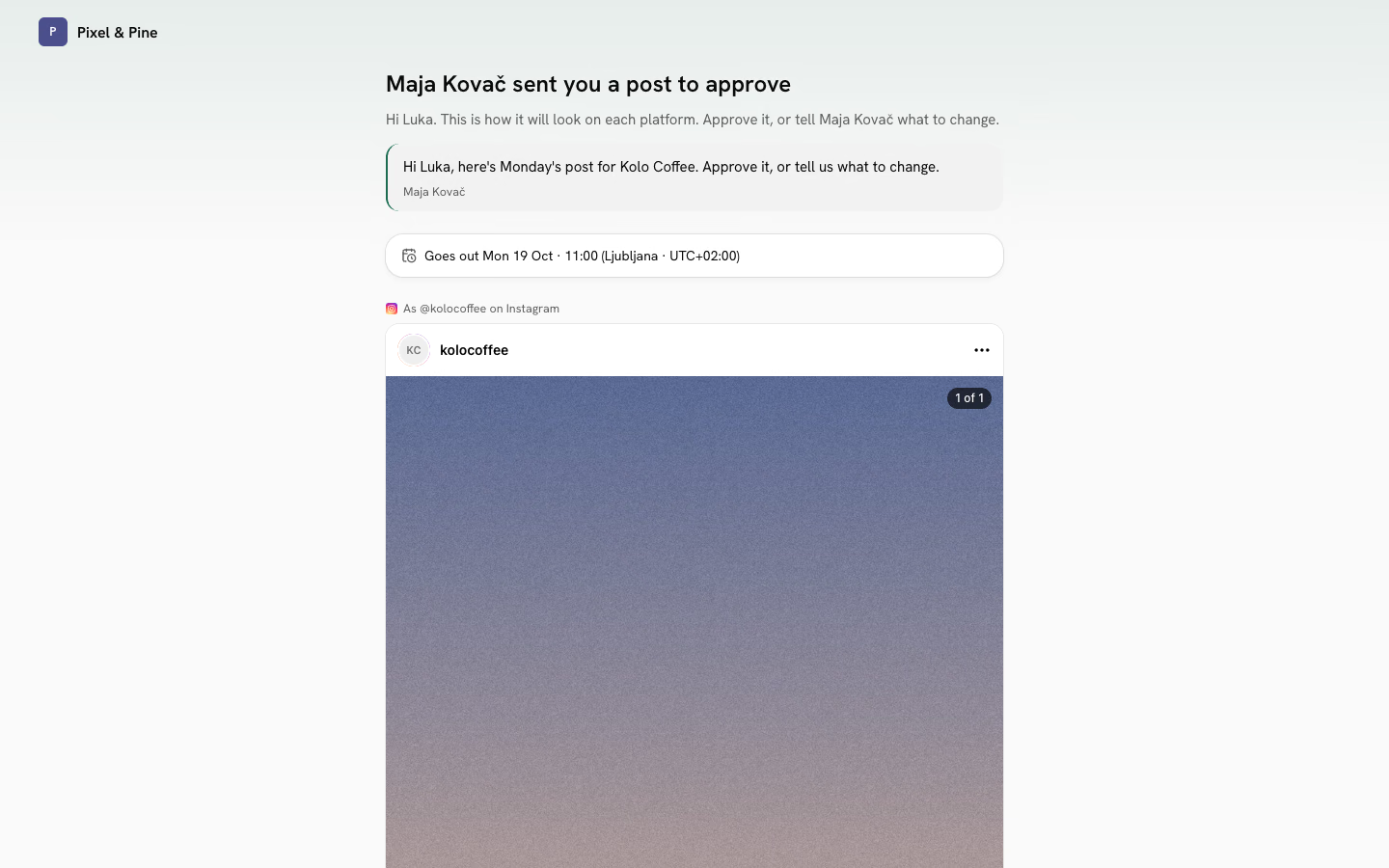
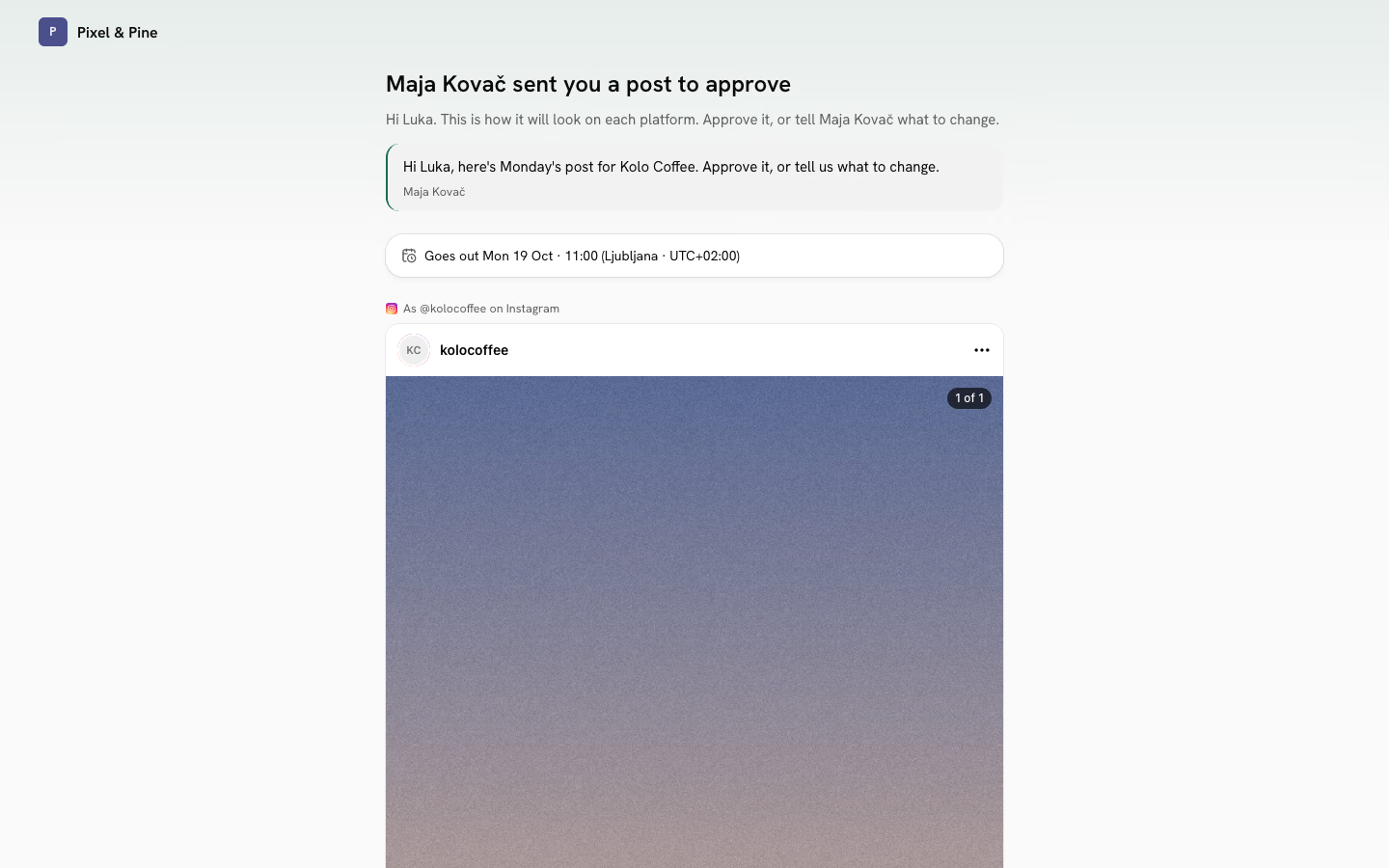
- If you change the post after sending the link, Resend it so your client sees the new version. The old link stops working.
- Revoke turns the link off. The post no longer waits for the client and goes back to where it was.
Work with clients as an agency
The Agency plans add tools for working with clients:
- Workspaces: give each client their own workspace, with its own accounts, voice, posting times and approval rules. Add one with New workspace in the workspace switcher, and switch between them there. See Getting started.
- Client connect links: let clients connect their own accounts without sharing passwords. See Accounts and networks.
- White-label: under Settings › White-label, set your Agency name, logo and colour, and optionally Hide “Powered by Refract”. Clients see your branding on connect pages, approval links and emails. You can also use Your own domain for client pages and send client emails from your own address.
Choose your notifications
The bell in the top bar collects failed posts, signed-out accounts and approvals. To get some of these outside Refract too:
- Go to Settings › Notifications.
- Under What reaches you, pick Email, Phone or Slack for each event: A post failed, Someone sent a post for approval, An account needs reconnecting, A client finished a connect link and A client decided on a post.
- Under Workspaces, tick the workspaces you want to hear from.
- Optionally set Quiet hours. During them, only the bell collects notifications, unless you keep Failed posts still come through on.
Slack notifications start once an admin connects Slack in Settings › Integrations.