Analytics
See how your posts are doing across every network in one place, find your best posts, and export the numbers.
Read the overview
Open Analytics in the sidebar. It covers the workspace you're in, and every number is compared with the period before (for example, the 30 days before the last 30).
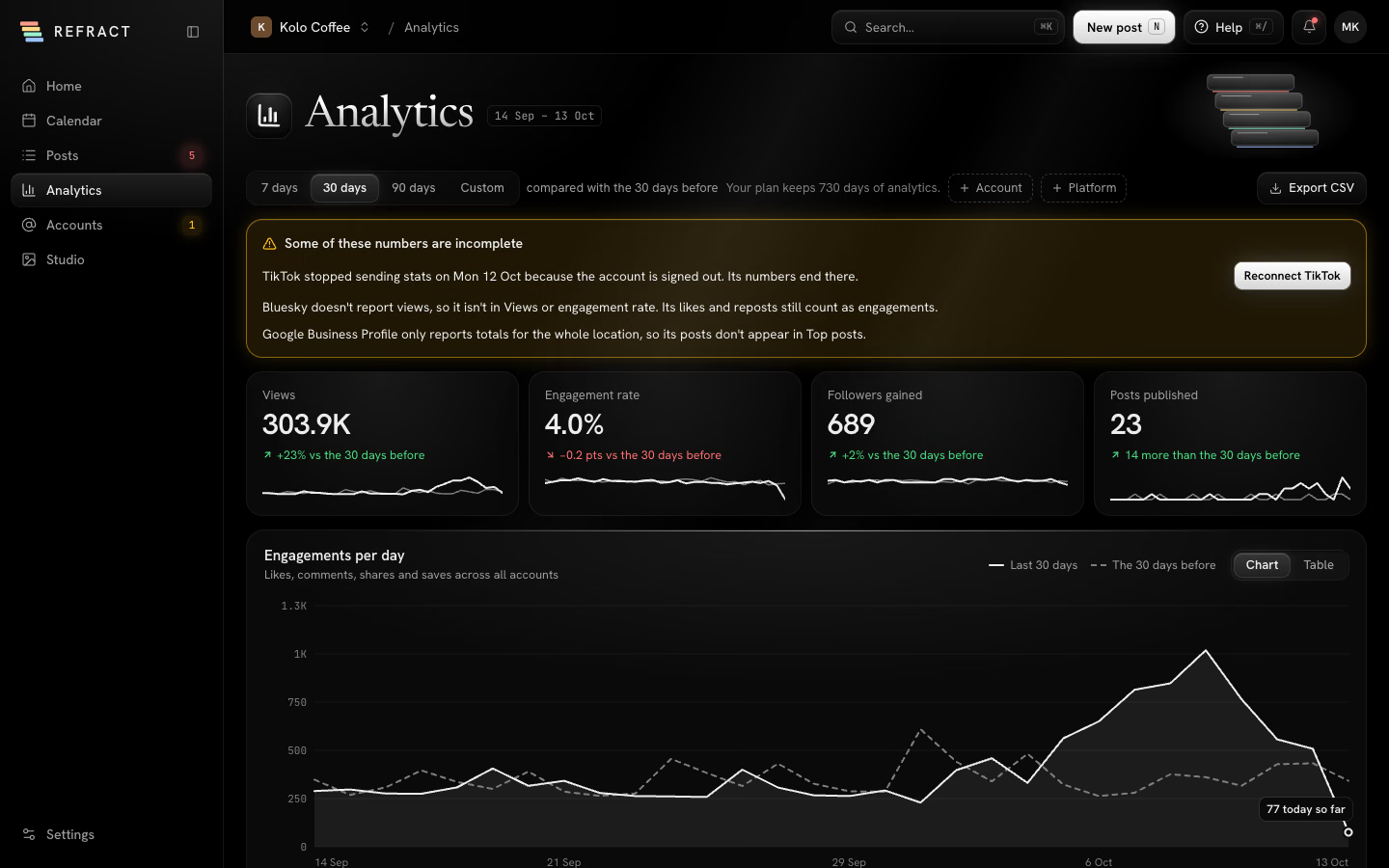
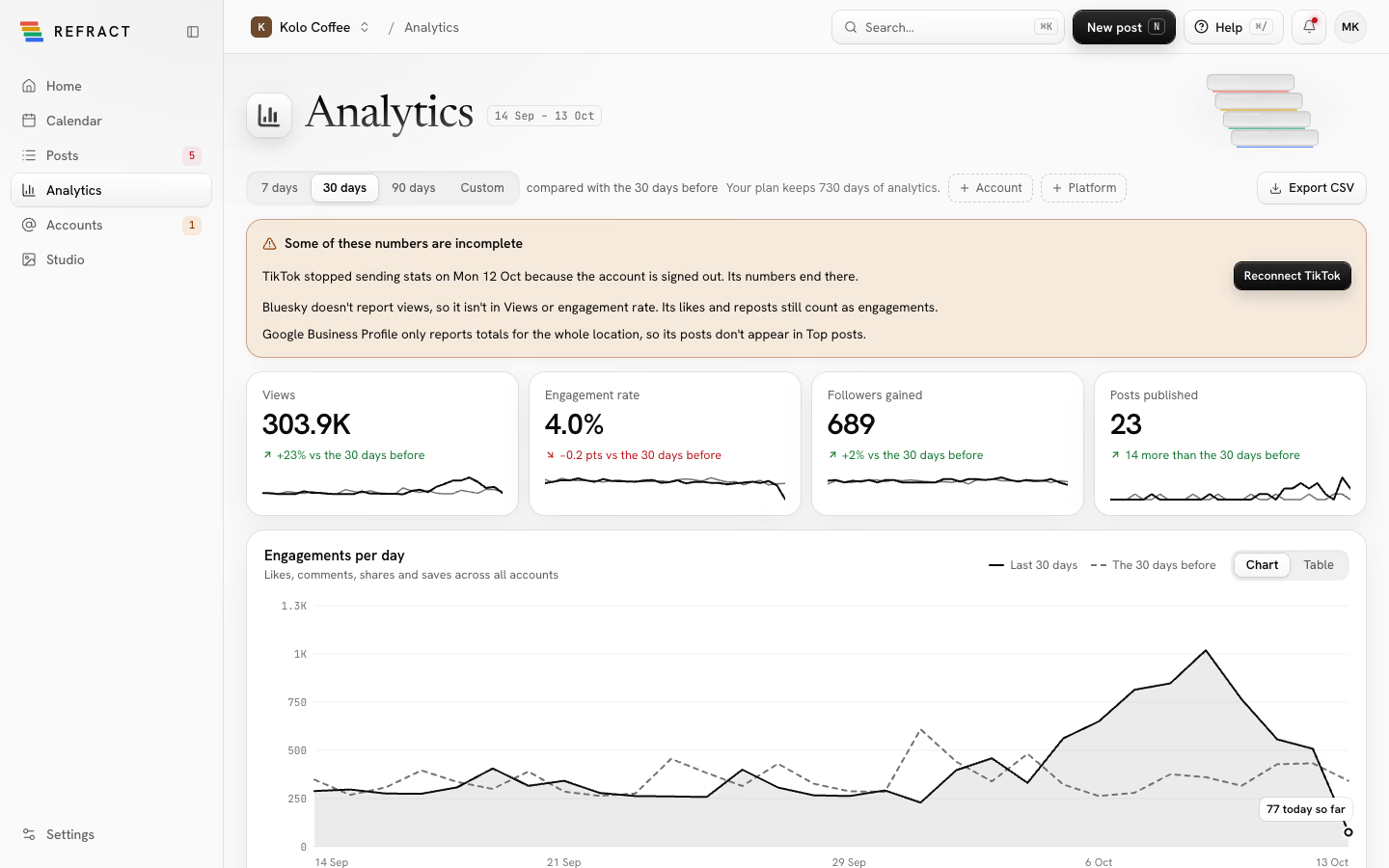
From top to bottom you'll find:
- Key numbers: Views, Engagement rate, Followers gained and Posts published, each with how much it changed. Click Show views day by day (or the matching link) under a number to see it as a table.
- Engagements per day: likes, comments, shares and saves across all accounts, with the period before for comparison. Switch between Chart and Table.
- By platform: views, share of views, engagements, rate, followers and posts for each network.
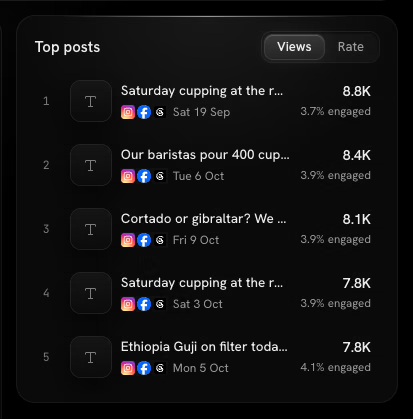
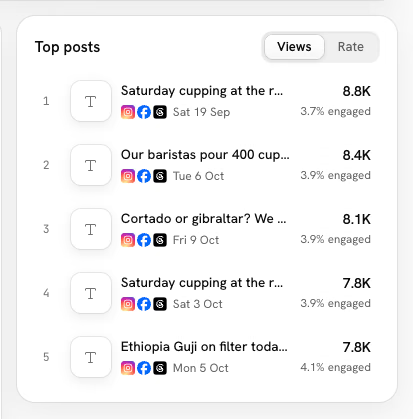
- Top posts: your best posts in the period.
Your numbers start showing about an hour after your first post goes out. Everyone on the team can see Analytics, viewers included.
Pick the dates and accounts
- Under Date range, pick 7 days, 30 days, 90 days or Custom. A custom range can be up to 366 days and must end today or earlier.
- How far back you can look depends on your plan: 90 days on Creator, 365 days on Business, and 2 years on Agency and Agency Plus. The page shows Your plan keeps … days of analytics, and the calendar doesn't offer earlier days. See Billing and AI credits.
- Use the Account and Platform filters to look at only some of them. Clear filters shows everything again.
See how one post did
- In Top posts, sort by Views or Rate.
- Click a post to open Post performance.
The panel shows the post's Views, Engagements, Rate and Link clicks, a chart of Views in the first 7 days, and By account: each network's own numbers under its own names (for example, Instagram's Accounts reached and Saves, or Pinterest's Outbound clicks).
- Open post opens it on the network.
- Post it again makes a copy you can schedule. See Calendar and posts.
You can also see a post's stats in its detail panel on the calendar or in Posts. Stats arrive within an hour of posting. If a post is deleted on the network, Analytics keeps its numbers up to then and says when it was deleted.
What each network reports
Not every network shares every number. A dash (—) means the network doesn't report it; it never means zero. What each platform reports on the Analytics page shows which numbers come from where.
- Bluesky and Mastodon don't report views, so they aren't in Views or Engagement rate. Their likes, reposts, favourites and boosts still count as engagements.
- Telegram doesn't report views or engagements for channel posts, so it only counts in Followers.
- Google Business Profile only reports totals for the whole location. Its views aren't in the total, and its posts don't appear in Top posts.
- WordPress doesn't share numbers, so Analytics says WordPress doesn't share numbers in its row, its post cards and the post detail panel, never zero. Its posts still count in Posts published.
- LinkedIn and Pinterest call views Impressions.
- Tumblr doesn't report views. A post's notes (likes, reblogs and replies together) count as engagements, and your blog's followers count in Followers.
- Pixelfed doesn't report views. Likes, boosts and replies count as engagements, and your account's followers count in Followers.
- DEV reports each article's views, and its reactions and comments as engagements. An article you unpublished has no numbers.
- Discord doesn't share numbers, so Analytics says Discord doesn't share numbers, never zero. Its posts still count in Posts published.
- Slack doesn't share numbers, so Analytics says Slack doesn't share numbers, never zero. Its posts still count in Posts published.
When numbers are missing
If a network didn't send stats for some days, or an account signed out, a box at the top says Some of these numbers are incomplete and lists what's missing. For a signed-out account, click Reconnect with the network's name (for example Reconnect Instagram) to start getting numbers again. See Accounts and networks.
Export the numbers
Click Export CSV to download every number on the page, one row per day and network, for this period and the period before. The export follows the date range and filters you've picked.