Notes and versions
Write the point of a post once, and Refract writes a version for each account in your voice. This page shows you how to write a note, review the versions and approve them.
When to start from a note
Start from a note when one message goes to several networks and each needs its own wording: a short line for X, a few paragraphs for LinkedIn, hashtags for Instagram. If you'd rather write the exact words yourself, start from A finished post instead (see Writing posts).
Nothing written from a note posts until someone approves it.
Write a note
- Select New post and pick your accounts under Post to.
- Under Start from, select A note.
- Fill in Your note. Plain words are fine:
- The point: one sentence.
- One detail: an example or a fact.
- What to do: a link, an offer or the next step.
- Check What Refract writes: one line per network, with the rules it will follow. Your main channel comes first, written with the most care.
- Select Write 5 versions (the number matches your networks). With no account picked, the button reads Write versions and is greyed out: select Pick an account above first next to it to jump to Post to.
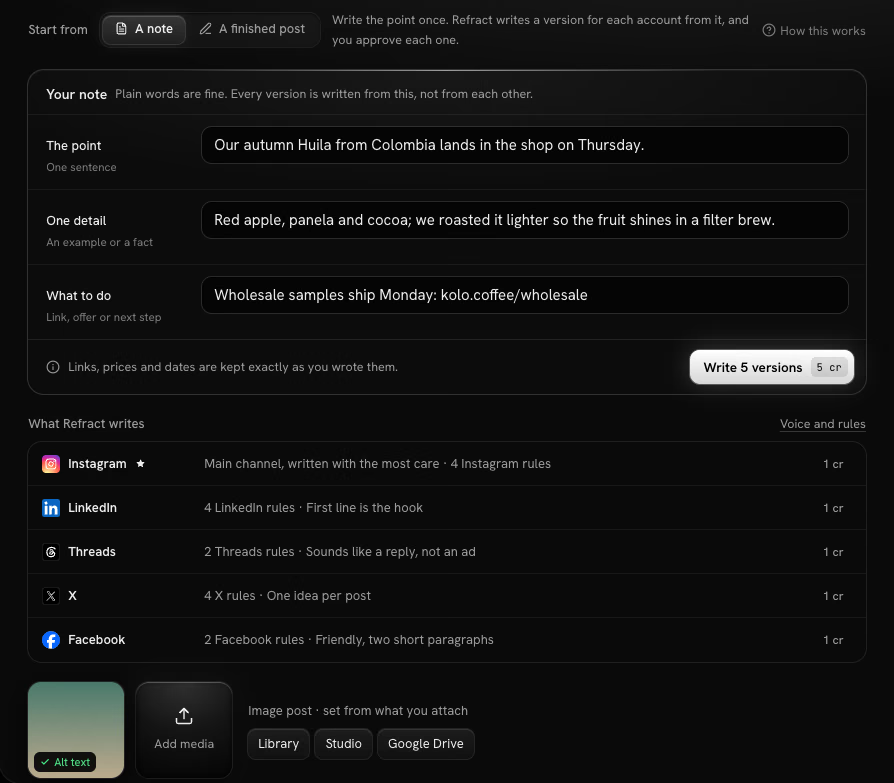
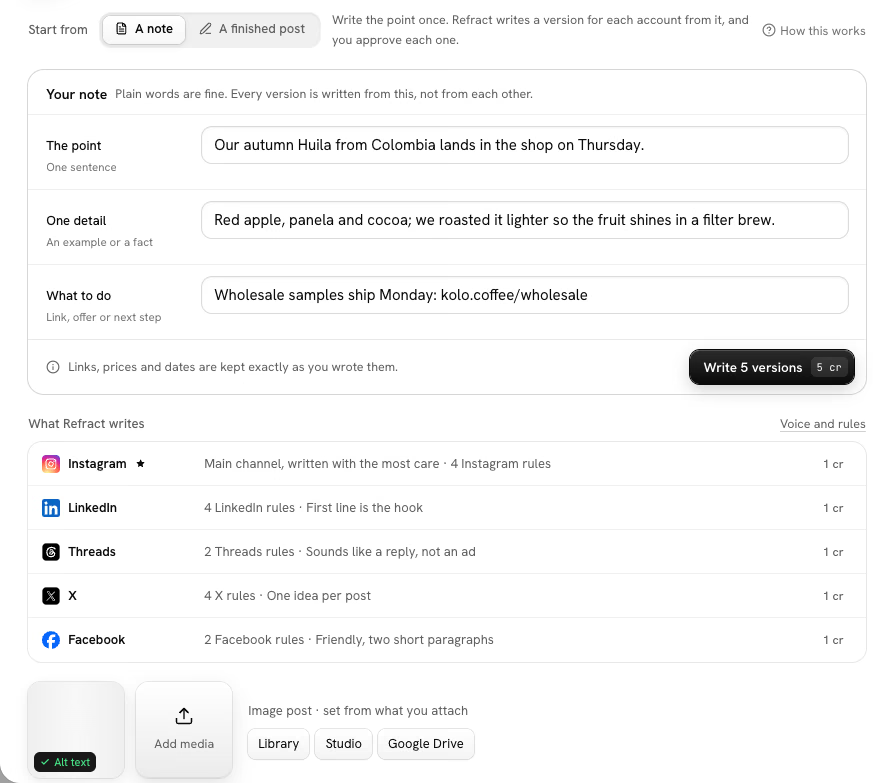
Links, prices and dates are kept exactly as you wrote them. Every version is written from the note, not from each other.
Tip: To change what the versions sound like, select Voice and rules in What Refract writes, or see Voice and rules.
Credits
Each version costs 1 credit, so a note for four networks costs 4 credits. The button shows the cost before you start, and the versions list shows how many credits were used and how many are left. If a version can't be written, its credit comes back. If your organization uses its own AI key, versions cost no credits. See Billing and AI credits.
Review the versions
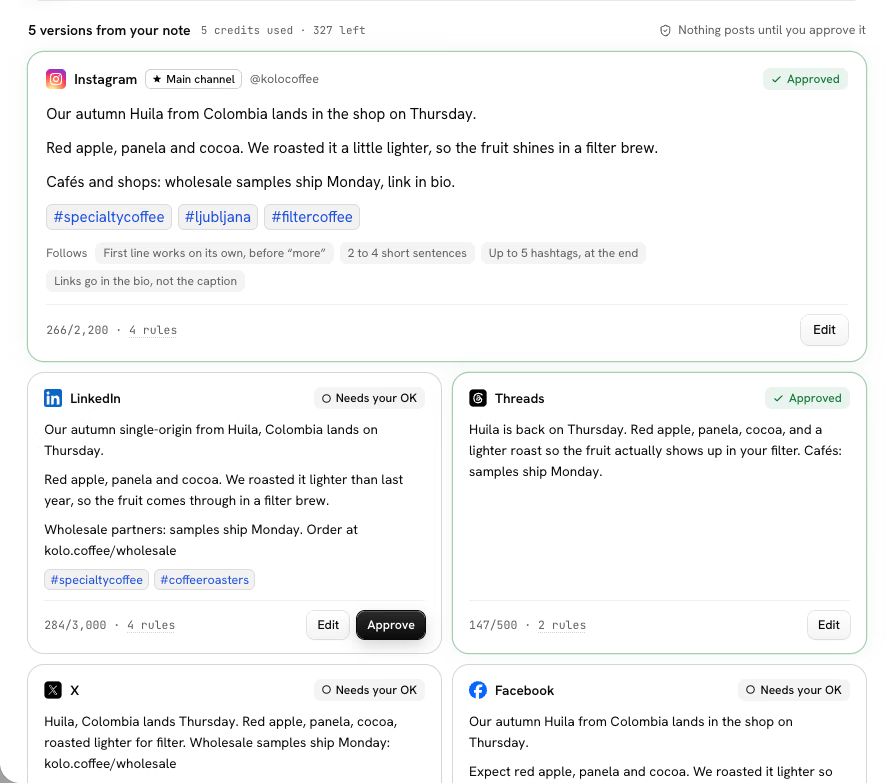
Each version appears as a card, showing the rules it Follows. Your main channel's card comes first, marked Main channel. Select a card to see it in the preview.
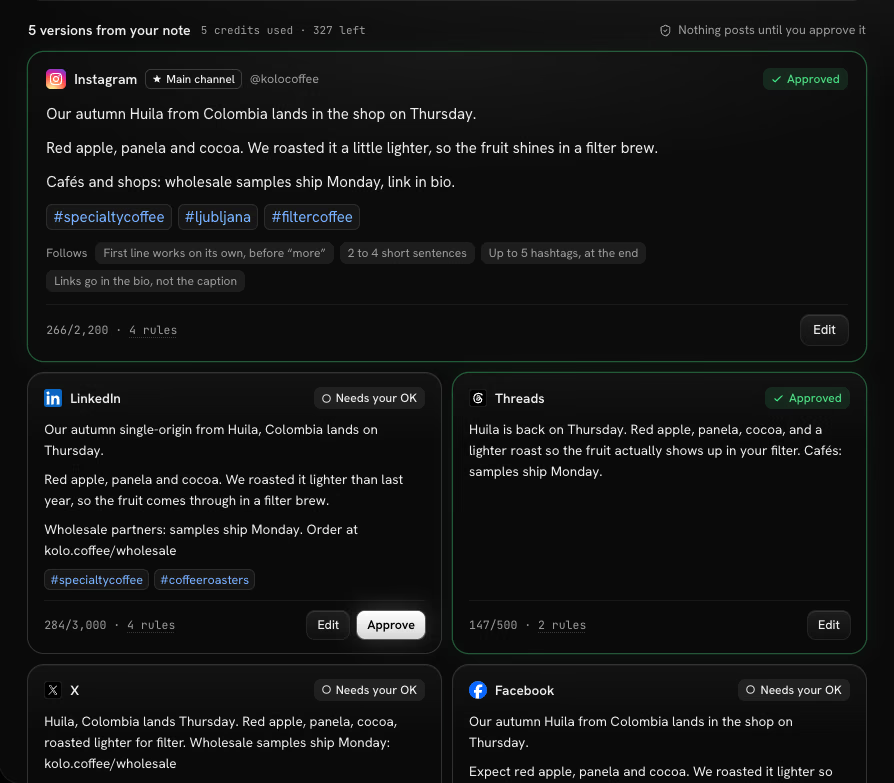
Each card has a status:
| Status | What it means |
|---|---|
| Writing… | Refract is writing it. |
| Needs your OK | Written; approve it or edit it. |
| Approved | Ready to go. |
| Edited by you | You changed it, which counts as approving it. |
| Edited by you · check it | You changed it, then the note changed. Check it still fits. |
| From the old note | Written before you changed the note. |
| Couldn't write this one | Something went wrong. Select Try again; your credit is back. |
Approve a version
Select Approve on a card. To approve every version still waiting, select Approve 3 left above the cards.
Your main channel's version gets the closest look, so read it carefully before you approve it.
Edit a version
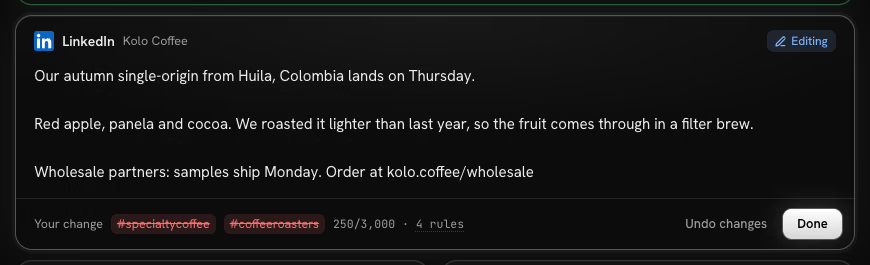
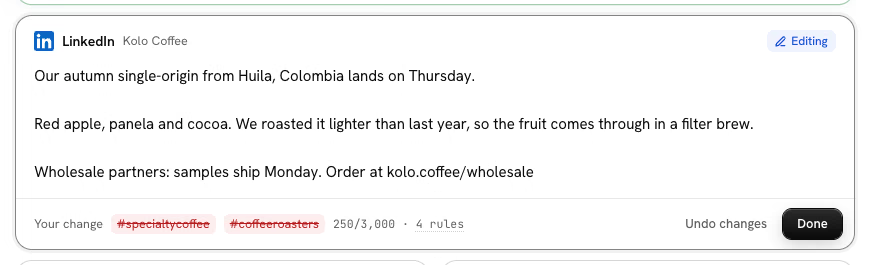
- Select Edit on a card.
- Change the text. Under it, Your change shows what you added or removed.
- Select Done, or Undo changes to go back to what Refract wrote.
Write versions again
Not happy with what Refract wrote? Select Write 3 again. It writes the versions you haven't approved or edited, and costs 1 credit each. To change every version, change the note instead.
Change the note
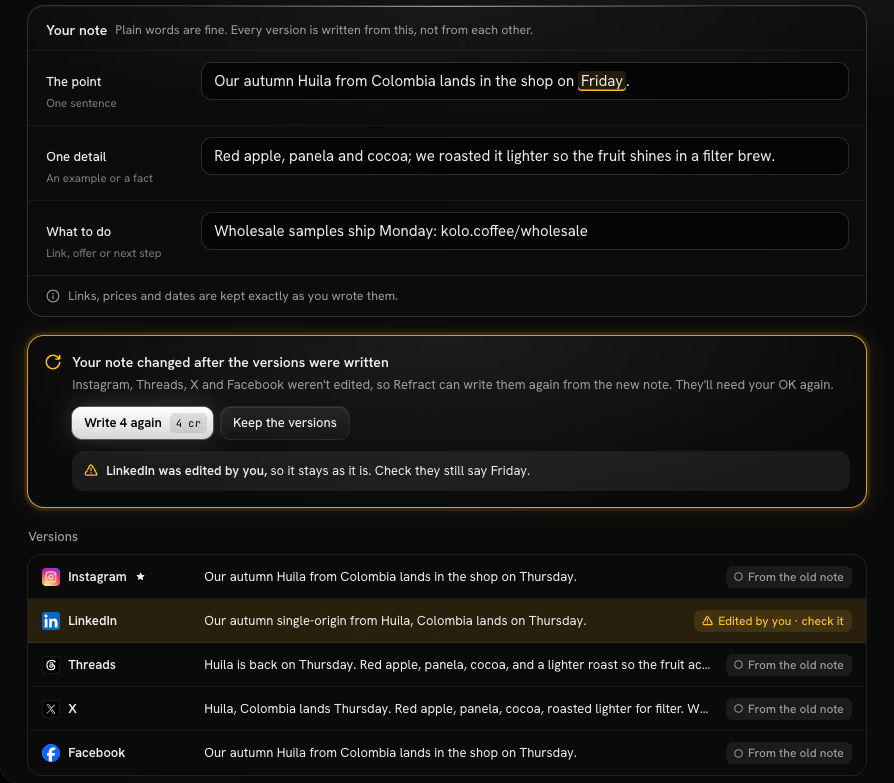
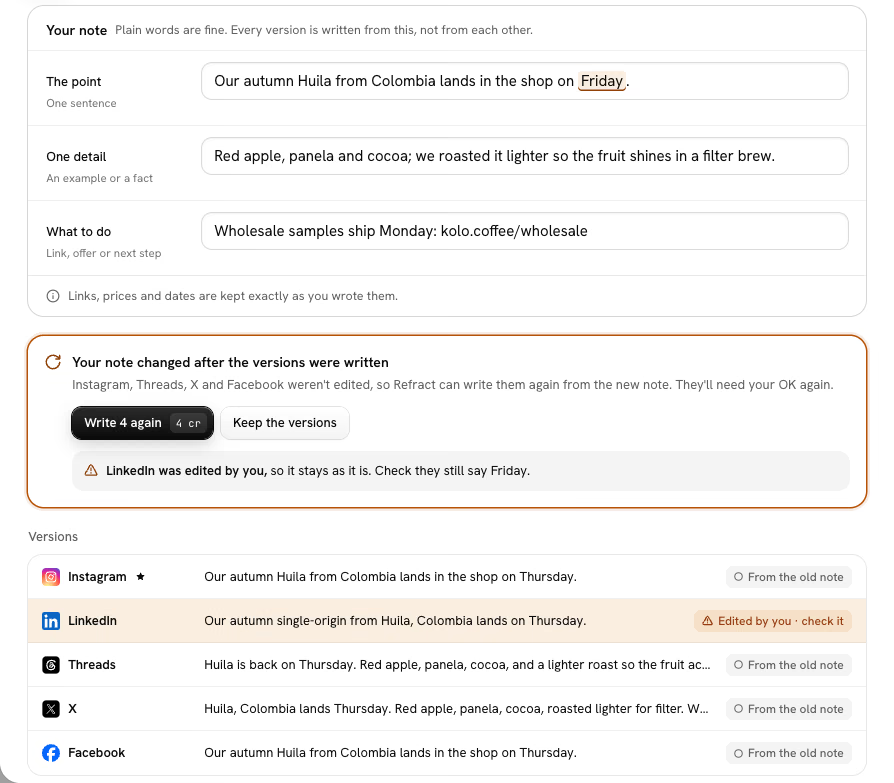
Select Edit note to change it after the versions are written. Refract then shows Your note changed after the versions were written, and lets you choose:
- Write 3 again (the number of versions it rewrites): writes the versions you didn't edit from the new note, at 1 credit each. They'll need your OK again.
- Keep the versions: keeps them as they are. Check that they still match the new note.
Versions you edited yourself stay as they are, marked Edited by you · check it.
Turn your edits into rules
When you make the same change to a network's versions 3 times, for example taking the hashtags out of LinkedIn, Refract offers a rule under the card:
- Save rule: that network's versions follow it from now on.
- Not now: Refract asks again only if it keeps happening.
- Don't suggest this: Refract won't suggest this rule for that network again.
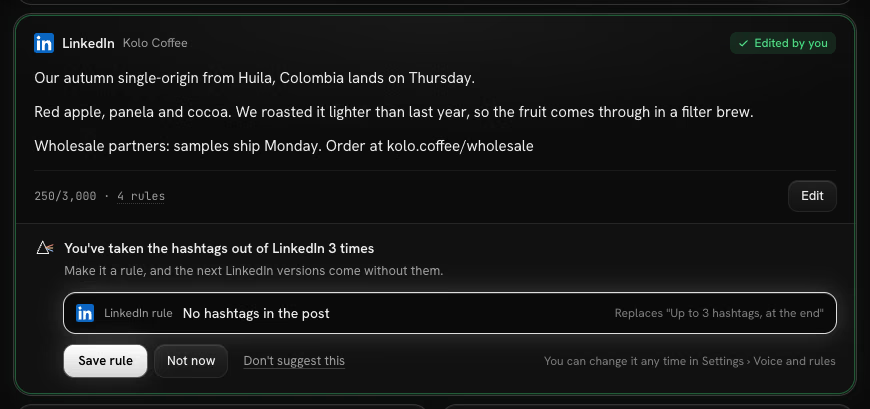
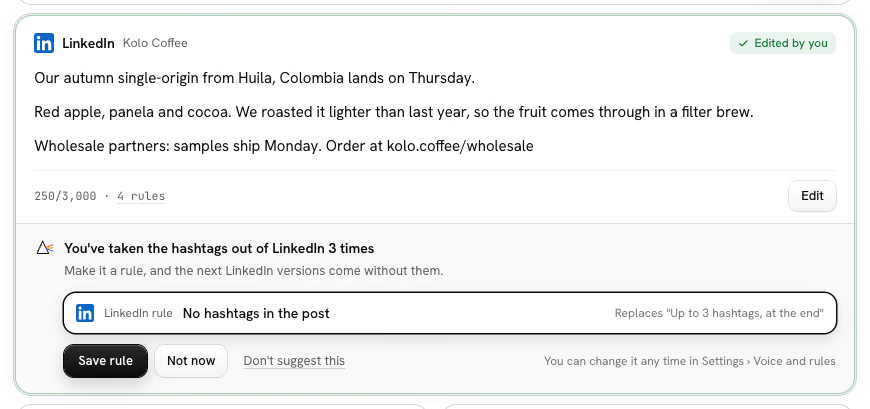
You can undo any of these from the message that appears, and change the rules any time in Settings › Voice and rules. Only editors and admins see suggestions. See Voice and rules.
Send the versions
The Checks on the right show which versions need your OK, which are approved and which break a rule (too long, too many hashtags, a missing link, one of your words to avoid). Select Review to jump to the ones that need you.
When every version is written, choose when it goes out (see Writing posts) and select Approve all and add to queue. This approves every version still waiting and sends them. The button follows your choice: Approve all and schedule, Approve all and schedule series or Approve all and publish now.
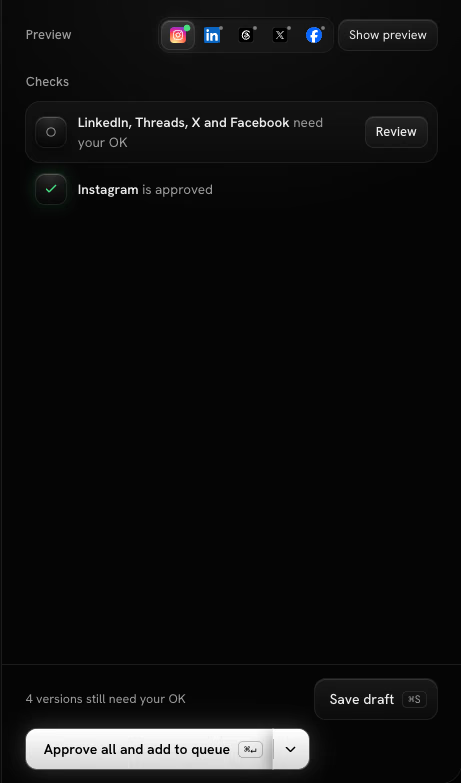
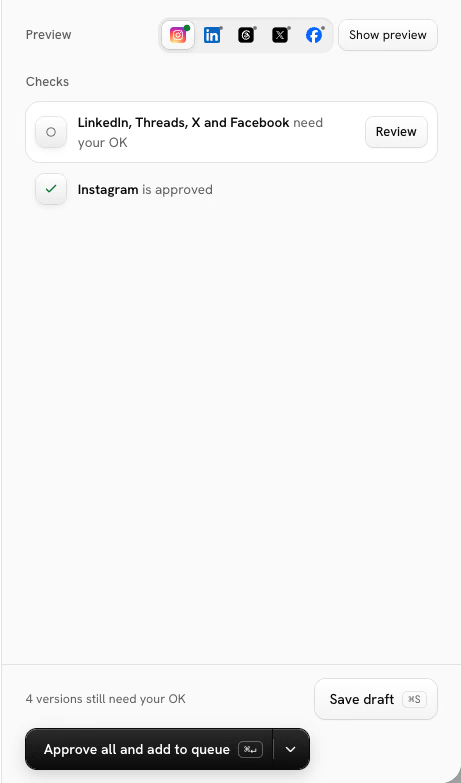
If the button is greyed out, it tells you why, such as Write the versions first or Finish editing LinkedIn first.
If you're a contributor and your workspace asks for approval, you send the versions for approval instead. The approver sees each version's status. See Team and approvals.
Switch between a note and a finished post
You can change Start from at any time:
- From A note to A finished post: your main channel's version becomes the main text, and every other version stays as that network's own text in its tab. If nothing was written yet, the note's three fields become the main text.
- From A finished post to A note: if you already wrote your own text for a network's tab, Refract asks Replace your Instagram text with a new version? when it writes the versions. Select Replace, or Keep my text to keep yours for that network.
Blog posts from WordPress
With a WordPress site connected (see Accounts and networks), the blog posts you publish come to Refract as notes, so you can bring readers back from social. In Refract › Settings on your site, choose under Send posts to Refract whether that happens When a post is published or Only when I choose, from the editor (with Send to Refract in the post's Refract panel).
Each blog post becomes a draft started from a note, with a version for each network you picked. The composer and the post's panel show From your blog and the post's title, linking to it. Refract fills in the note from the post: its main point, a detail from it, and Read it: with the link as What to do. Like every note, nothing goes out until the versions are approved.
- Credits: 1 per version, as in the composer, or none with your own AI key. Pick The same post for every account, with the link (free) under What Refract writes to skip the versions. If credits run out, a post sent on publish goes as the same post for every account instead, and the post's Refract panel says so. When you send one yourself, it offers Buy credits or the free option.
- Images: Refract downloads the post's images into your library and crops them for each network. If a network can't take every file, the ones that fit it best go to it, and the others are left off that network only. Also make new images when none fit makes one in Studio, for credits, and it goes only to the network it was made for. The images leave the library when you delete the post, unless another post uses them.
- When the blog post changes: with Update the note in Refract on, Refract updates the note and writes again the versions you didn't edit. They need your OK again, even if the post was already scheduled. Once the post has gone out, the note doesn't change.
- WordPress versions get a title of up to 60 characters and 2 to 4 short paragraphs, with the link.
Approve in WordPress
You can approve in Refract or right in the WordPress editor. The post's Refract panel lists each version with its checks:
- Approve approves one version.
- Approve all and add to queue approves every version that passes its checks and adds the post to the queue. Networks that a check blocks stay behind as a new draft.
- Send for approval shows instead when you can't publish, or the workspace asks for approval from AI agents and tokens. It names who can approve.
- Edit in Refract opens the post in the composer.