Voice and rules
Voice and rules tell Refract how to write for your workspace. Every version written from a note follows them. This page shows you how to set them up and keep them up to date.
You'll find them in Settings › Voice and rules. Each workspace has its own.
Who can change them
Admins and editors can change voice and rules. Everyone else can look but not change anything; the page says Only editors can change voice and rules.
Pick your main channel
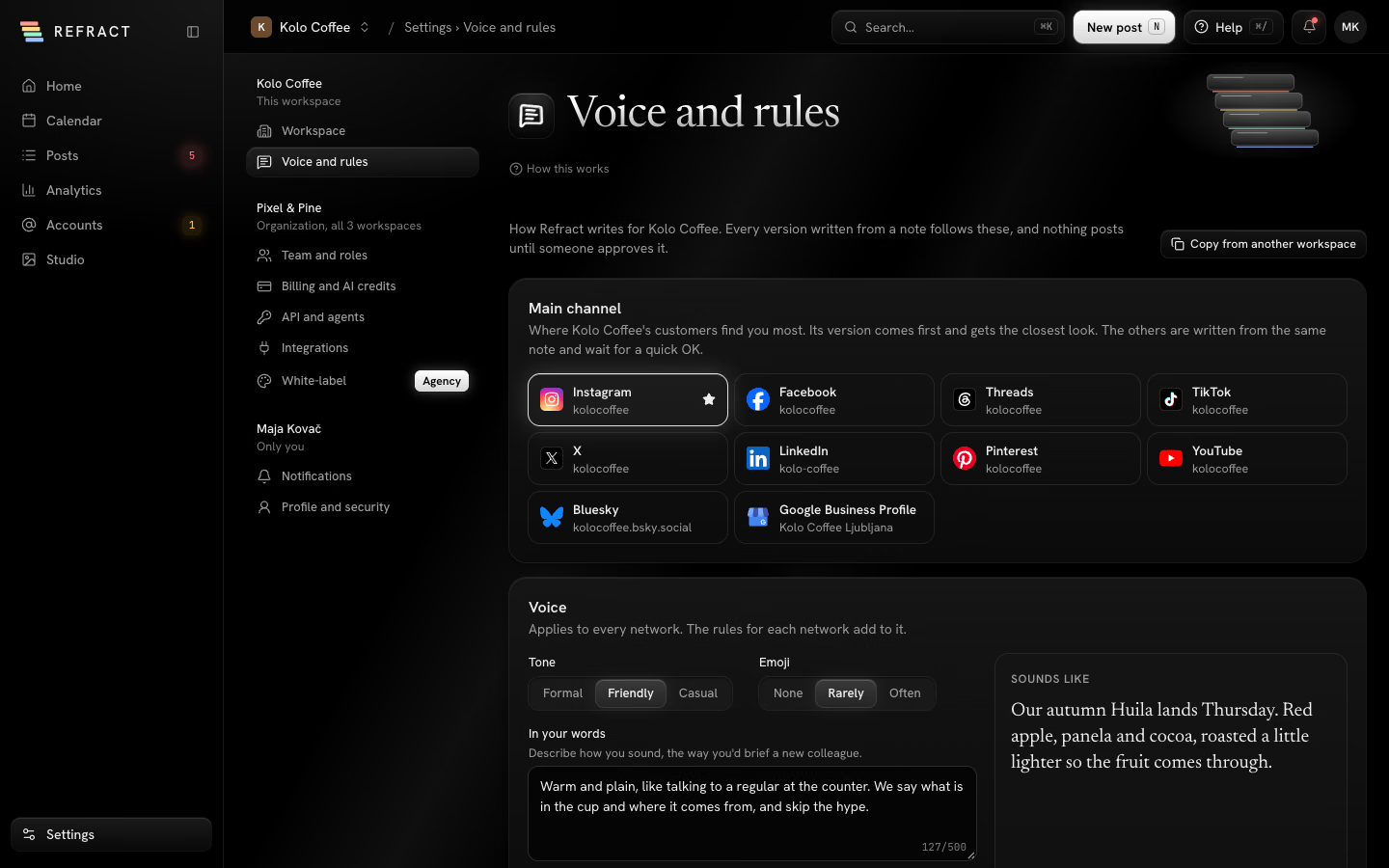
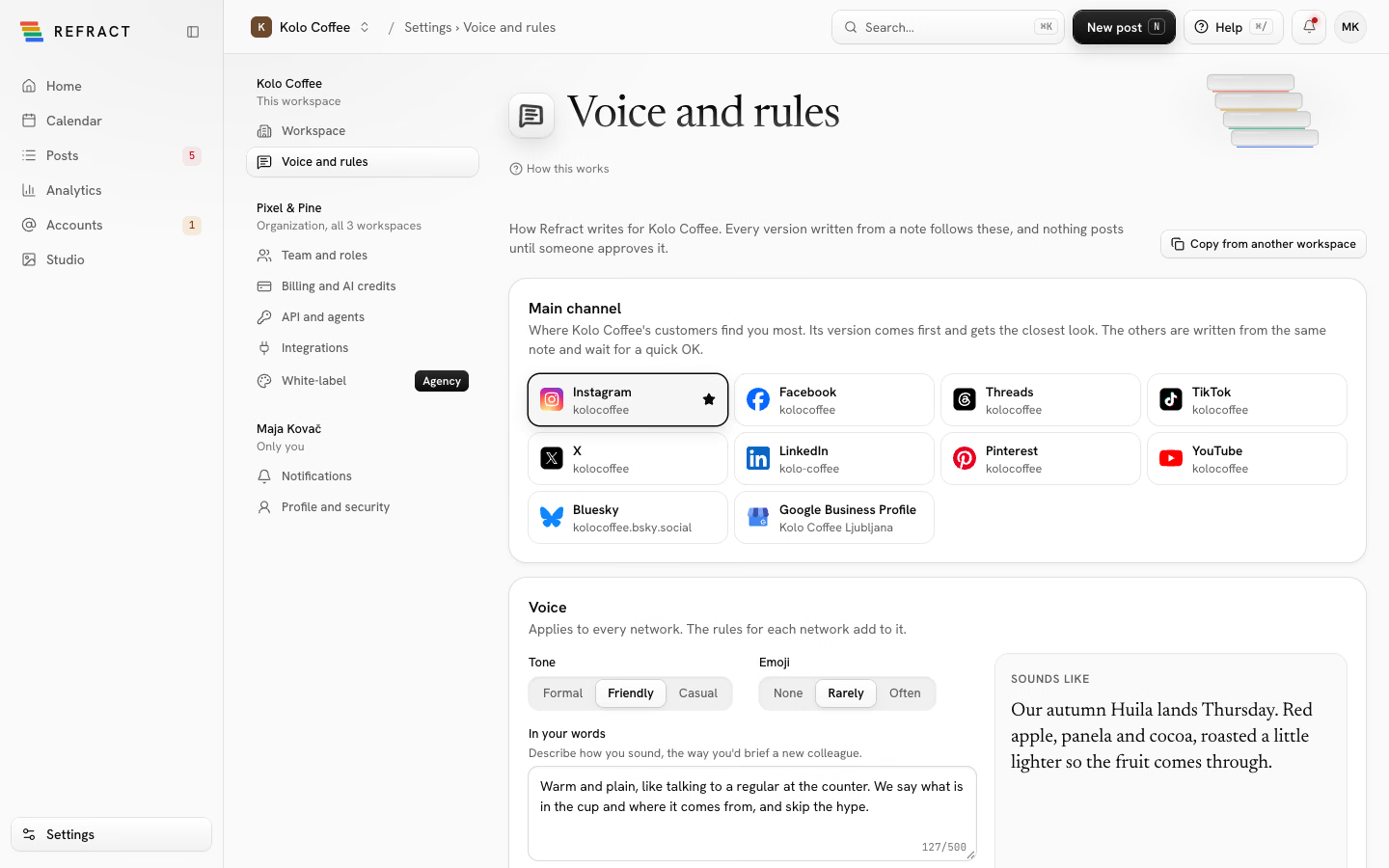
The Main channel is where your customers find you most. Its version comes first in the composer and gets the closest look; the others are written from the same note and wait for a quick OK.
Pick one of your connected accounts under Main channel. This is the only place to set it. The Voice and rules item in an account's ⋯ menu on the Accounts page opens this page (see The account's menu).
Set your voice
Your Voice applies to every network. The rules for each network add to it.
- Tone: Formal, Friendly or Casual.
- Emoji: None, Rarely or Often.
- In your words: describe how you sound, the way you'd brief a new colleague.
- Words to avoid: select Add a word for each word Refract should never use. Remove one with its ×.
Your changes save as you make them.
Sounds like shows a line in your voice so you can check it sounds right: a line from your last main channel post, rewritten, or an example if there isn't one yet.
Rules for each network
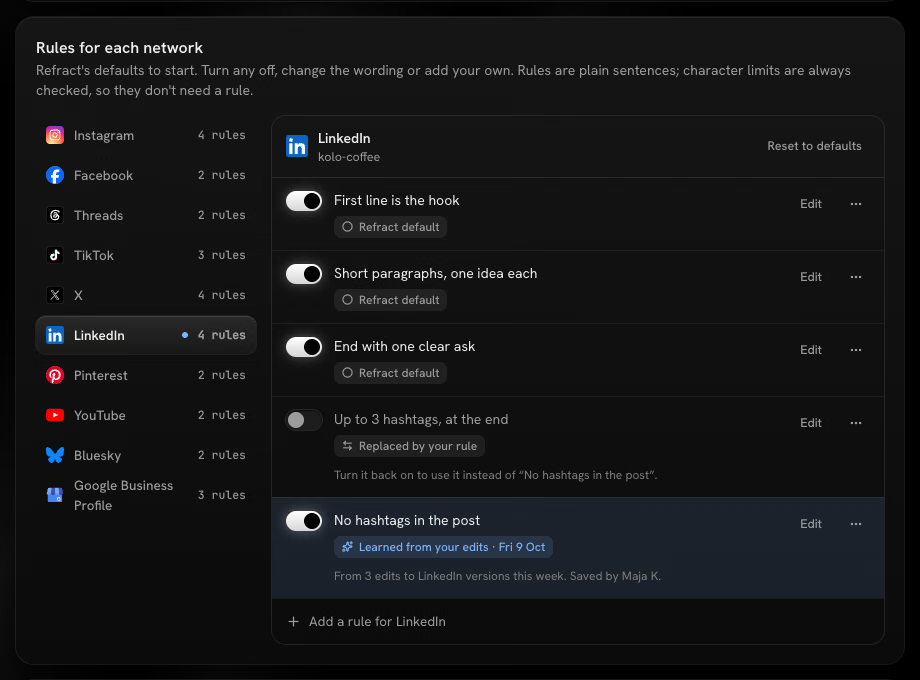
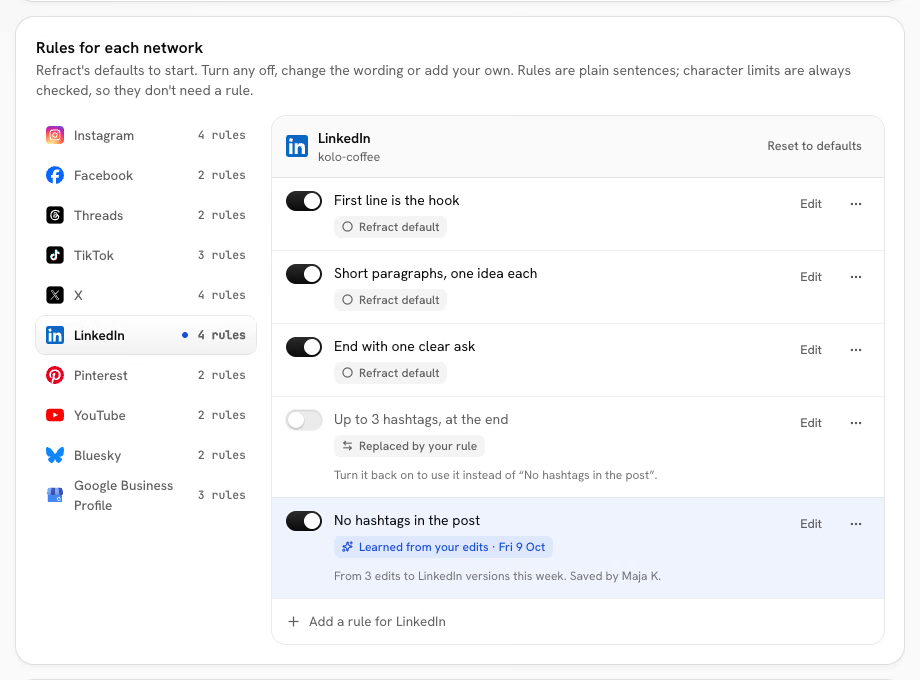
Each network starts with Refract's defaults, such as "Up to 5 hashtags, at the end" for Instagram or "No hashtags" for X. You don't need a rule for character limits; those are always checked.
Select a network under Rules for each network to see its rules. Each rule has a chip saying where it came from: Refract default, Learned from your edits, or added or edited by someone on your team.
Change a rule
- Turn a rule off: use its switch. Turn it on again any time.
- Change the wording: select Edit, change the text, then select Save.
- Change the order or delete a rule: open More for this rule and select Move up, Move down or Delete. Refract's defaults can't be deleted, only turned off.
Add a rule
- Select Add a rule for Instagram (or the network you're on).
- Write it the way you'd tell a colleague, in a plain sentence.
- To use the same rule elsewhere, tick the networks under Also use it on.
- Select Add rule.
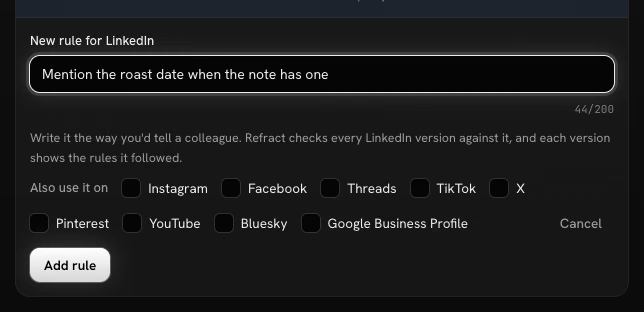
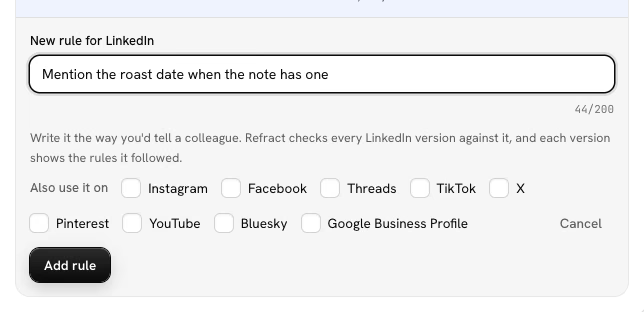
Refract checks every version for that network against the rule, and each version shows the rules it followed.
Reset to defaults
Select Reset to defaults to put a network's rules back to Refract's defaults. Changed your mind? Select Undo in the message that appears, straight away.
Learn from your edits
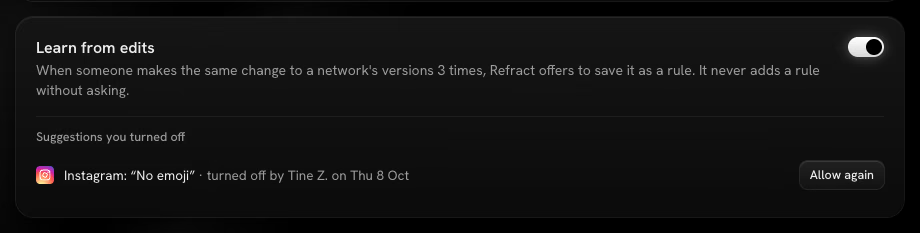
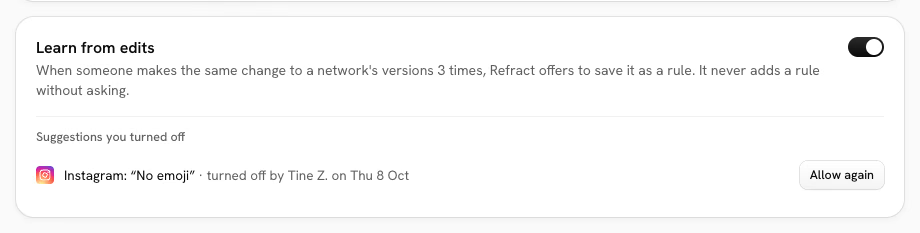
When someone makes the same change to a network's versions 3 times, Refract offers to save it as a rule, right under the version card (see Notes and versions). It never adds a rule without asking:
- Save rule: that network's versions follow it from now on. It shows here as Learned from your edits.
- Not now: Refract asks again only if it keeps happening.
- Don't suggest this: Refract won't suggest it for that network again.
In the Learn from edits card you can:
- Switch Suggest rules from edits off to stop suggestions for this workspace.
- See the Suggestions you turned off, and select Allow again on one to let Refract suggest it again if the edits keep happening.
Copy from another workspace
To start from a voice you've already set up:
- Select Copy from another workspace at the top of the page.
- Pick the Workspace to copy from.
- Check What changes: the voice, the words to avoid and the number of rules for each network. The main channel stays as it is.
- Select Replace voice and rules.
You can copy from any other workspace in your organization that you can edit.
Next: put your voice to work by starting a post from a note.