Troubleshooting and FAQ
Answers to the problems people run into most, with what to do about each. If something here doesn't match what you see, the linked guide has more detail.
A post failed
When a post can't go out, Refract tries again up to 3 times for short outages, then marks it failed. You hear about it in the bell, and in email if you've turned that on. Failed posts are listed under Posts › Failed, and the sidebar shows how many there are.
Open the post to see the reason in plain words and a button that fixes it. Not sure what happened? Select Ask Help next to the post: Help checks its publish log and files and tells you what to do (see Asking Help).
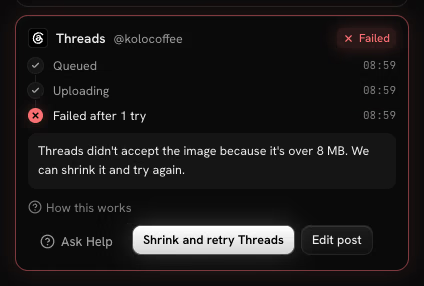
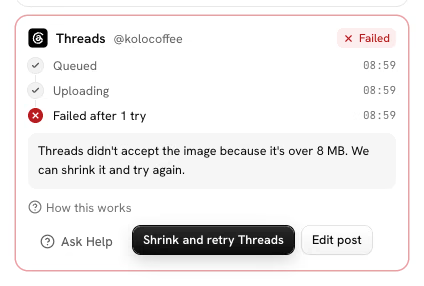
Common reasons and what to do:
| What Refract says | What to do |
|---|---|
| The network signed you out, or Refract isn't allowed to post to the account anymore | Select Reconnect and the network's name (for example Reconnect Instagram), sign in and allow posting. See An account needs reconnecting. |
| The file is over the network's size limit | Select the shrink button, for example Shrink and retry Instagram. |
| The network only takes images or videos in a certain shape | Select the Crop to … and retry button, which names the shape the network needs. |
| The video is too long or too short, or there are too many files | Select Edit post and change the files. |
| The text is over the network's character limit | Select Edit post and shorten it (Assist's Shorten can help). |
| The network needs a photo or video | Add one. See Instagram needs a photo or video. |
| The network needs a setting, or didn't accept one | Select Edit post, pick the setting in that network's tab, then retry. |
| Rejected as a duplicate of a recent post | Change the text and try again. |
| Only so many posts a day are allowed from this account | Wait for the next day, or move the post. |
| The network has restricted posting on this account | Check the account on the network itself. |
| The network was unavailable, asked us to slow down, or couldn't be reached | Select the retry button, for example Retry Instagram now. |
| Versions still need your OK | See Versions need your OK before posting. |
| We couldn't cut the video to the network's crop | Retry, or change the crop in Edit video. |
When several networks failed, Retry failed (with the count) retries all of them at once. See Calendar and posts for the post panel.
An account needs reconnecting
Networks sign Refract out from time to time, for example when a password changes or access runs out. The account shows Signed out of {network}, the bell tells you, and its posts stop until someone signs in again. When access is about to end, the account shows Access ends with the date. Both are listed under Needs attention at the top of the Accounts page, with how many scheduled posts are waiting.
- Open Accounts.
- Under Needs attention, select Reconnect (or Renew access) on the account. Reconnect is also in the account's ⋯ menu.
- Sign in to the network as the same account and allow posting.
If you sign in as a different account, Refract asks you to sign in as the right one.


See Reconnect an account.
A network says Beta or Coming soon
- Coming soon: the network isn't available in Refract yet, so it can't be connected. On that network's page on refract.social, enter your email in Your email and select Notify me: you get one email when it opens, and nothing else.
- Beta: the network is still reviewing Refract, so some accounts may not connect yet. Try connecting; if it doesn't work, try again later.
A WordPress site won't connect
The plugin shows Refract's reason when a site can't connect:
| What it says | What to do |
|---|---|
| Your site didn't answer | Check that the site is online and public, then try again. |
| REST API blocked | A security plugin or your host may block it. Allow requests to /wp-json/refract/v1/, then try again. |
| Your site needs HTTPS | Turn on HTTPS for your site, then try again. |
| Your plan is full | Remove an account in Accounts, or upgrade your plan. A site counts as one account. |
| You can't add accounts in this workspace | Ask an admin to make you an editor, or pick another workspace. |
If WordPress shows Refract needs you to connect again, the site can't send posts until you do. Select Reconnect in that notice, or in Refract › Settings.
Refract can't publish to a WordPress site
- Publishing from Refract is turned off on this site: turn on Let Refract publish to this site in Refract › Settings on your site, then retry.
- The person Refract publishes as can't publish posts: pick someone who can under Publish as, then retry.
- Posts arrive as drafts: the site is set to Send drafts only. Choose Publish and schedule posts under What Refract can do.
- Your site didn't accept Refract's signature: connect again from Refract › Settings on your site.
- Refract couldn't find the Refract plugin: check that it's installed and active, then retry.
Instagram needs a photo or video
Some networks, such as Instagram, can't post text on its own. Refract's checks flag this while you write. Add a photo or video in the composer, or make one in Studio. See Writing posts.
A Tumblr post is held or didn't go out
- Tumblr allows 250 posts a day. This would be post 251.: Tumblr counts posts per Tumblr user across all your blogs. Refract holds the post and sends it when Tumblr's day starts again, or you can move it.
- Tumblr didn't confirm it got the post: the connection dropped after Refract sent it. Check your blog on Tumblr first; retry only if the post isn't there.
- Upload limit reached: Tumblr allows 250 photo uploads and 20 videos a day per person. Retry after it resets.
- This blog's queue on Tumblr is full: publish or delete some queued posts on Tumblr, then retry.
- Tumblr can't find this blog anymore: check that the blog still exists on Tumblr.
See Tumblr.
A Discord post didn't go out
- The webhook was removed in Discord. Choose the channel again.: someone deleted the channel's webhook (or the channel). Select Reconnect Discord and choose the channel again, or paste a new webhook link.
- Discord didn't confirm it got the post: the connection dropped after Refract sent it. Check the channel in Discord first; retry only if the post isn't there.
- Discord didn't accept that Post as name: Discord refuses names with "discord" or "clyde" in them. Pick another in the Discord tab.
See Discord.
A Slack channel won't connect or a post didn't go out
- Connect Slack first: Slack channels come from your organization's Slack connection. An admin selects Connect Slack in the Slack dialog (or in Settings › Integrations) and allows Refract in your Slack workspace.
- Allow Refract to post to your channels: your organization connected Slack for notifications before Refract could post. Select Connect Slack and approve the new permissions in Slack. Notifications keep working.
- Ask an admin of your organization to connect Slack: only admins can connect Slack for the organization. Ask one, then try again.
- Refract isn't in this Slack channel. Type /invite @Refract in the channel, then try again.: Refract needs an invite to a private channel (it joins public channels itself to post files). Invite it in Slack, then retry.
- Slack says this channel was archived or deleted: unarchive the channel in Slack, or invite Refract again if it was removed, then reconnect the channel.
- Refract was removed from your Slack workspace: someone removed the Refract app in Slack. An admin connects Slack again, then reconnect the channel.
- Slack didn't confirm it got the post: the connection dropped after Refract sent it. Check the channel in Slack first; retry only if the post isn't there.
See Slack.
A Pixelfed account won't connect or a post didn't go out
- That server isn't Pixelfed. If it's a Mastodon server, connect it under Mastodon.: the server you typed runs other software. Check the address, or connect it under Mastodon if it's a Mastodon, GoToSocial, Akkoma or Pleroma server.
- We couldn't find a Pixelfed server at…: check the address. Type the server's name only, like pixelfed.social.
- Pixelfed needs a photo or video. Add one, or turn Pixelfed off for this post.: every Pixelfed post needs at least one. Add a photo, or turn Pixelfed off in the composer.
- Your Pixelfed account is full: your server caps how much each account can store. Delete some posts on Pixelfed, or ask your server's admin for more space, then retry.
- Pixelfed takes files up to… or can't post this kind of file: your server sets its own file size and file types, and many servers take photos only. Shrink the file, or use a photo instead of a video.
- Pixelfed no longer lets you edit this post: Pixelfed allows 9 edits per post. Edit it on Pixelfed, or remove it and post again.
- Pixelfed didn't confirm it got the post: the connection dropped after Refract sent it to an older server. Check your profile on Pixelfed first; retry only if the post isn't there.
See Pixelfed.
A DEV account won't connect or an article didn't go out
- DEV didn't accept that API key: the key is wrong or was revoked. Create a new one on DEV under Settings › Extensions and paste it again.
- DEV signed you out: the API key was revoked on DEV. Create a new key and select Reconnect.
- Another article on DEV already uses this canonical link: DEV allows one published article per canonical link. Change the link in the DEV tab or leave it empty, then retry.
- DEV didn't confirm it got the post: the connection dropped after Refract sent the article. Check your articles on DEV first; retry only if it isn't there.
- DEV rejected this post: DEV says why after the colon. Fix it in the DEV tab, then retry.
- DEV asked us to slow down: DEV limits how often articles go out. Refract waits as long as DEV asks and tries again.
Unpublish from DEV turns the article back into a draft on DEV; DEV's API can't delete it. Delete the draft on DEV if you want it gone. See DEV.
Versions need your OK before posting
A post started from a note doesn't go out until every network's version is approved. The composer shows how many still need your OK, and a scheduled post whose versions weren't approved fails with that reason.
- Open the post.
- Approve each version marked Needs your OK, or select Approve all and add to queue.
- If it already failed, retry it.
See Notes and versions.
Out of AI credits
Refract shows Not enough credits with how many you need and have. You can:
- wait for your monthly credits to refill on the 1st,
- Buy credits (admins),
- Use your own AI key, so Assist and Studio cost no credits,
- in Studio, make fewer images or use a cheaper model or the Draft tier.
If it says your monthly allowance has run out, an admin can raise it in Settings › Team and roles. If it says your organization reached its daily limit, it resets tomorrow. If AI tools are paused for a short while, your credits are safe; try again later.
On a free trial, Studio uses Draft models only and AI video is for paid plans only. See Billing and AI credits.
I can't see a workspace or a button
What you see depends on your role and the workspaces you're in:
- Admin: everything, including billing, the team and API tokens. Admins see every workspace.
- Editor: writes, schedules and publishes in their workspaces, and approves posts.
- Contributor: writes drafts and sends them for approval. Can't publish.
- Viewer: sees the calendar, posts and analytics. Changes nothing.
If a workspace is missing, or a button such as Publish now isn't there, ask an admin to change your role or workspaces in Settings › Team and roles. If a workspace was archived after a plan change, an admin can bring it back with Change what to keep in billing. See Team and approvals.
A post is waiting for approval
On Business plans and up, a workspace can make posts from contributors, AI agents and API tokens wait for an admin or editor, and can send posts to clients to approve by link. A waiting post doesn't go out until someone approves it.
- Admins and editors get a notification when a post is sent for approval. They approve it from Home under Needs attention, or by opening the post from the calendar or Posts.
The rules are in Settings › Workspace under Approvals. See Team and approvals.
Too many or too few emails
The bell in Refract always shows everything. To choose what also reaches you by email or Slack:
- Open Settings › Notifications.
- Under What reaches you, tick each event for each channel.
- Under Workspaces, tick the workspaces you want to hear from.
- Turn on Quiet hours for times you don't want to be disturbed. Failed posts can still come through if you leave Failed posts still come through on.
Every workspace notification email also has a Notification settings link in its footer.
Scheduling is paused
If your trial or plan ended, scheduling is paused and nothing is deleted. Choose a plan in Settings › Billing and AI credits to start again. See When a trial or plan ends.
Sign-in problems
- No code arrived: check spam, then select Send a new code. Use the newest code.
- Lost your authenticator app: use a backup code.
- Google says sign-in is off for this account: sign in with your email, then link Google again in Settings › Profile and security.
See Sign-in and security.
Contact support
Ask Help in the header first: it can see what went wrong in your workspace. If it can't solve it, select Send to a person and the conversation goes to the Refract team with what Help checked, so you don't have to explain it again. We reply by email, and the reply shows in Help's History too. See Asking Help.
You can also reply to any email from Refract and it reaches the Refract team.