Asking Help
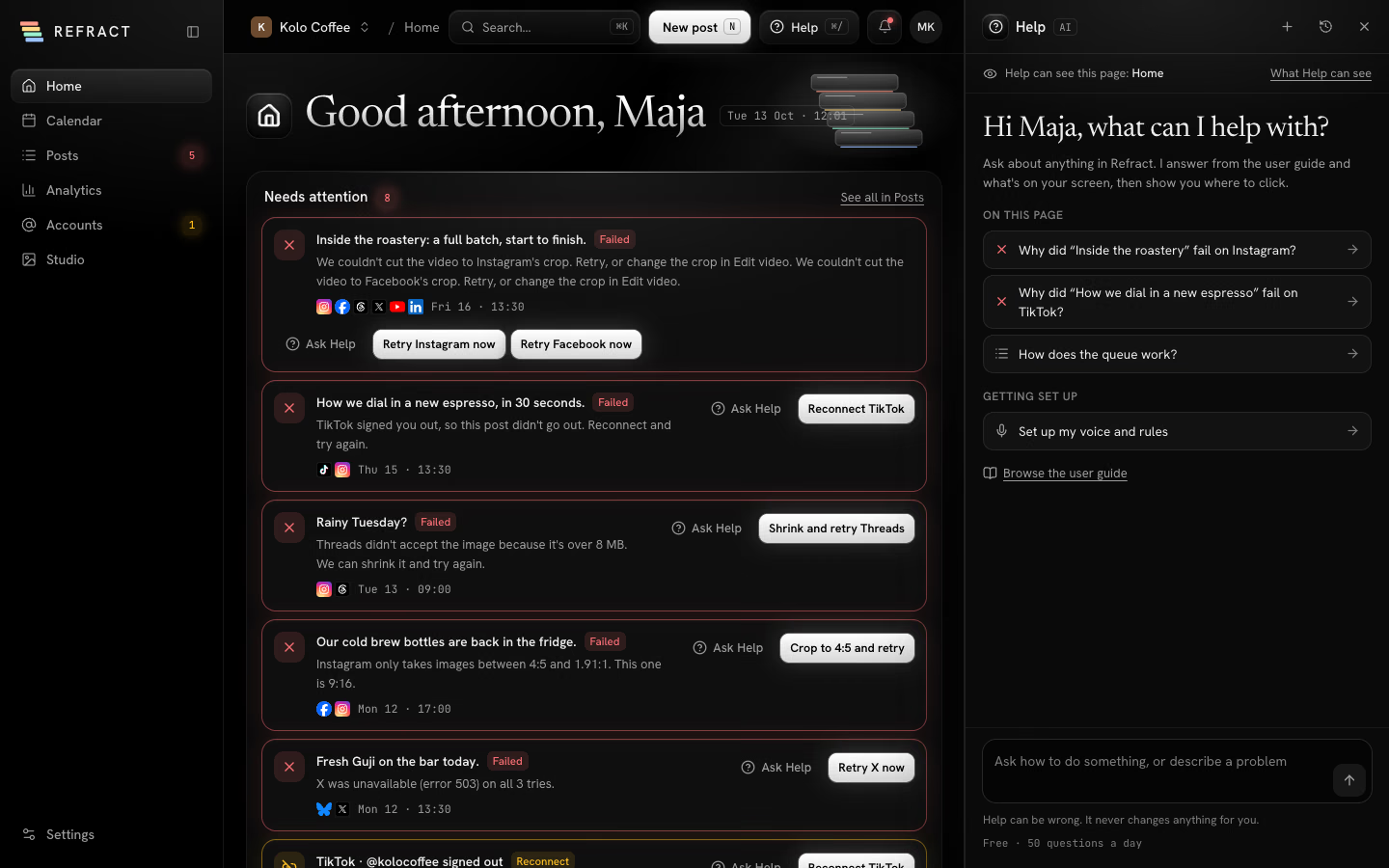
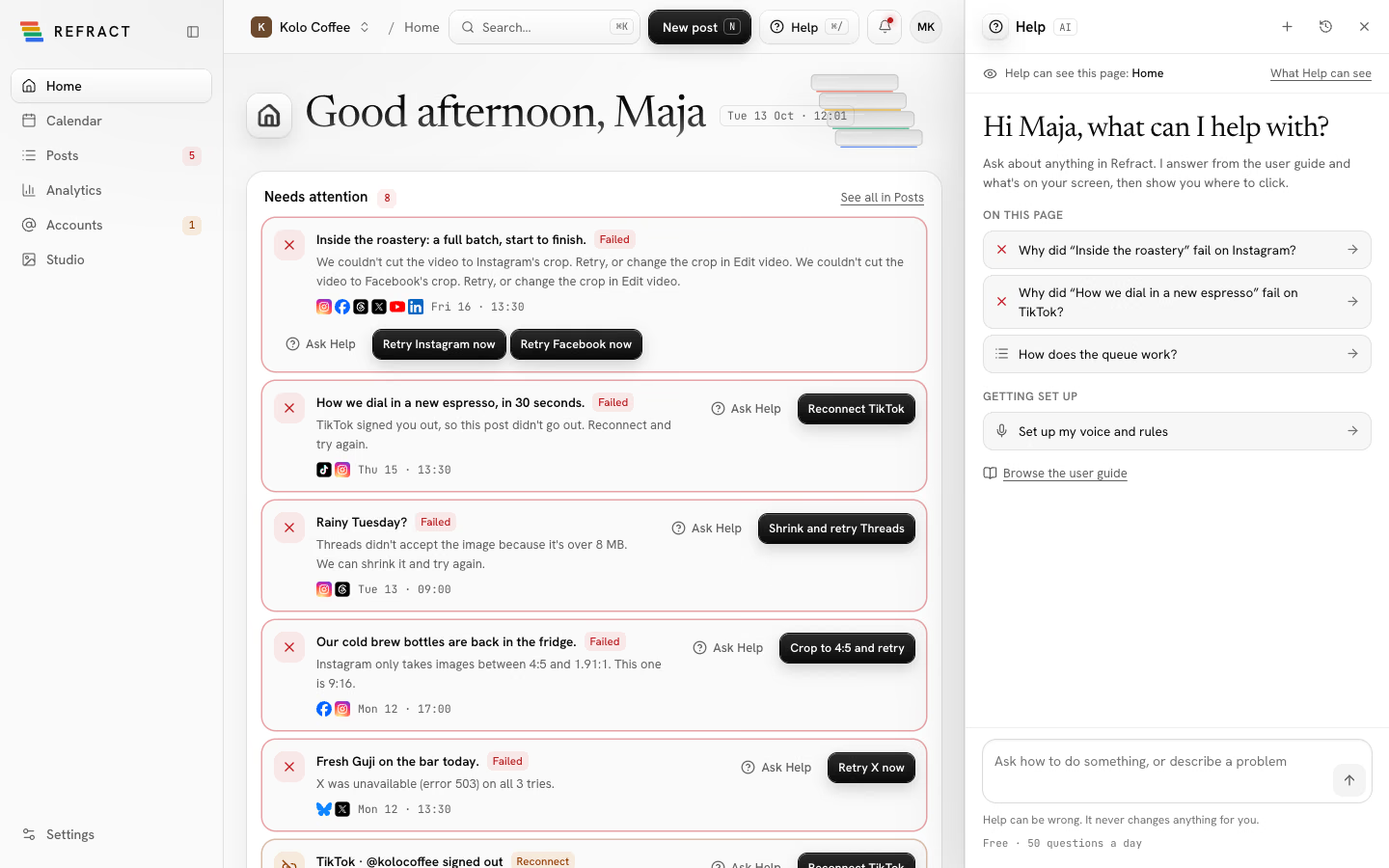
Help answers questions about using Refract, right next to what you're working on. Ask how to do something, or why something went wrong, and Help looks at your workspace and this user guide before it answers. It can point at the right place on screen, and if it can't solve the problem, it sends the conversation to a person on the Refract team.
Help is a guide only. It reads and explains, but it never changes anything for you: you make every change yourself.
Open Help
Help is on every screen of the app:
- Select Help in the header, between New post and the bell.
- Press ⌘/ on a Mac, or Ctrl+/ on Windows and Linux.
- Next to a problem, such as a failed post, an account that needs reconnecting, a failed import, a failed Studio job or a failed payment, select Ask Help. Help opens with that item attached and asks about it straight away. While that conversation is open, the item shows In Help.
- In Search… (⌘K), type your question. When nothing matches exactly, the last row reads Ask Help with what you typed.
Help opens on the right and the page makes room for it, so you can keep working. On a phone it fills the screen. Press Esc or select Close to close it. Moving to another page keeps your conversation open, and the line at the top changes to say which page Help can see.
Ask a question
Type your question under Ask how to do something, or describe a problem and press Enter. Help answers in the language you write in. While it's answering, the send button becomes Stop.
When you open Help, it suggests questions:
- On this page: problems on the screen first, such as a failed post or an account to reconnect, then how something on the page works.
- Getting set up: the setup steps your workspace hasn't finished, such as picking your main channel, setting up your voice and rules, or inviting your team. This group goes away when everything is done.
To ask about something specific, select Ask Help next to it. The About: chip shows what's attached; remove it before sending if you'd rather ask in general.
What Help can see
Select What Help can see at the top of the panel for the short version. Help can see:
- The page you're on and what it shows.
- Your workspace setup: your plan, your accounts and how they're connected, your main channel, and your voice and rules.
- Recent errors and publish attempts, such as why a network turned a post down.
It sees only what you can see in this workspace, with your role. It never sees your passwords, sign-in codes, API keys (including your own AI keys) or payment details, and nothing from other workspaces.
Don't paste a password, code or key into Help. If you do, Help tells you to change it.
Read an answer
Help starts with what happened or the answer, then lists the steps if there's something to do.
- What I checked lists what Help looked at in your workspace, such as the post's publish log, its image and the account it went to.
- From the user guide shows the pages the answer comes from. Select one to open it in a new tab.
- Show me on a step points at the button to click (see Let Help show you where).
- A link such as Open the post takes you to the right place.
If neither your workspace nor the user guide answers the question, Help says it isn't sure and offers Send to a person. Help can be wrong, so check before you change anything important.
Help is honest about networks: Beta networks can be connected but some accounts may not connect yet, and Coming soon networks can't be connected yet. See A network says Beta or Coming soon.
Let Help show you where
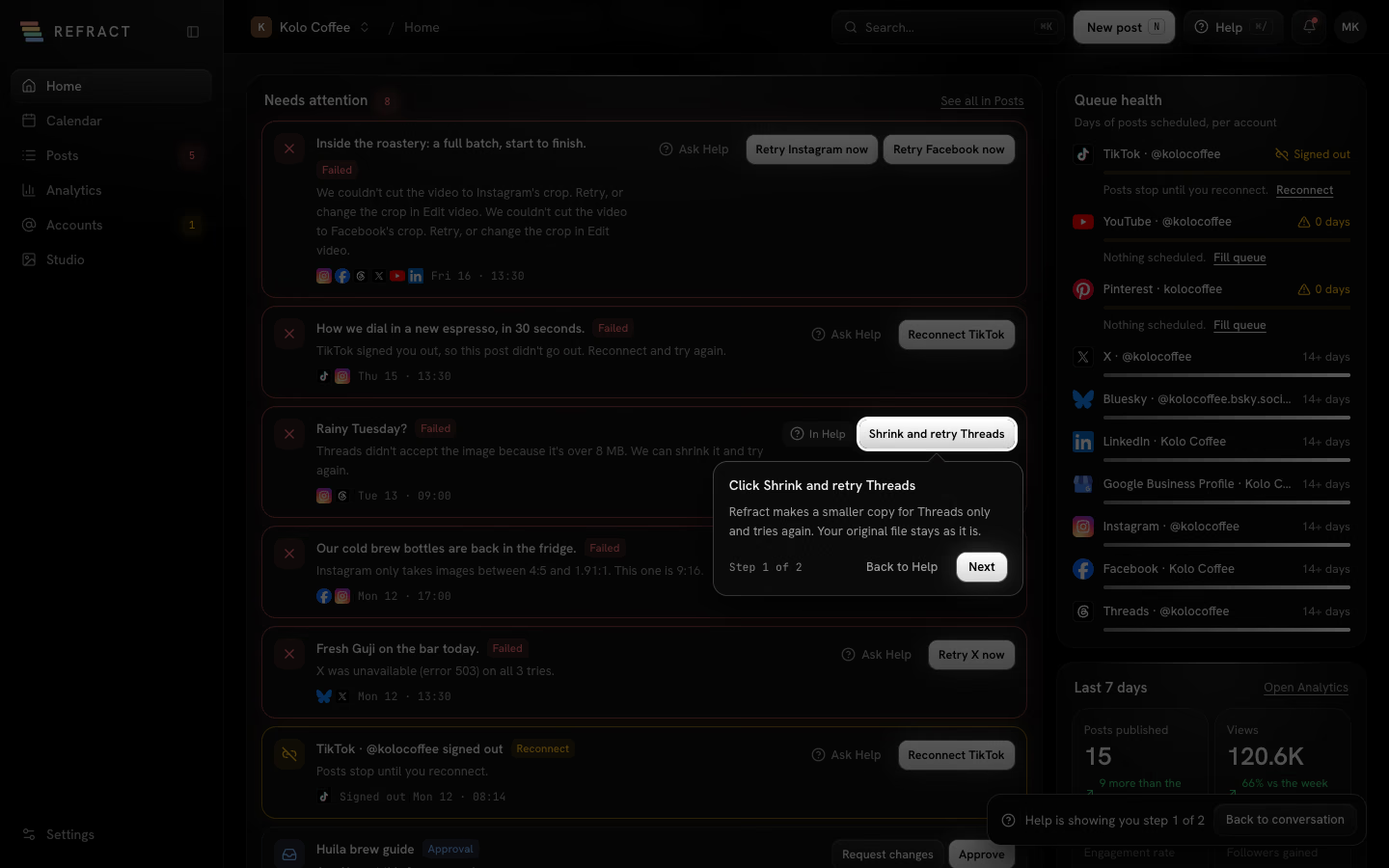
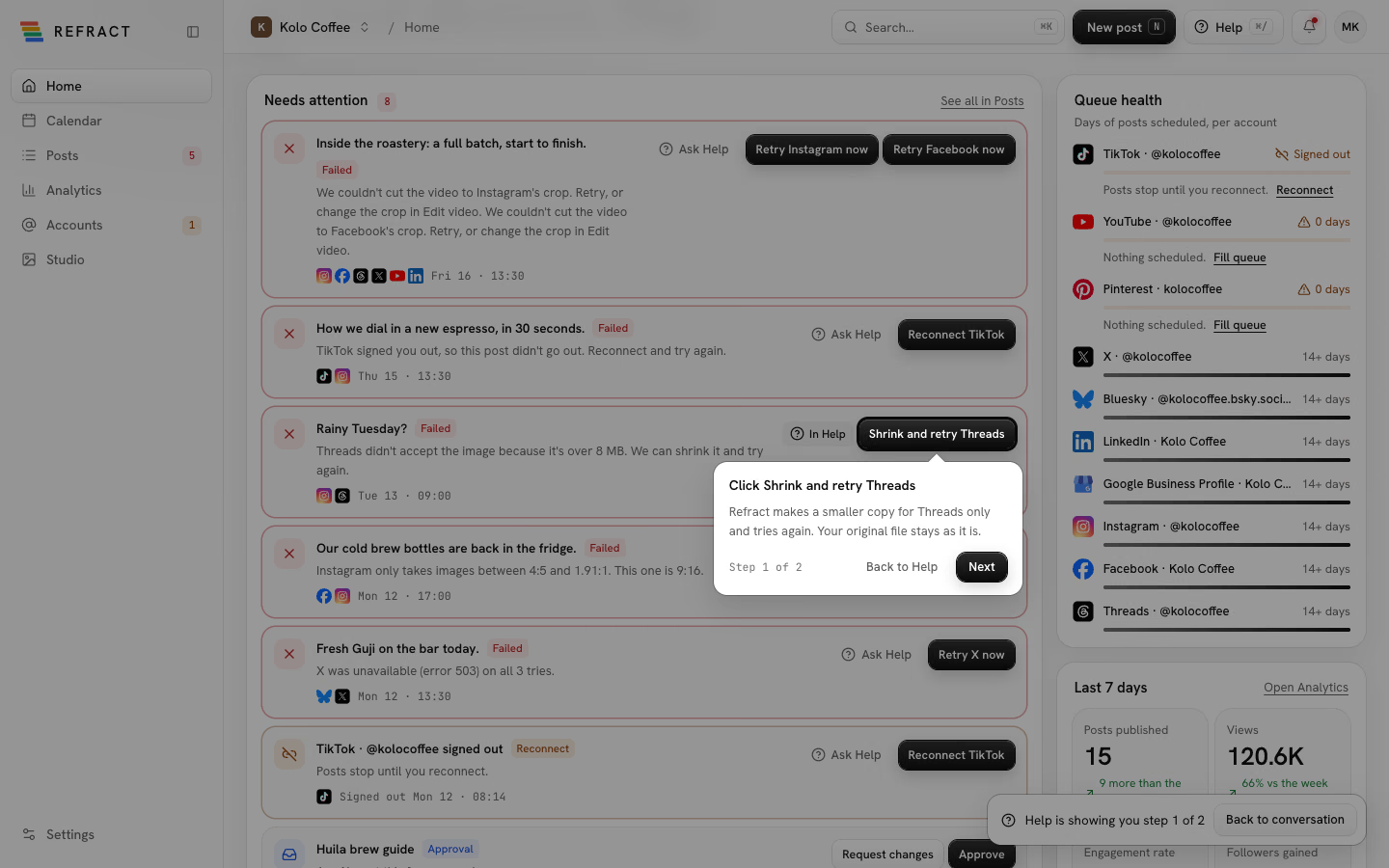
Select Show me on a step. If the place is on another page, Help takes you there first. Then it dims the screen, rings the button or item to look at, and explains it next to it. The panel folds into a small bar that says which step you're on.
- Select Next for the next step, and Done on the last one.
- Select Back to Help, Back to conversation or press Esc to go back to the answer.
Help never clicks or types for you. The ringed button still works, so click it yourself when you're ready; the steps stay open while you do.
If Help can't find the place on your screen, it says I can't find that on this screen. Select Back to Help and ask again, or follow the steps in the answer.
Tell Help if it worked
Answers with steps or a diagnosis end with Did this solve it?
- Yes tells Help it worked.
- No offers to send the conversation to a person.
Send to a person
When Help can't solve it, select Send to a person. Someone on the Refract team reads it and replies by email.
What we'll send lists exactly what goes with it:
- This conversation.
- What Help checked.
- The page you're on.
- Anything you add under Anything to add?
Your passwords, API keys and payment details are never sent. To help us look into it, the request also includes technical details such as your workspace, your plan and your browser.
- Select Send to a person, or No under Did this solve it?
- Add anything you think will help under Anything to add? It's optional.
- Select Send to support.
You see Sent to the Refract team with a request number, such as R-2048. We reply to your email address, and the reply also shows in that conversation in History, with a notification in the bell. To answer us, reply to our email. You can send up to 5 requests a day.
History
Select History at the top of the panel to see your conversations, newest first. Each one shows its first question and date, and Sent to support or Reply from support when that applies. Open one to carry on where you left off.
Select New conversation (+) to start again. Help still sees the page you're on.
Your conversations are yours alone: other people in your workspace, admins included, can't read them. The Refract team can read one only after you send it to them.
To delete a conversation, select Delete next to it in History. Its messages are removed at once. Conversations are deleted automatically 90 days after their last message.
Free, with a daily limit
Help is free on every plan and during the trial. It never uses AI credits.
Each person can ask 50 questions a day. Only answers that finish count: if Help couldn't answer, you stopped it, or you used Show me or Send to a person, it doesn't count. The count starts again at midnight in your workspace's time zone.
When you have 10 or fewer left, the line under the question field says how many. At 0, you can still browse the user guide and send a conversation to a person, and you can ask again after midnight.
If Help couldn't answer
If something goes wrong on our side, Help says Help couldn't answer that. It didn't count toward your questions. Select Try again, or Browse the user guide.