Getting started
This page takes you from signing up to your first post in the queue, and shows you around Refract so you know where everything lives.
Sign up and set up
After you sign up, Refract asks three short questions: Use, Connect and First post. You can go Back, Skip this step, or Skip setup at any time. Anything you skip stays on your Home page under Finish setting up, together with the steps that come after setup (your main channel, your voice, your posting times and a second network), so you can come back to them.
What will you use Refract for?
- Pick the option that fits you best:
- Creator: just you and a handful of accounts. Refract sets up a daily posting queue.
- Business: one brand, planning weeks ahead. Refract opens on the calendar, with bulk import ready.
- Agency: several clients, each with their own accounts. You get connect links and approvals for your clients.
- Answer Where do your customers find you most? This is optional, and only networks you can connect today are offered. The network you pick becomes your main channel (see The main channel below). Agencies pick a main channel for each client later, on Accounts.
- Select Continue.
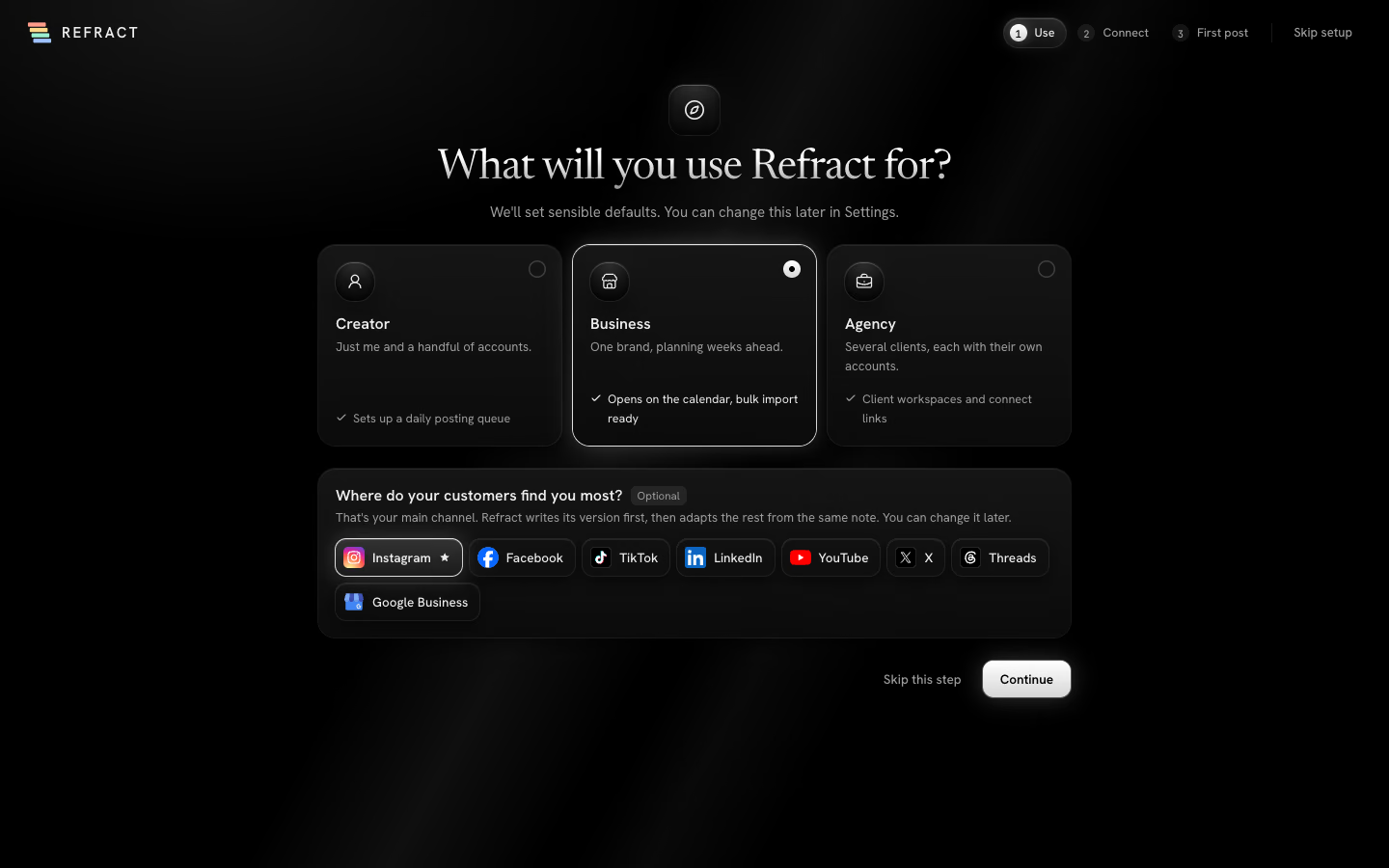
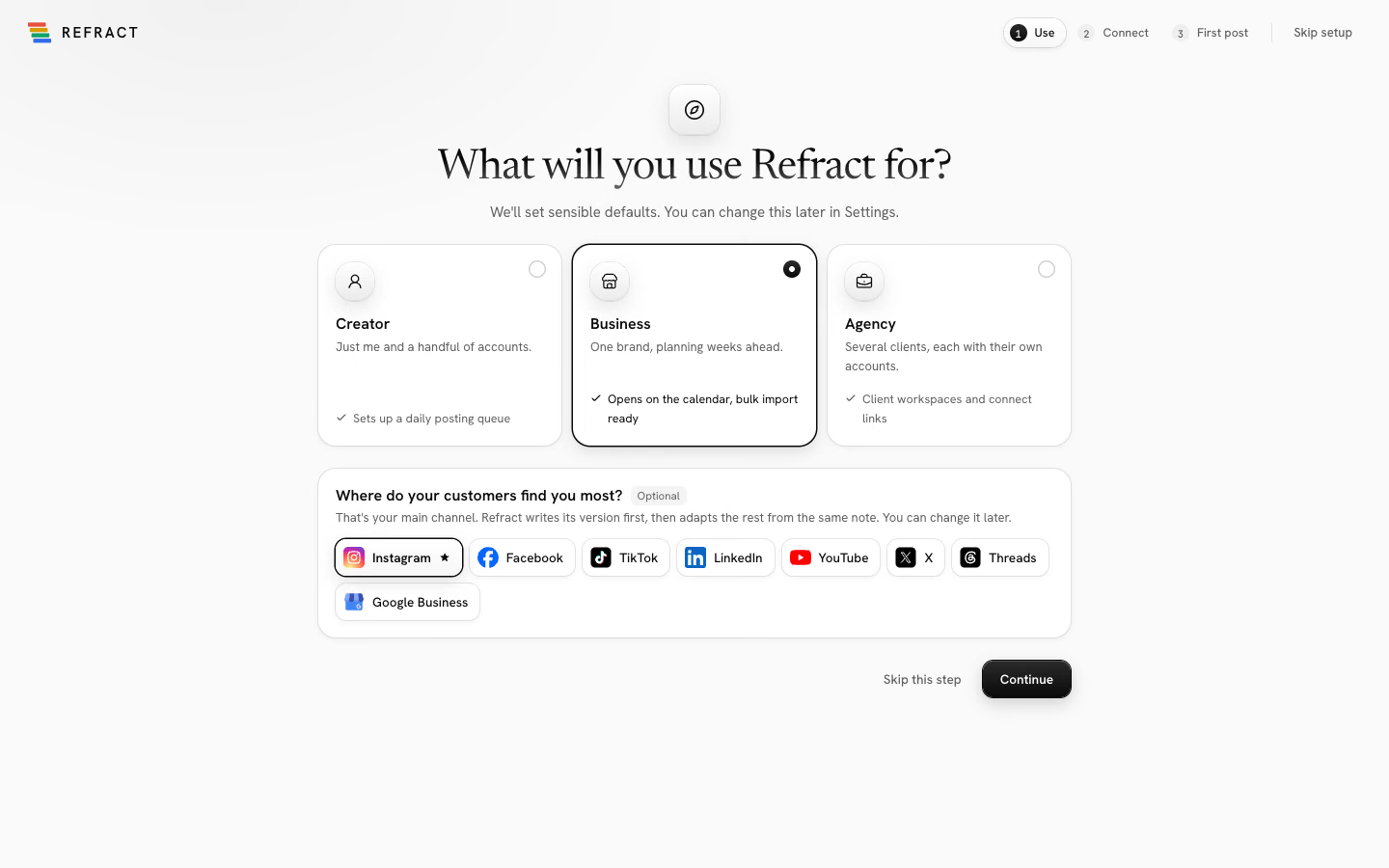
Tip: These choices only set sensible defaults. You can change all of them later in Settings.
Connect your first account
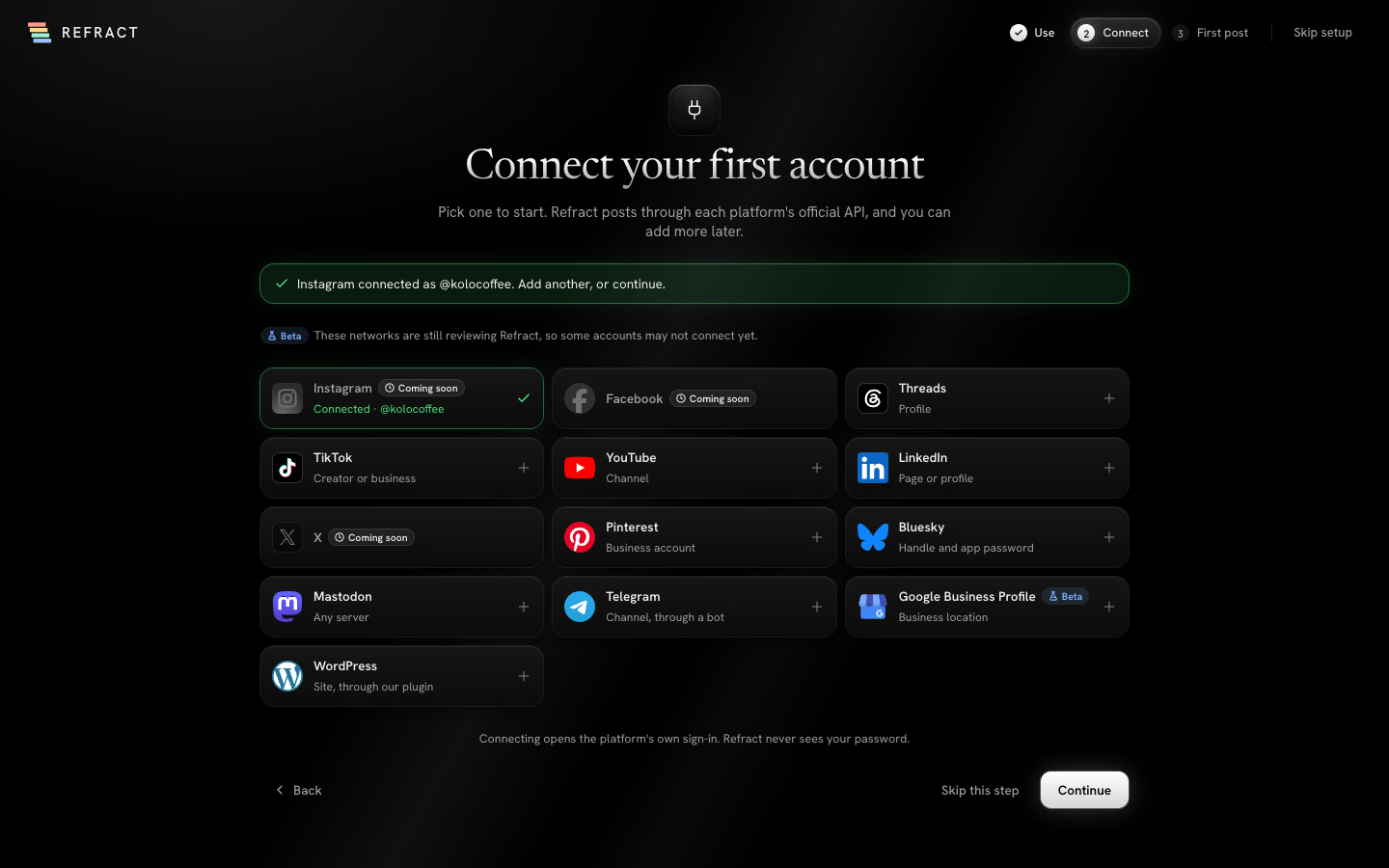
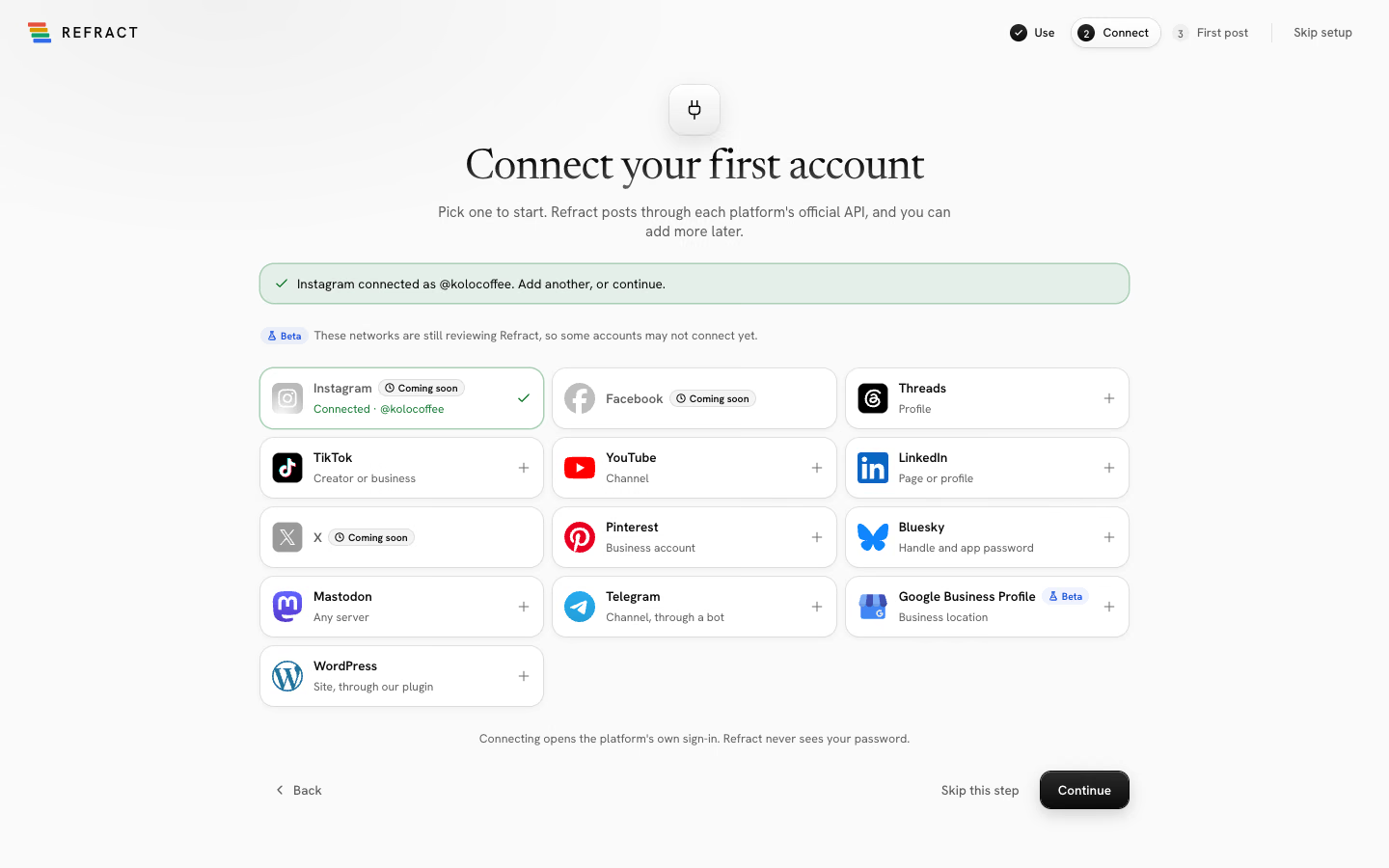
- Pick a network tile. If you chose a main channel, its tile comes first.
- Sign in on the network's own page. Refract never sees your password.
- When you're back, add another account or select Continue.
Write your first post
Your first post starts from a note, the same way as starting from a note in the composer. Refract picks the account it goes to: your main channel when it's connected, otherwise the first account you connected.
- Write The point in one sentence, and One detail if you like. Refract suggests both from your account's bio.
- Add a photo. Networks like Instagram need one; for the others it's optional.
- Select Write my … post. Refract writes the post in your voice, for 1 AI credit, and shows the rules it followed.
- Change anything in the text, or select Write again after changing the note. Then select Add to queue. It goes out at the next free time in your queue.
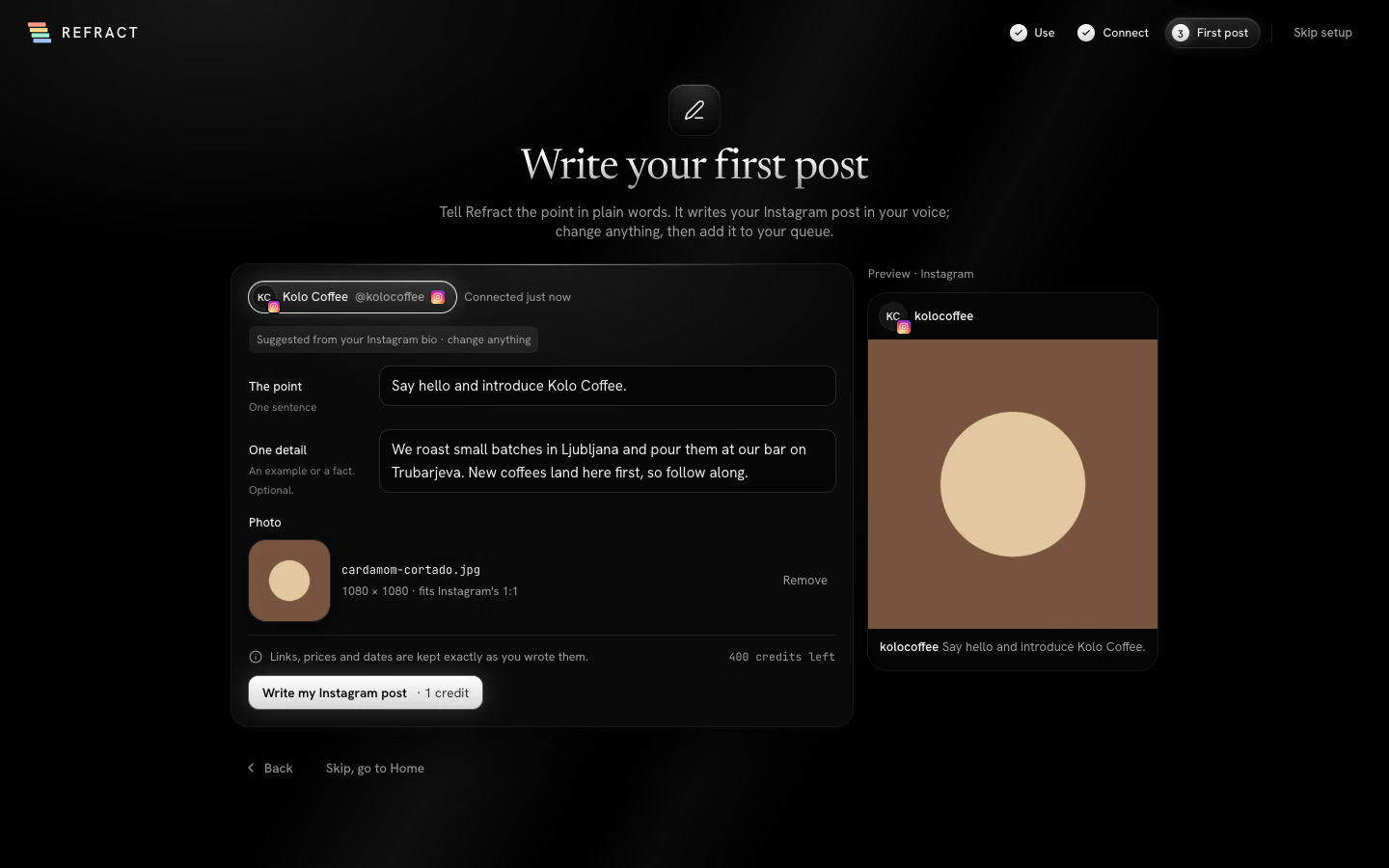
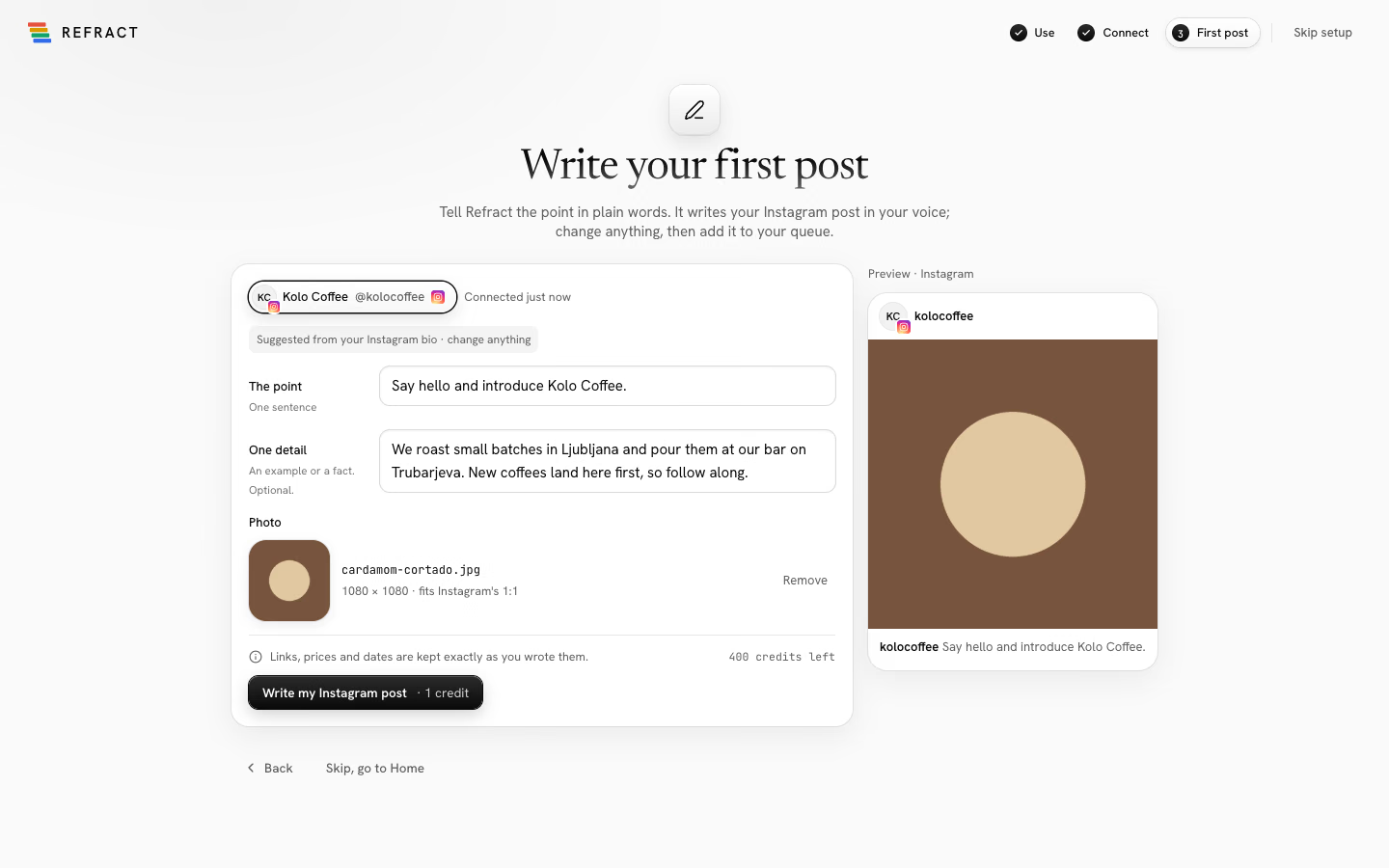
Some networks need settings only the composer has, such as a board on Pinterest or a title on YouTube. If that's true of every account you connected, this step points you to Open full composer instead.
Prefer more control? Select Open full composer, or Skip, go to Home. When you're done, you'll see You're set, with Go to Home and Open the calendar.
Workspaces
A workspace is one brand or client. It has its own accounts, posts, posting times, voice and rules, and team. An agency usually has one workspace per client.
To move between them, open the workspace switcher in the sidebar and pick one, or type to Find a workspace.
Admins can add a workspace from the same menu:
- Open the workspace switcher and select New workspace. Next to it you see how many of your plan's workspaces you use, like 2 of 5.
- Type its Name, check the Time zone (it starts as the current workspace's) and, if you like, pick where its customers find it most. That network becomes its main channel when you connect an account on it.
- Select Create workspace. Refract opens the new workspace's Accounts, where you can connect accounts or send the client a connect link.
It starts with the usual posting times for how you use Refract; change them in Settings › Workspace. Other people get access in Settings › Team and roles. When your plan has no room left, New workspace says so, with Change plan in Billing.
In Settings, each section is marked This workspace or Organization so you know whether a change affects just the workspace you're in or all of them.
Connect accounts
You can connect accounts on 13 networks: Instagram, Facebook, Threads, TikTok, YouTube, LinkedIn, X, Pinterest, Bluesky, Mastodon, Telegram, Google Business and WordPress. A WordPress site connects from the Refract plugin on the site; see WordPress.
- Go to Accounts and select Connect account.
- Pick a network. Search with Search platforms if the list is long.
- Sign in on the network itself and choose the profiles, pages or channels to add.
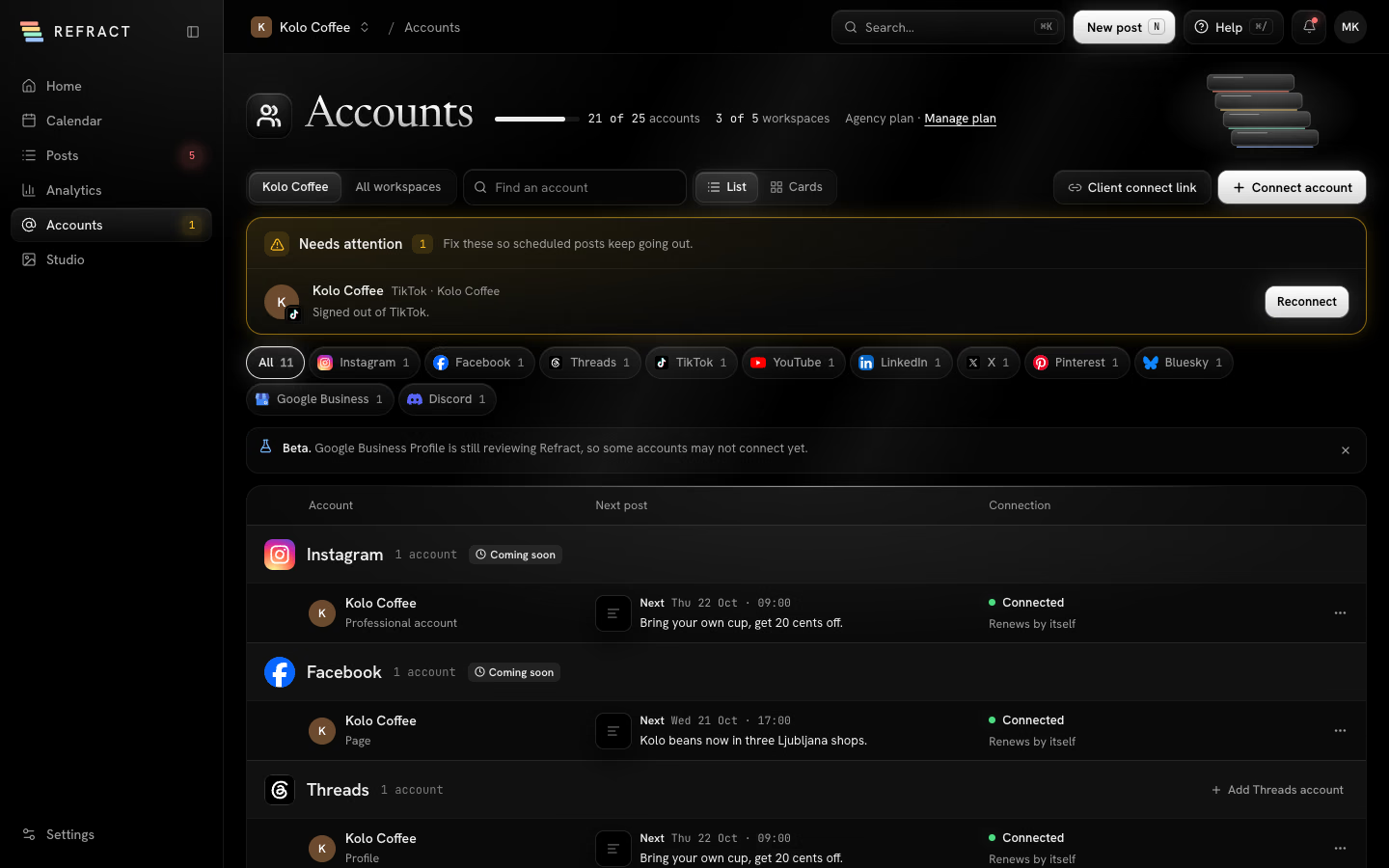
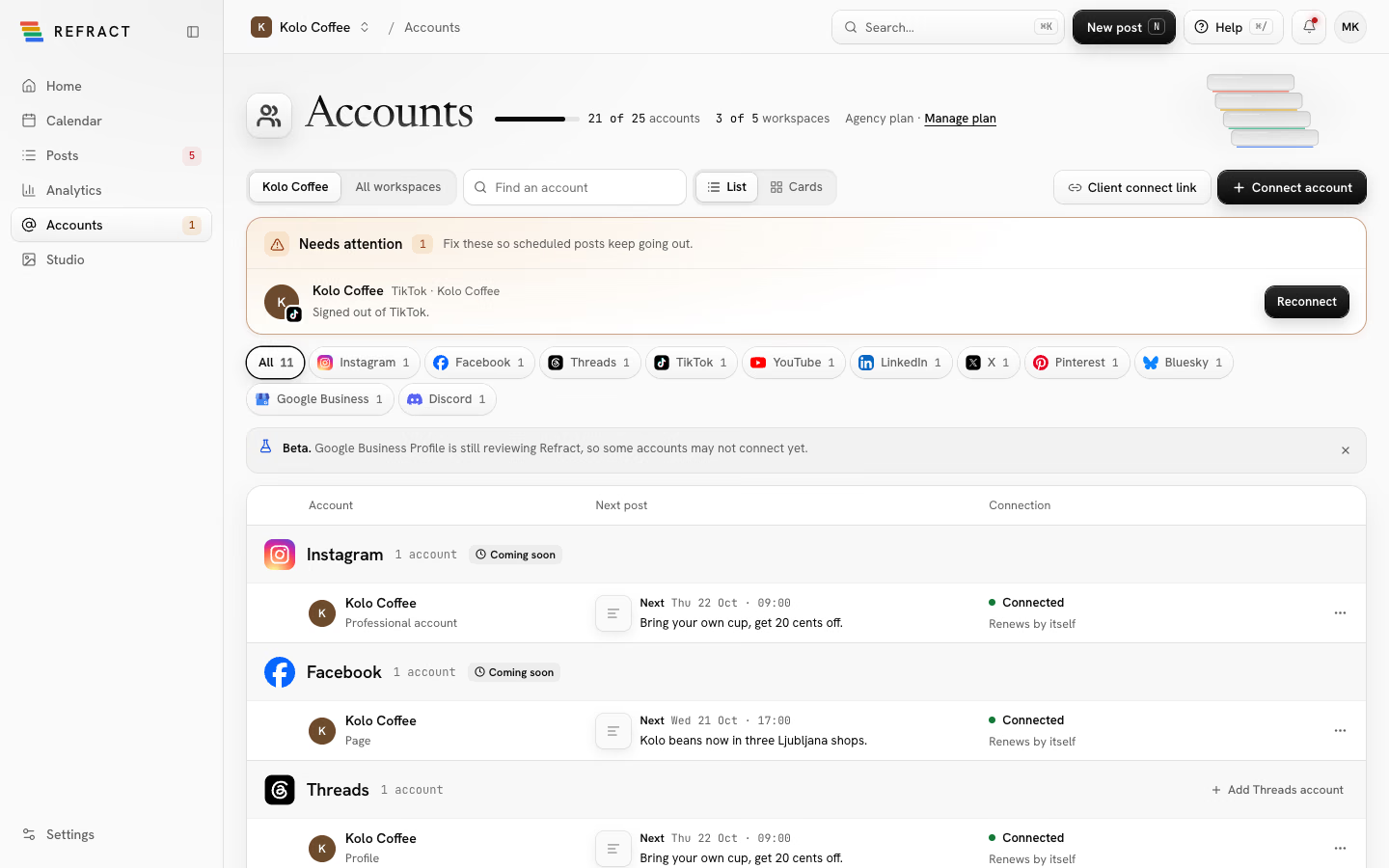
Accounts are grouped by network. Each one shows its next scheduled post and its connection, for example Connected or Signed out of TikTok. Accounts that signed out, or whose access ends within 7 days, are listed under Needs attention at the top with a Reconnect or Renew access button. Find out more in Accounts and networks.
The main channel
Your main channel is the network where your customers find you most. When you write a post from a note, Refract writes the main channel's version first and with the most care; the other versions are written from the same note and wait for a quick OK.
To change it, go to Settings › Voice and rules and pick another account under Main channel. See Pick your main channel.
Posting times and the queue
The queue is the easy way to schedule: instead of picking a time for every post, you set a few posting times each week and Add to queue puts a post in the next free one.
- Go to Settings › Workspace.
- Under Posting times, select Add on a day and type a time, like 09:00. Remove a time with its ×.
- To reuse Monday's times, select Copy Monday to all weekdays.
- Select Save posting times.
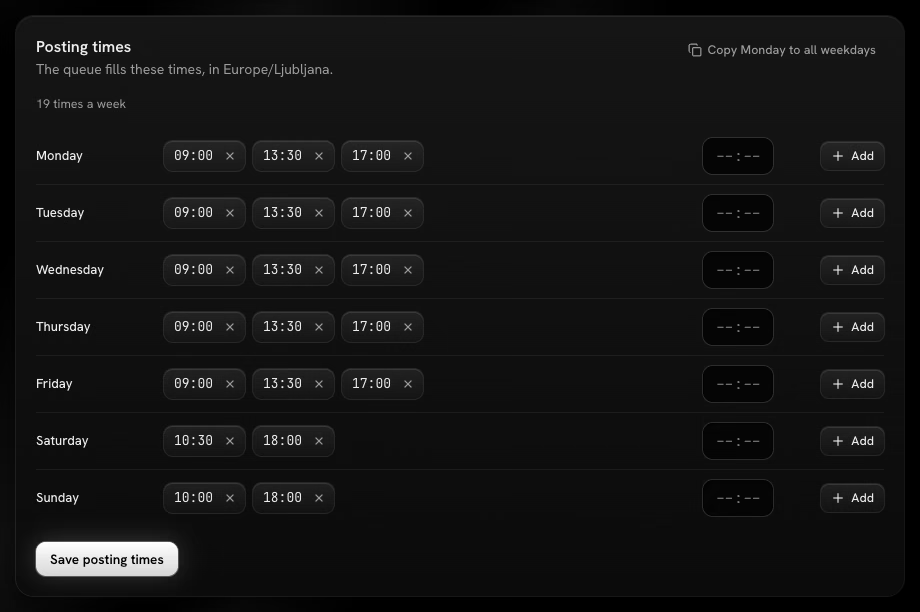
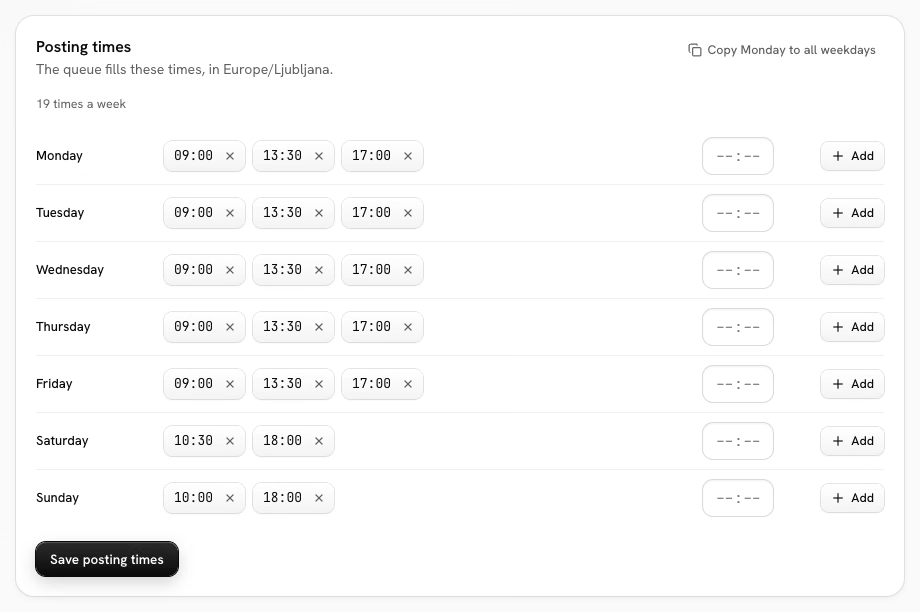
Times use the workspace's Time zone, which you set in the same place. Everyone sees the same times, wherever they are.
Find your way around
The sidebar has seven areas:
| Area | What it's for |
|---|---|
| Home | Today and tomorrow at a glance, how full each account's queue is, last week's results and any setup steps left: your use, your first account, your main channel, your first post, your voice, your posting times and a second network. You only see the steps you can act on. |
| Calendar | Your posts by week or month. See Calendar and posts. |
| Posts | Every post as a list: Queue, Drafts, Published, Failed and Recurring. |
| Analytics | How your posts and accounts are doing. See Analytics. |
| Accounts | Connect, reconnect and manage your accounts. |
| Studio | Make images and videos with AI, and keep your files in the Library. |
| Settings | The workspace, voice and rules, team, billing and more. |
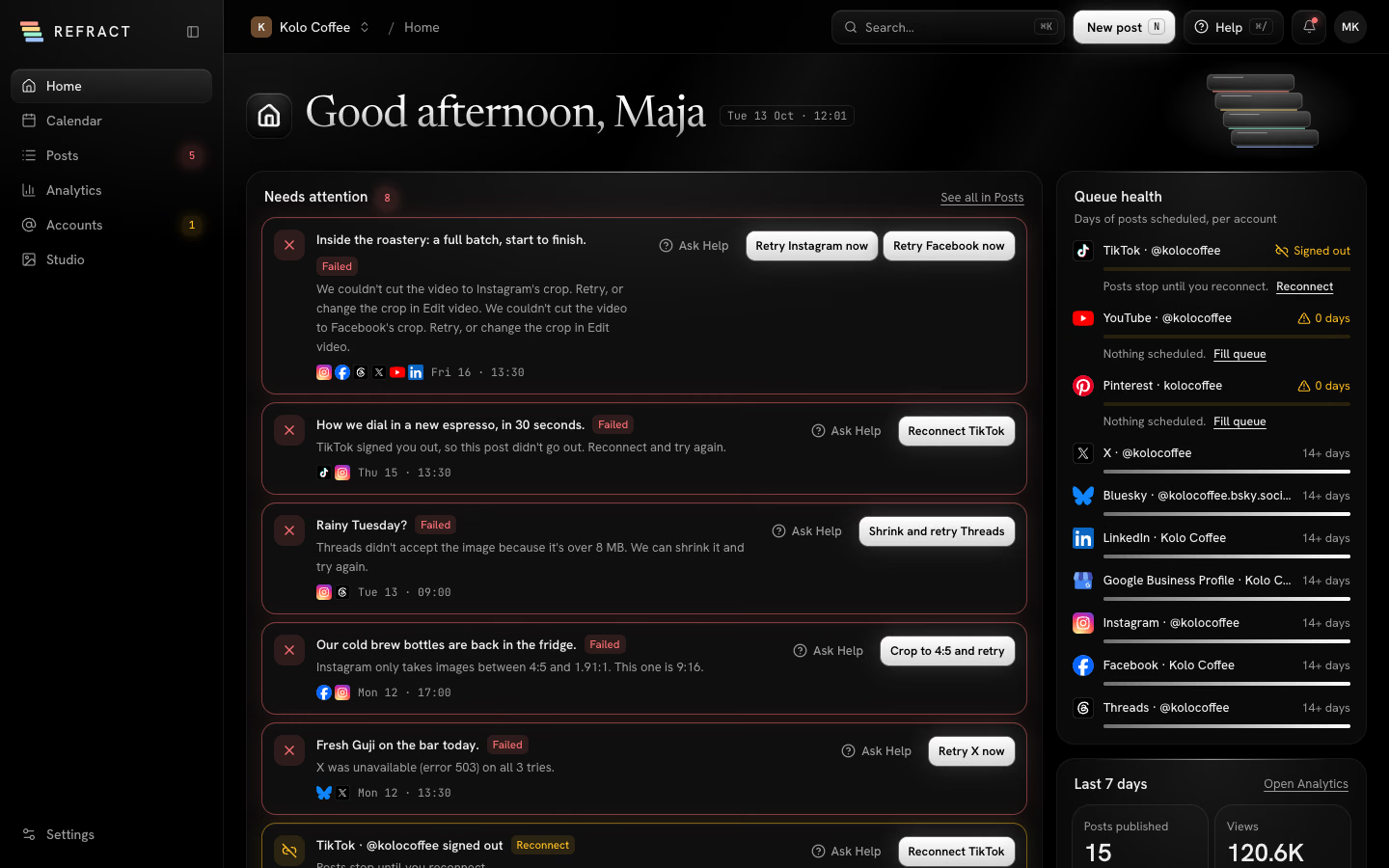
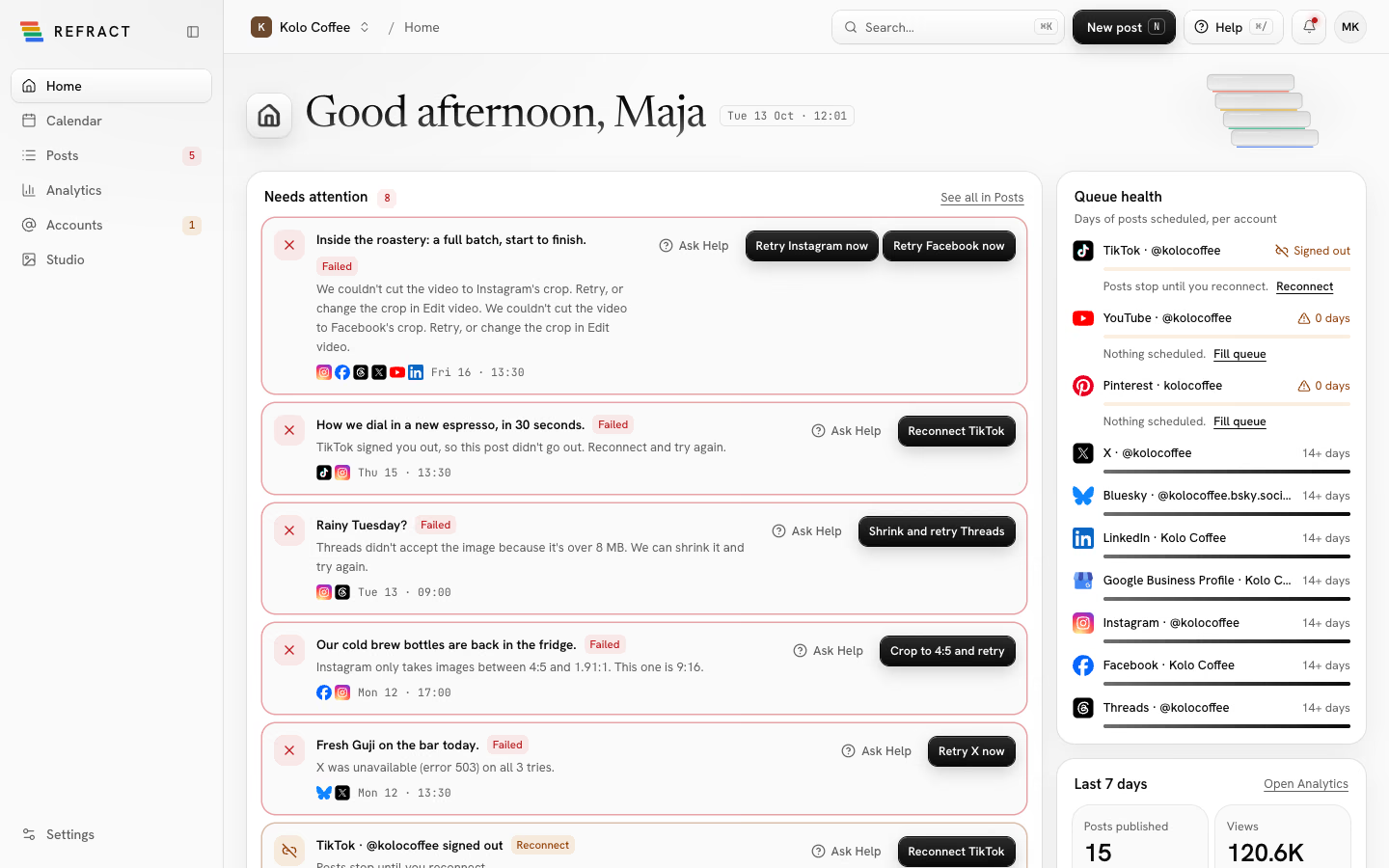
Select New post at any time to open the composer, and use Search… to jump to a post, an account or a page.
Get help
- Select Help in the header (or press ⌘/, Ctrl+/ on Windows and Linux) to ask how to do something or why something went wrong. Help looks at your workspace and this guide, and can show you where to click. Next to a problem, such as a failed post, select Ask Help. See Asking Help.
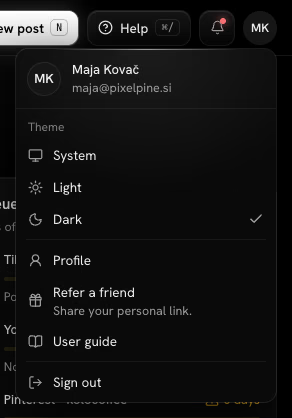
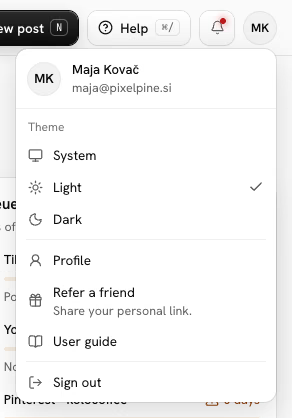
- Open your account menu and select User guide to come back to this guide.
- On some of the harder screens, select How this works to jump straight to the right page.
- Stuck? Try Troubleshooting and FAQ.
Next, learn how to write posts or start from a note.