Accounts and networks
Connect the profiles, pages and channels you post to, keep them signed in, and learn the few rules each network has.
Connect an account
- Open Accounts in the sidebar and click Connect account.
- Pick a network. You sign in on the network itself; Refract never sees your password.
- Approve Refract there. You're back in Refract with the account connected to the workspace you're in.
If an account doesn't connect, the Accounts page says so at the top, for example Instagram didn't connect, with the reason. Select Try again, or Ask Help to find out why and what to do (see Asking Help). Dismiss hides the message.
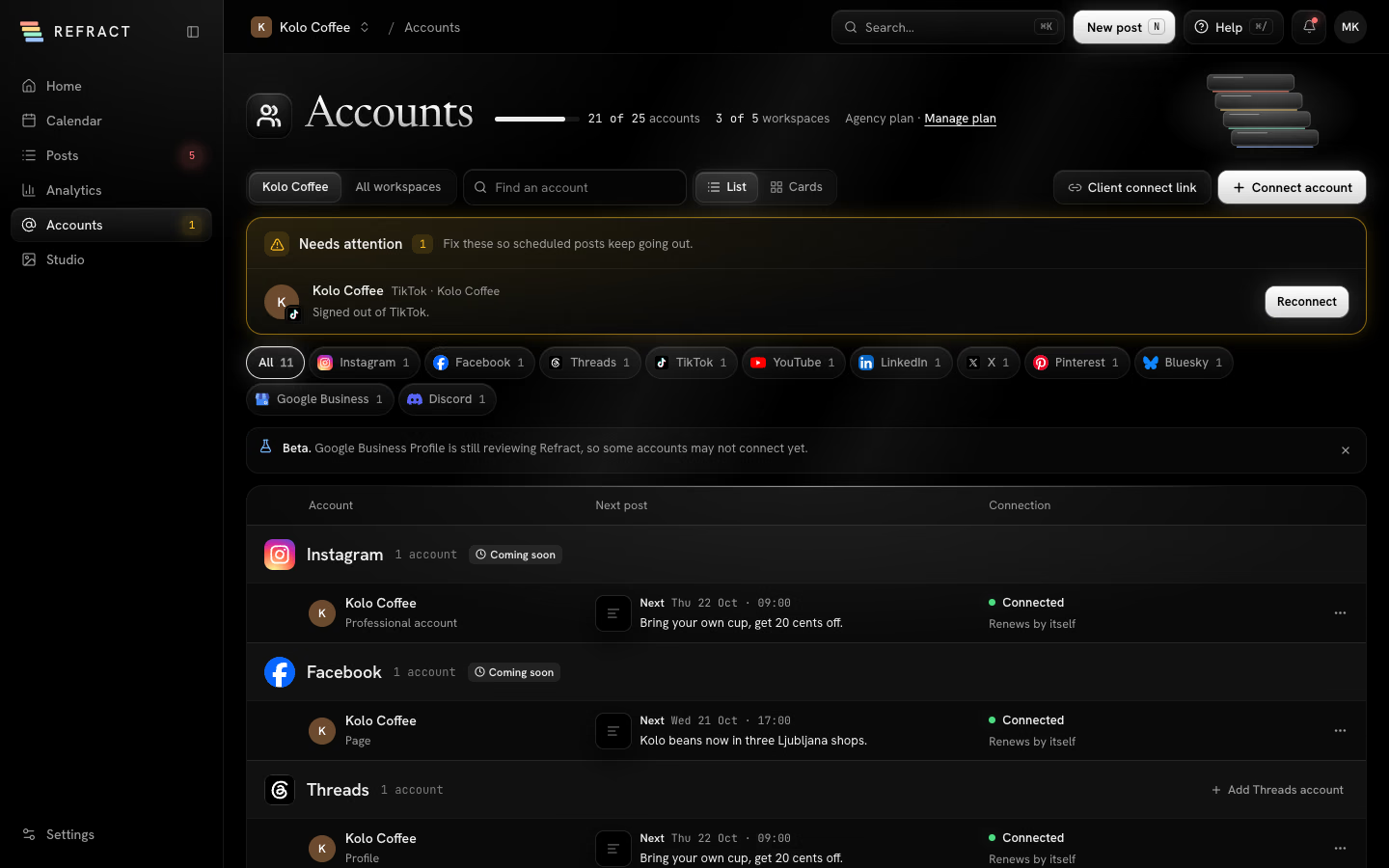
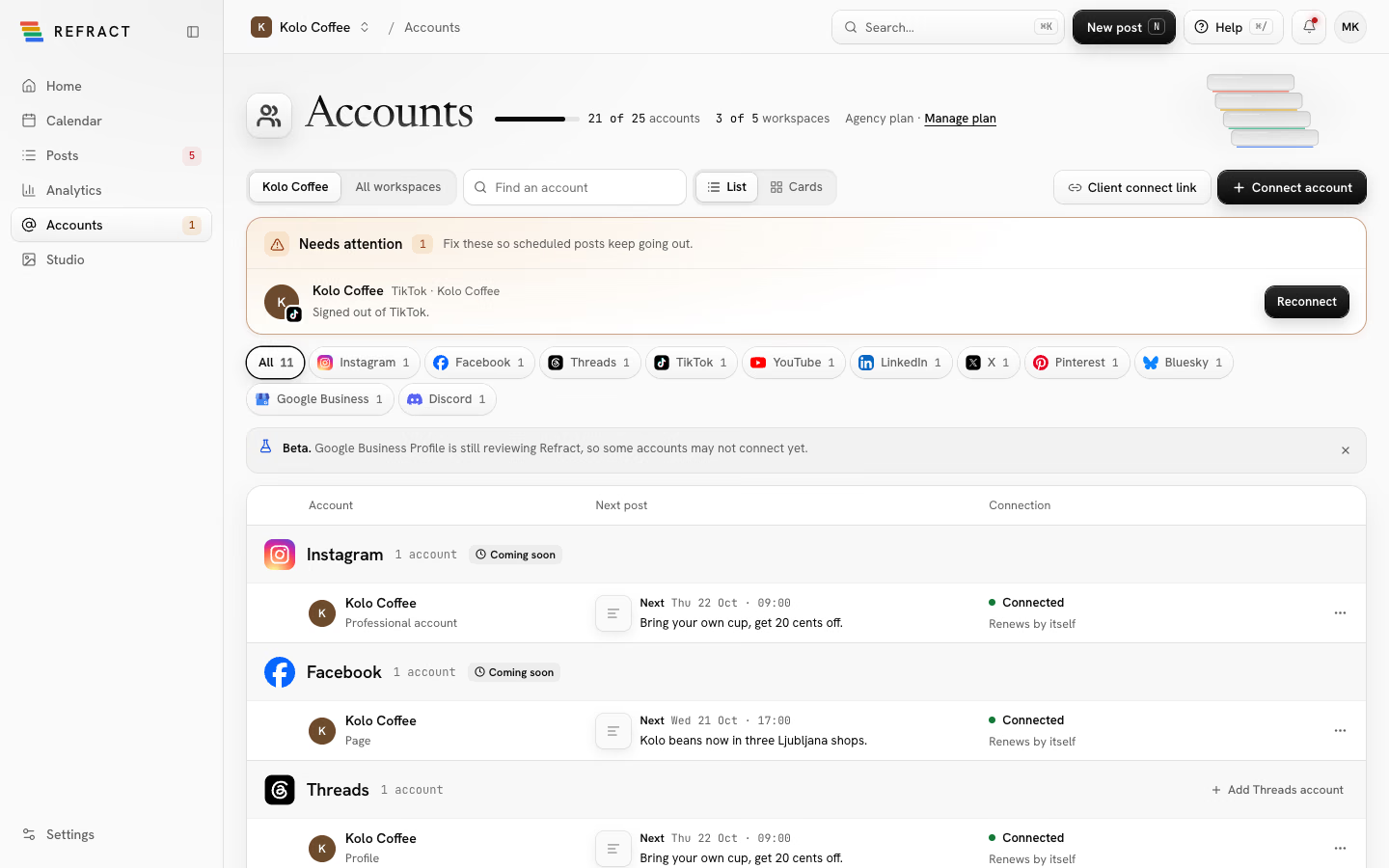
Admins and editors can connect accounts. Your plan includes a number of accounts; next to the Accounts title you see how many you've used (like 20 of 25 accounts), how many workspaces, and your plan. People who manage the organization also get Manage plan.
Find your way around the Accounts page
The toolbar at the top has:
- Workspace: switch between the workspace you're in and All workspaces. You see it only when you can see more than one workspace. With All workspaces, each account also shows its workspace.
- Find an account: search by name, handle, account type, network or workspace. Clear search shows everything again.
- List and Cards: two ways to see your accounts. Refract remembers your choice for you. On a narrow screen you always get cards.
- Client connect link (Agency plans) and Connect account.
Below that, the network chips: All, then one chip for each network you have accounts on, with how many. Google Business Profile shows as Google Business. Pick a chip to see only that network.
Accounts are grouped by network. Each group's heading shows the network, how many accounts it has, and Add {network} account (Add location for Google Business Profile) to connect another one.
When you have accounts on networks still in Beta, one note at the top says so. Click the × to hide it; it comes back only when a network it didn't mention is in Beta, for example one you connect later or one that goes into Beta. Those groups carry a small Beta tag. See Beta and Coming soon.
List and Cards
List shows each account on one row with these columns:
- Account: its picture, name and type, like Page, Professional account or the server it's on.
- Next post: the earliest post scheduled for this account from now on, with its time and first line. Drafts and posts waiting for approval don't count. Times are in the workspace's time zone. A signed-out account says Waiting: the post won't go out until you reconnect. With nothing scheduled, it says Nothing planned and when the last post went out (or Nothing has gone out yet). Click it to open the post, or to write one for that account.
- Connection: whether Refract can post for the account, and for how long (see below).
Then the fix button, if the account needs one, and the ⋯ menu. Rows with a problem are tinted amber.
Cards shows the same groups as a grid. Each card has the account's picture, name, type and ⋯ menu, and at the bottom its connection or fix button. Cards don't show the next post.
What the connection says
- Connected with Access until 11 Dec: the network lets Refract in until then, and you'll need to renew after.
- Connected with Renews by itself: Refract keeps the access fresh on its own.
- Connected with Doesn't expire: nothing to do.
- Access ends Sun 18 Oct with Renew before Sun 18 Oct: click Renew so posts after that day still go out.
- Signed out of {network}: posts to the account stop until you reconnect. It also says how many posts are waiting.
Hover over the connection, or tab to it, to see what Refract may do for the account, like Can publish and read stats. That comes from the permissions you granted on the network when you signed in.
The account's menu
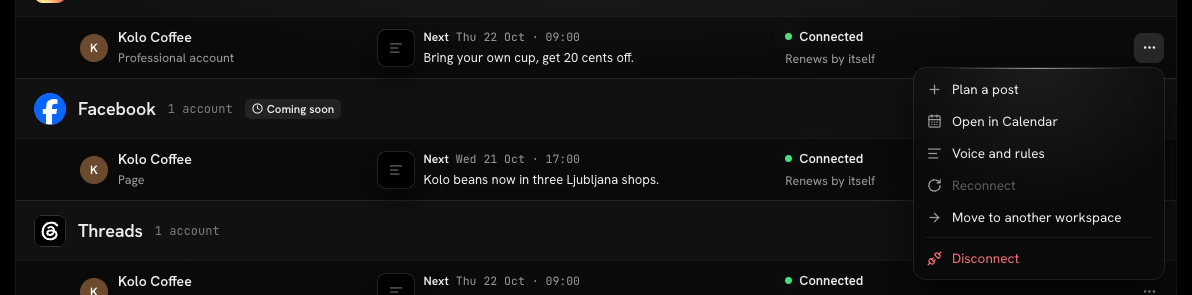
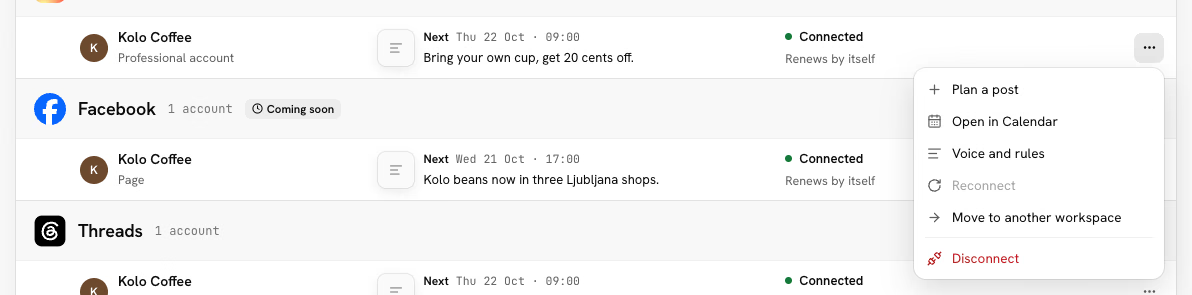
The ⋯ button at the end of each row or card opens the account's menu:
- Plan a post: opens the composer with this account picked. For people who can write posts.
- Open in Calendar: the calendar showing only this account's posts.
- Voice and rules: Settings › Voice and rules, opened on this account's network.
- Defaults: the account's default community or Post as, on networks that have them. For people who manage accounts.
- Reconnect: sign in to the network again.
- Move to another workspace: see Move an account to another workspace.
- Disconnect: see Disconnect an account.
What each network needs
| Network | What you connect | Good to know |
|---|---|---|
| A professional account | You sign in with Facebook. Only Instagram professional accounts linked to a Facebook Page you manage show up. | |
| A Page | You sign in with Facebook and pick the Pages to add. | |
| Threads | A profile | |
| TikTok | A creator or business account | |
| YouTube | A channel | |
| A page or profile | ||
| X | A profile | |
| A business account | ||
| Bluesky | A handle and an app password | See below. |
| Mastodon | An account on any server | See below. |
| Telegram | A channel, through a bot | See below. |
| Google Business Profile | A business location | |
| WordPress | A site, through the Refract plugin | See below. |
| Tumblr | A blog. You can add several at once. | See below. |
| Discord | A channel in your server | See below. |
| Slack | A channel, through your organization's Slack connection | See below. |
| Pixelfed | An account on any Pixelfed server | See below. |
| DEV | A profile, with an API key you create on DEV | See below. |
Bluesky
Bluesky uses a handle and an app password instead of a sign-in page.
- In Bluesky, go to Settings → Privacy and security → App passwords and make a new one.
- In Refract, pick Bluesky and enter your Handle (like yourname.bsky.social, or your own domain) and the App password.
- Click Check and connect.
Use an app password, never your main one. You can revoke it in Bluesky any time.
Typing just your name (like ownthegame) works: Refract signs in as ownthegame.bsky.social, the same way the Bluesky app does. An app password looks like xxxx-xxxx-xxxx-xxxx: lowercase letters and the digits 2 to 7. Paste it or type it; Refract drops stray spaces, hidden characters and capitals for you. If Refract says it isn't an app password, you've pasted something else (often the main password). If Bluesky says it didn't accept the handle or app password, check that the app password was made while signed in to that same handle. After too many wrong tries, Bluesky pauses sign-in for that handle for up to a day; a new app password won't help, wait and try again.
Mastodon
Mastodon runs on many servers, so tell Refract which one your account is on.
- Pick Mastodon and type your Server address (like mastodon.social), or pick one of the Popular servers. Type the server's name only: addresses with a port number, or an IP address, aren't accepted.
- Click Continue to your server, sign in there and approve Refract.
Servers that run GoToSocial, Akkoma or Pleroma speak Mastodon's language, so connect them under Mastodon too. Each server sets its own limits: Refract reads the post length, files per post, file sizes and file types from your server when you connect and once a day after that, and the composer checks against them. Editing needs Mastodon 3.5 or later, or GoToSocial 0.18 or later; on an older server Refract can still remove posts.
Telegram
Telegram posts through a bot that you add to your channel.
- In Telegram, open the channel, go to Administrators › Add admin, and add the bot Refract shows you.
- Turn on Post messages for it. It needs nothing else.
- Back in Refract, paste the channel's link or @username and click Check bot access.
- When Refract confirms the bot can post, click Connect channel.
WordPress
A WordPress site connects from WordPress itself, through the free Refract plugin. Once it's connected, blog posts you publish come to Refract as notes, and Refract can publish posts to your site. See Notes and versions.
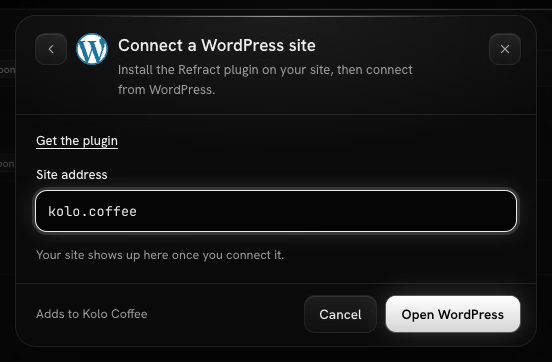
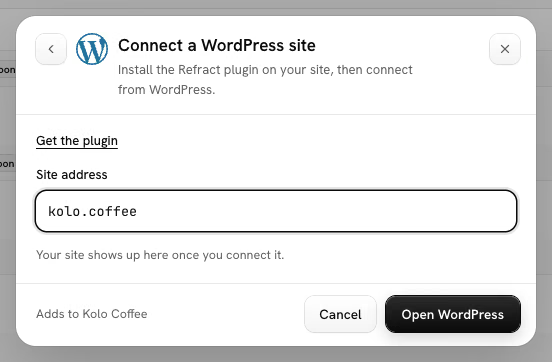
- In Refract, open Accounts, click Connect account and pick WordPress. Select Get the plugin to download it, a
.zipfile. It's also on the WordPress page. - In WordPress, go to Plugins › Add New Plugin, select Upload Plugin, choose the file, then select Install Now and Activate.
- In WordPress, go to Refract › Settings and click Connect to Refract. Once the plugin is installed, you can also type your Site address in Refract and select Open WordPress to go straight there.
- Sign in to Refract if you need to, pick the workspace the site joins, and select Allow.
- Back in WordPress, choose what the plugin sends and which accounts get versions, then select Save and finish.
You need to be an admin or editor in the workspace. If you belong to several workspaces, the plugin asks you to Choose a workspace. To connect without signing in from WordPress, open Connect with a token instead and paste an API token from Settings › API and agents › For developers (see API reference).
Good to know:
- A site counts as one account on your plan.
- Your site must be public and use
https, and its REST API must be reachable. If it isn't, the plugin says why. See Troubleshooting. - Refract publishes to your site only when Let Refract publish to this site is on in Refract › Settings. There you also pick who posts appear as (Publish as), the Default category, and whether Refract can Publish and schedule posts or Send drafts only.
- Removing the site in Accounts signs the plugin out, the same as Disconnect in the plugin.
- The plugin isn't in the WordPress plugin directory yet, so WordPress doesn't update it for you. To update it, download it again and upload it the same way; WordPress offers Replace current with uploaded.
- Refract can remove a post it published on your site (it moves to the trash) once the plugin is version 1.1.0 or later. Plugins on your site shows its version. See Edit and remove after publishing.
- Client connect links can't include WordPress sites.
Tumblr
- Pick Tumblr and sign in with Tumblr.
- Pick the blogs to add. You can add several at once.
- Choose which workspace each blog belongs to, then connect.
Each blog is one account on your plan. Tumblr allows 250 posts and 250 photo uploads a day per Tumblr user, counted across all your blogs; a post that would go over waits until Tumblr's day starts again. Posts can carry a title, tags (without the #) and go to your drafts with Send as a draft. Refract can edit a Tumblr post (the whole post is sent again) and remove it. If Tumblr doesn't confirm it got a post, Refract never sends it again on its own: check your blog first. See Tumblr.
Discord
- Pick Discord and click Choose a channel, then sign in with Discord.
- Pick the server and the channel Refract posts to.
- Name the channel for Refract, then select Connect channel.
Or paste the channel's webhook link under Paste a webhook link instead; Refract checks it with Discord first. Each channel is one account on your plan. Anyone with the webhook link can post to the channel, so keep it private. Messages take up to 2,000 characters and up to 10 files of 10 MB each, and never ping @everyone, @here or roles. Post as sets the name and picture a post goes out under (the workspace's by default). Refract can edit a Discord post's text and remove it. If the webhook is deleted in Discord, the channel shows Signed out of Discord: choose the channel again. See Discord.
Slack
Slack channels come from your organization's Slack connection, the same one that sends notifications.
- Pick Slack. If your organization hasn't connected Slack yet, or connected it before Refract could post, click Connect Slack and allow Refract in your Slack workspace. Only admins can do this.
- Pick the channels Refract can post to: your public channels, and the private channels Refract was invited to.
- Choose which workspace each channel belongs to, then connect.
To post in a private channel, invite Refract to it first: type /invite @Refract there. Each channel is one account on your plan. Messages take up to 4,000 characters with Slack's formatting and link previews, and files go with the message. Refract can edit a Slack post's text and remove it (with the files it uploaded). An archived channel, or a private one Refract was removed from, shows Signed out of Slack before its posts are due. A client connect link can include Slack: your client installs Refract in their own Slack workspace and picks the channels, and your organization's Slack connection stays as it is. See Slack.
Disconnecting Slack in Settings › Integrations only stops notifications. Your Slack channels in Accounts keep posting, and the dialog says how many there are. To stop a channel, disconnect it in Accounts. When you disconnect the last channel of a Slack workspace, and Slack isn't connected in Settings › Integrations, Refract gives up its access to that Slack workspace. A client's Slack workspace works the same way.
Pixelfed
Pixelfed runs on many servers, so tell Refract which one your account is on.
- Pick Pixelfed and type Your server (like pixelfed.social), or pick one of the Popular servers.
- Click Continue to your server, sign in there and allow Refract.
- Choose which workspace the account belongs to.
If the server isn't running Pixelfed, Refract says so: connect a Mastodon server under Mastodon. Each account is one account on your plan. Every Pixelfed post needs a photo or video. Pixelfed's own defaults are a 500-character caption, 4 photos per post, 15 MB per file and photos only, but each server sets its own: Refract reads your server's caption limit, album size, file size and whether it takes video when you connect and once a day after that, and the composer checks against them. Who can see it is public, unlisted or followers only. Refract can edit the caption on servers running Pixelfed 0.11.8 or later (up to 9 edits a post) and remove a post on any server. See Pixelfed.
DEV
- On DEV, create an API key under Settings › Extensions (DEV Community API Keys).
- Pick DEV and paste the key into API key, then select Check and connect. Refract checks it with DEV and shows your username.
- Choose which workspace the account belongs to.
Refract stores your API key encrypted and uses it only to publish what you schedule. Articles go out under your own DEV profile. Each DEV account is one account on your plan. An article has a title of up to 128 characters, a body in Markdown, up to 4 tags (letters and digits only), a canonical link and an optional series; the first picture is its cover. Left empty, the canonical link points to your original post: the WordPress post it came from, or a link in your note to one of your connected WordPress sites. Send as a draft sends it to your DEV drafts. Refract can edit an article and Unpublish from DEV, which turns it back into a draft on DEV, since DEV can't delete articles through its API. If you revoke the key on DEV, the account shows Signed out of DEV. See DEV.
Beta and Coming soon
Some networks carry a label in the picker and on the Accounts page:
- Beta: the network is still reviewing Refract, so some accounts may not connect yet. On the Accounts page, one note at the top says so, and the network's group carries a Beta tag.
- Coming soon: the network isn't available in Refract yet and can't be connected. Its page on the Refract website lets you ask for one email when it opens.
Reconnect an account
Networks sign accounts out from time to time, or access runs out after a while. When that happens to an account, the Needs attention panel appears at the top of the Accounts page. It lists:
- Accounts that signed out. Posts to them stop until you reconnect, and the panel says how many are waiting and when the first is due.
- Accounts whose access ends in the next 7 days.
Signed-out accounts come first, then the ones whose access ends soonest. Each has one button:
- Reconnect for a signed-out account: sign in to the network again.
- Renew access for access that's about to end: sign in again so posts after that day still go out.
Sign in as the same account; if you sign in to a different one, Refract tells you which to use. When it's done, Refract says the account is connected again (or renewed until when), and it leaves the panel. You can also use the button on the account's row or card, or Reconnect in its ⋯ menu. Not sure why it signed out? Ask Help (see Asking Help).


The number next to Accounts in the sidebar counts the same accounts for the workspace you're in. Signed-out accounts also show up on Home and in your notifications. See Team and approvals.
Make an account your main channel
Your main channel is the account you care about most. Its version comes first in the composer.
Pick it under Main channel in Settings › Voice and rules. See Pick your main channel and Notes and versions.
Move an account to another workspace
Connected an account in the wrong workspace, or a client moved? Move it without signing in again.
- Open the account's ⋯ menu and choose Move to another workspace.
- Pick the workspace. Refract lists the scheduled posts in the current workspace that stop going to the account.
- Click Move to with the workspace's name to confirm.
The account goes to the other workspace with its sign-in, so it keeps posting. In the old workspace, scheduled posts and drafts stop going to it, and published posts stay in that workspace's history. If the account was in the other workspace before, its published posts there line up again. Nothing changes on the network, and your plan's account count stays the same.
You can move an account only to another workspace in the same organization, and only if that workspace doesn't have it already. People who manage accounts see this item when there's another workspace to move to. A WordPress site can't be moved, because the plugin is linked to its workspace: disconnect the site, then connect it again from the other workspace.
Disconnect an account
- Open the account's ⋯ menu and choose Disconnect.
- Refract lists the scheduled posts this stops. Posts going only to this account move to drafts; posts going to other accounts too still go to those.
- Click Disconnect with the account's name to confirm.
Published posts stay in your history and nothing changes on the network. You can connect the account again at any time, and disconnecting frees a slot on your plan.
Let a client connect their accounts
On the Agency plans, you can send a client a link so they connect their own accounts without sharing passwords.
- On the Accounts page, click Client connect link.
- Pick the workspace (For workspace), when the link expires (24 hours, 7 days or 30 days), the Platforms the client can connect and an optional message.
- Click Create link, then Copy link and send it to your client. Preview page shows what they'll see.
Your client signs in with each network directly. You get a notification when they're done. Earlier links are listed in the same dialog, where you can Revoke or Renew them. If you've set up white-label, the page shows your branding, not Refract's.
Network rules worth knowing
The composer checks every post against each network's rules while you write, with a fix for each problem, so a post that passes won't be rejected later. See Writing posts. The main limits:
| Network | Text limit | Media |
|---|---|---|
| 2,200 characters | A photo or video is required. Up to 10 files. Feed photos between 4:5 and 1.91:1, JPEG. | |
| 63,206 characters | Optional. One video per post. | |
| Threads | 500 characters | Optional. Up to 20 files. |
| TikTok | 2,200 characters (4,000 for photo posts) | A video or photos are required. Videos up to 10 minutes. You must choose who can see it. |
| YouTube | 5,000 characters | One video is required, with a title. |
| 3,000 characters | Optional. Up to 20 photos, or one video. | |
| X | 280 characters | Optional. Up to 4 photos, or one video. Longer text can be split into a thread. |
| 800 characters | A photo or video is required, and a board. | |
| Bluesky | 300 characters | Optional. Up to 4 photos (2 MB each), or one video. |
| Mastodon | 500 characters | Optional. Up to 4 photos, or one video. |
| Telegram | 4,096 characters, or 1,024 with media | Optional. Up to 10 files. |
| Google Business Profile | 1,500 characters | Optional. One photo or one video (up to 30 seconds). |
| WordPress | No limit; a title is required | Optional. Images and GIFs only, up to 20. The featured image is shown at 1.91:1. |
| Tumblr | No limit | Optional. Up to 30 photos (20 MB each), or one video up to 500 MB and 10 minutes. 250 posts a day per Tumblr user. |
| Discord | 2,000 characters | Optional. Up to 10 files, 10 MB each. |
| Slack | 4,000 characters | Optional. Up to 10 files. |
| Pixelfed | 500 characters, or your server's limit | A photo or video is required. Up to 4 photos (15 MB each), or your server's limits. Video only where your server takes it. |
| DEV | 800 KB of Markdown; a title of up to 128 characters is required | Optional. Images and GIFs only; the first is the cover. Up to 4 tags. |
Tip: Links in Instagram captions aren't clickable. Put the link in your bio, or use a network where links work.
A workspace signature counts toward each network's character limit. It's off on X and Bluesky by default, where every character counts. Set it in Settings › Workspace › Signature.
Edit and remove after publishing
Once a post is out, you can change it or take it down from Refract on the networks that allow it. How to do it, and who can, is in Calendar and posts. What each network allows:
| Network | Edit | Remove |
|---|---|---|
| No: Instagram doesn't let apps change a caption. | No: remove it in the Instagram app. | |
| The text only. | Yes. | |
| Threads | No: Threads has no way to edit. | No: remove it in the Threads app. |
| TikTok | No. | No: remove it in the TikTok app. |
| YouTube | Title, description, tags and who can see it. | Yes. |
| The text only. Photos, videos and the title stay. | Yes. | |
| X | Up to 30 minutes after posting, 5 times. Each edit gets a new link. | Yes, with all its edits. |
| No: Pinterest doesn't let every app edit pins yet. | No: remove it in Pinterest. | |
| Bluesky | No: Bluesky has no editing. | Yes. |
| Mastodon | The text and content warning, on servers running Mastodon 3.5 or later, GoToSocial 0.18 or later, Akkoma or Pleroma. | Yes. |
| Telegram | The text, or the caption of a photo or video. | Within 48 hours of posting. An album goes as a whole. |
| Google Business Profile | The text only. | Yes. |
| WordPress | Yes: the post on your site is updated. | Yes, with plugin 1.1.0 or later. The post moves to your site's trash. |
| Tumblr | Yes: Refract sends the whole post again, with its title, tags and files. | Yes. |
| Discord | The text only. The files and the Post as name and picture stay. | Yes. |
| Slack | The text only. The files stay. | Yes, with the files Refract uploaded. |
| Pixelfed | The caption, on servers running Pixelfed 0.11.8 or later, up to 9 times. The photos stay. | Yes. |
| DEV | Yes: the title, body, tags, cover, canonical link and series. | No: DEV can't delete articles, so Unpublish from DEV turns it back into a draft on DEV. |