Sign-in and security
This page covers the ways you can sign in to Refract, two-step sign-in, your sessions, your profile settings and deleting your account.
Everything here is in Settings › Profile and security. It changes only your own account, whichever workspace you opened Settings from.
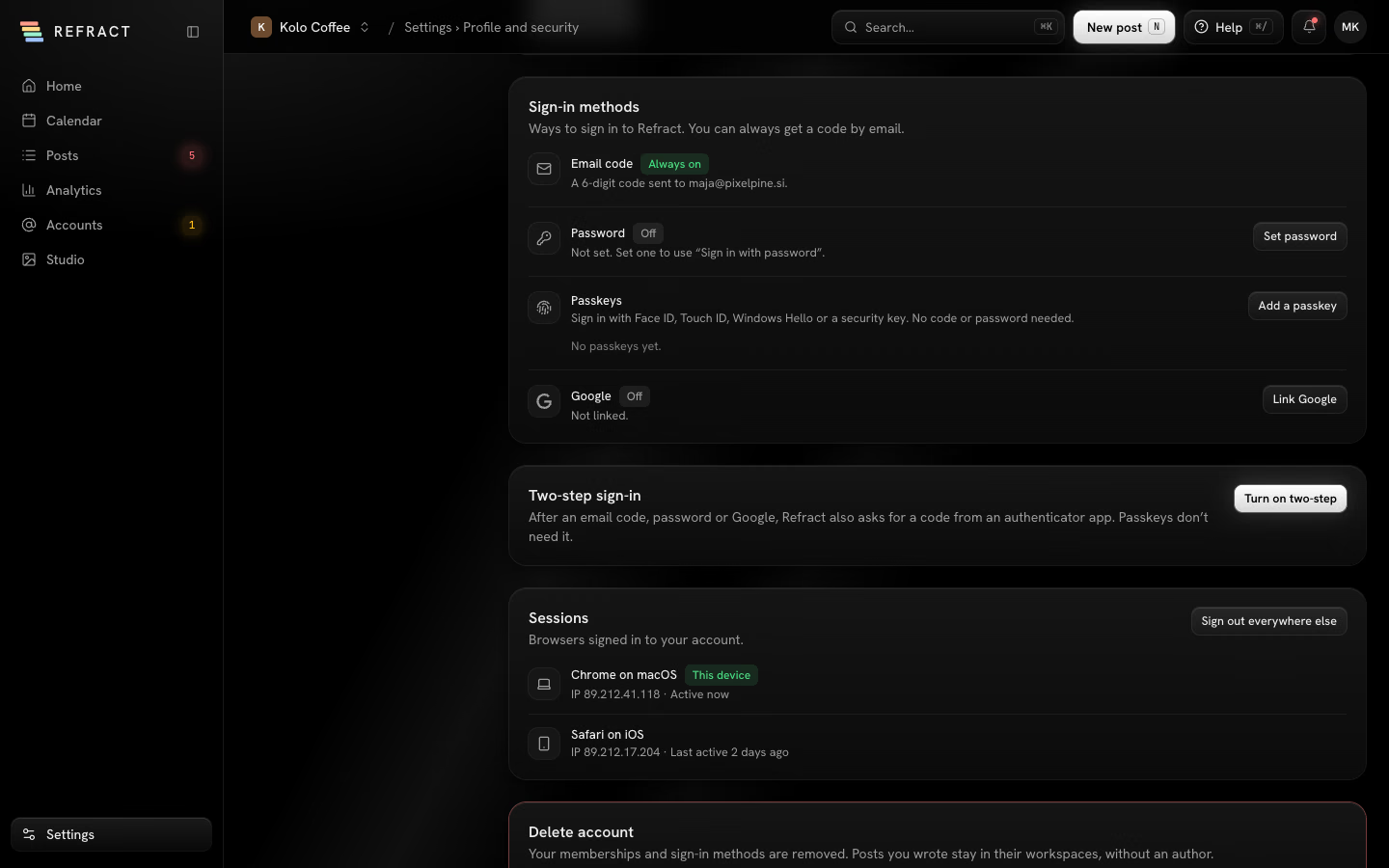
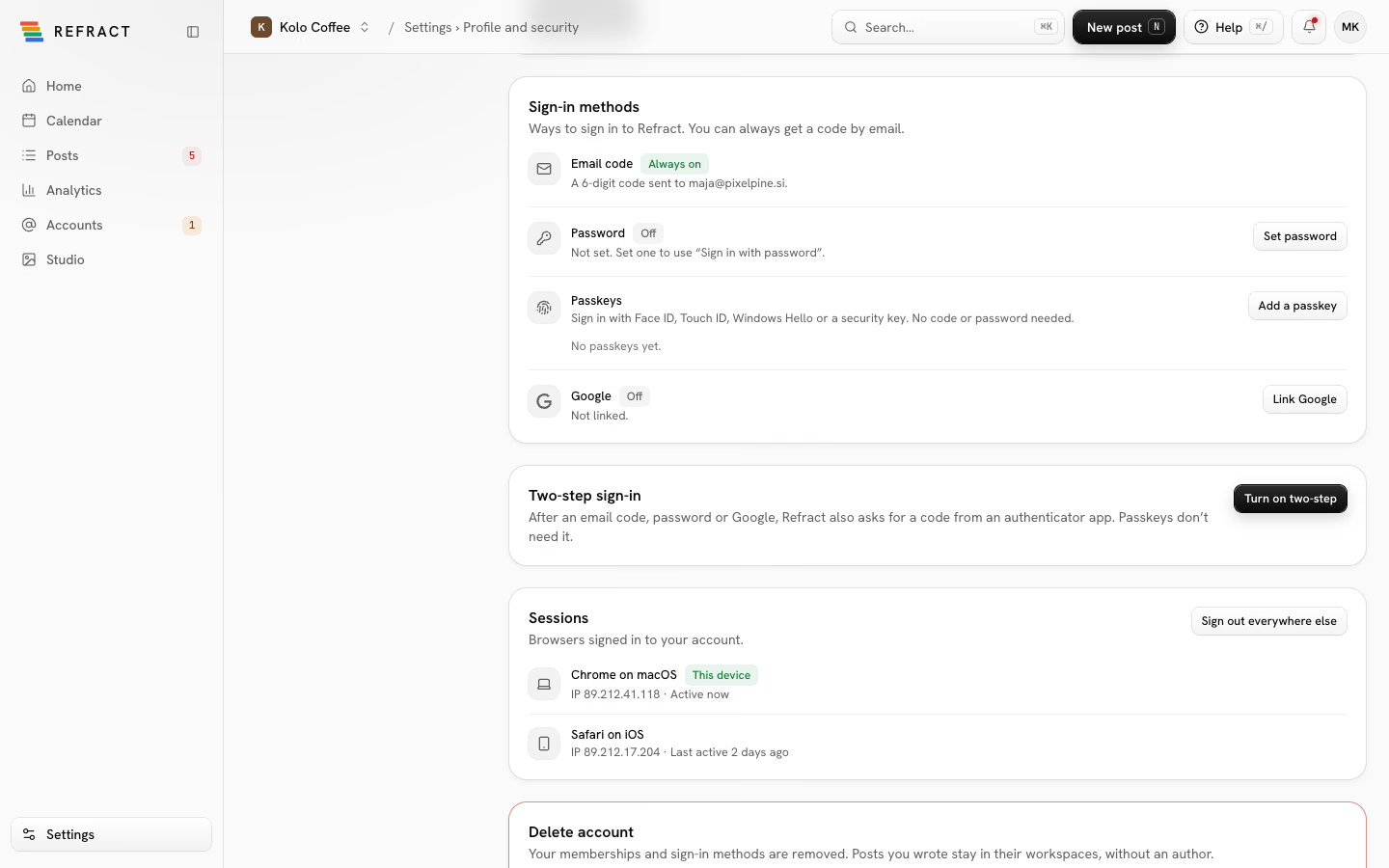
Sign in
The sign-in page offers four ways in:
- Email me a sign-in code: Refract emails you a 6-digit code. No password needed. This always works.
- Use a password instead, once you've set a password. Select Show to check what you typed.
- Sign in with a passkey, once you've added one.
- Continue with Google, once your Google account is linked (or if you signed up with Google).
If a code doesn't arrive, select Resend code, or Use a different email. After too many wrong tries, Refract asks you to wait before trying again.
Forgot your password? Select it on the password form, sign in with an email code instead, then set a new password in Settings › Profile and security.
Set a password
- Under Sign-in methods, select Set password (or Change password).
- Enter a new password of at least 8 characters, and repeat it.
- Select Save password.
Then Use a password instead works on the sign-in page.
Add a passkey
A passkey signs you in with Face ID, Touch ID, Windows Hello or a security key. No code or password needed.
- Under Passkeys, select Add a passkey.
- Follow your device's prompt.
Each passkey is named after its browser and system; use Rename to change that, or Remove to stop it working for Refract. You can't remove your last way to sign in: add another first.
Link Google
- Under Google, select Link Google.
- Sign in with Google.
Continue with Google then signs you in. To stop that, select Unlink; you can still sign in with a code sent to your email. A Google account can sign in to only one Refract account.
Turn on two-step sign-in
With two-step sign-in, Refract asks for a code from an authenticator app after an email code, password or Google. Passkeys don't need it.
- Under Two-step sign-in, select Turn on two-step.
- Scan the QR code with an authenticator app, such as 1Password, Google Authenticator or Authy. Can't scan it? Enter the key shown instead.
- Enter the code from the app and select Turn on.
- Save your 10 backup codes with Download or Copy, then select I've stored them somewhere safe.
Each backup code works once, if you can't use your authenticator app. When signing in, select Use a backup code. To get a fresh set, select New backup codes; your old ones stop working.
To turn two-step sign-in off, select Turn off and enter a code from your authenticator app or a backup code.
Confirm it's you
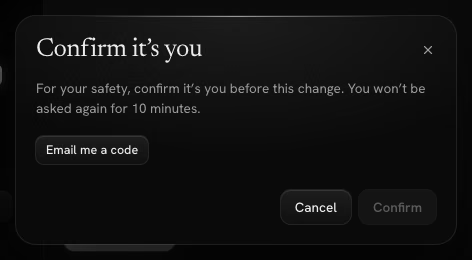
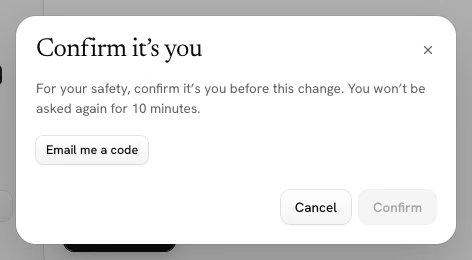
Before a sensitive change, Refract asks you to confirm it's you. This happens when you change your email, set or change your password, add a passkey, make new backup codes or delete your account.
Choose how to confirm: Authenticator app, Password, Email code or Passkey, depending on what you've set up. You won't be asked again for 10 minutes.
Change your email
- Under Profile, select Change email.
- Enter the New email and select Send code.
- Enter the 6-digit code sent to the new address and select Confirm new email.
Until you confirm, you keep using your current address.
Language and time format
Under Profile you can change your Name and Time format (24-hour or 12-hour). Refract is in English for now. Select Save changes.
Times in a workspace use that workspace's time zone, whoever is looking. See Getting started.
Sign out of other devices
Sessions lists every browser signed in to your account, with This device marked. To end the others, select Sign out everywhere else. You stay signed in where you are.
Delete your account
- Under Delete account, select Delete account.
- Confirm it's you, then select Delete my account.
You lose access to every organization and workspace right away, and this can't be undone. Your memberships and sign-in methods are removed; posts you wrote stay in their workspaces, without an author.
Note: If you're the only admin of an organization, make someone else an admin in Settings › Team and roles first. See Team and approvals.