Calendar and posts
The Calendar shows everything that's going out and lets you move it around. Posts lists the same posts by status, so you can find, fix and tidy them in bulk.
Find your way around the calendar
Open Calendar in the sidebar. At the top you'll find:
- Month, Week and Day to switch the view.
- The arrows (Previous week, Next week and so on) and Today to move through time.
- Filters for Account, Platform, Status and Created by. Clear filters shows everything again.
- Drafts, which opens the drafts tray, and New post.
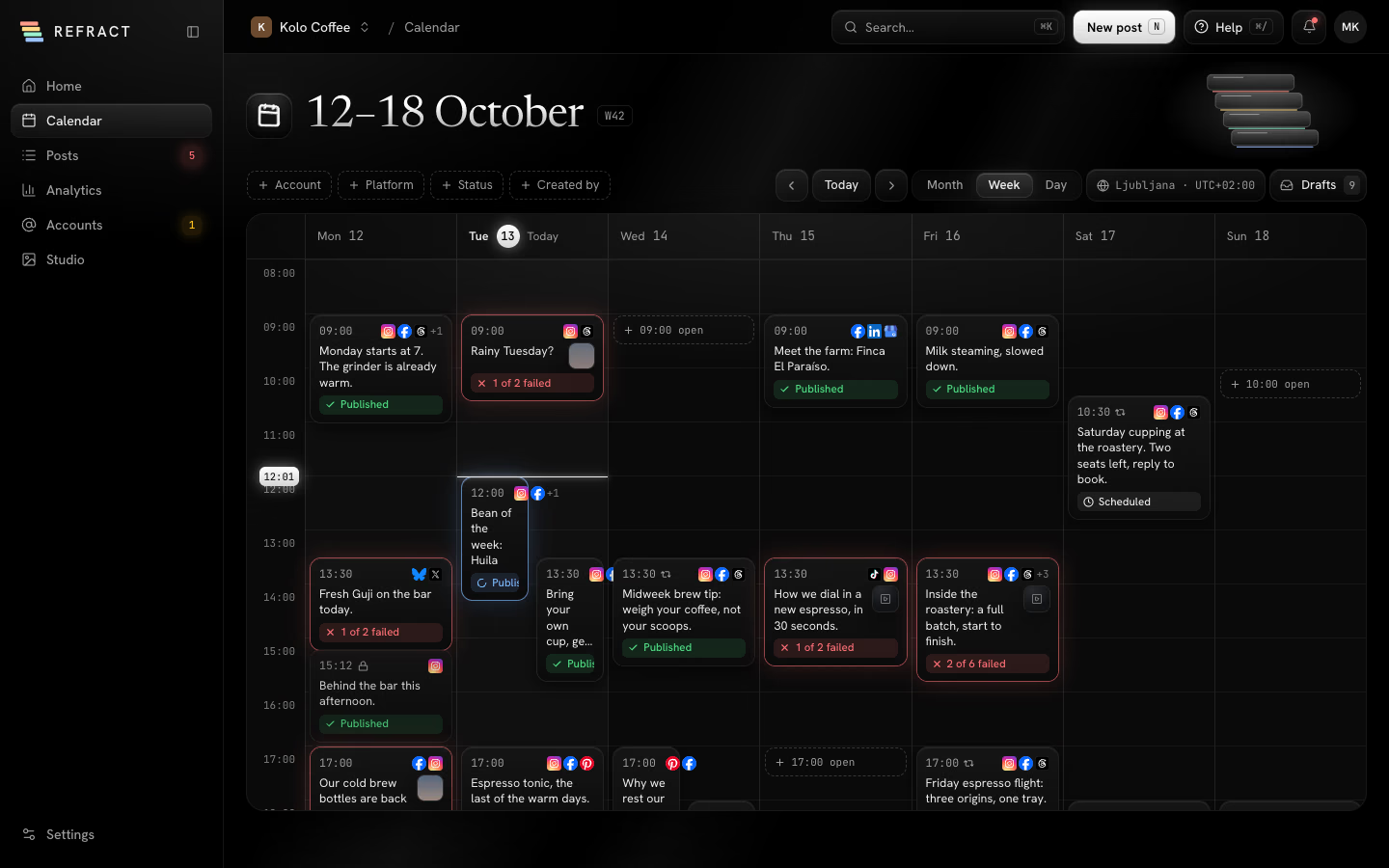
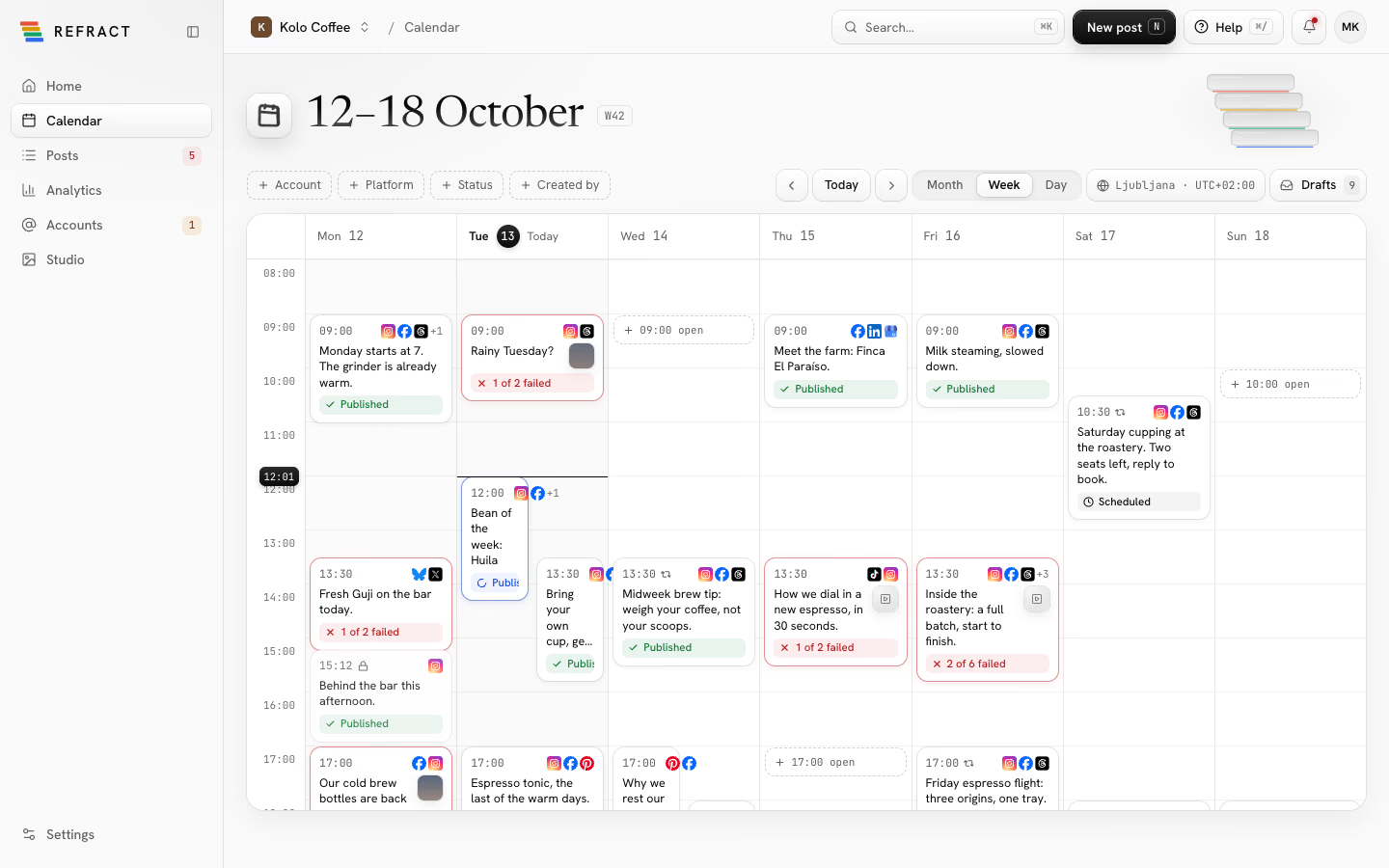
Each post shows its time, the start of its text and its status: Draft, Scheduled, Awaiting approval, Publishing, Published, Failed, Needs reconnect or Paused. When a post goes to several accounts, the status counts them, like 1 of 3 failed or Publishing 2 of 3. Posts that repeat show Repeats.
Week and Day views also show your open queue slots: the posting times that nothing fills yet. Click one to write a post for that time.
Month view fits a whole month on one screen. When a day has more posts than fit, click +3 more (or however many) to see them all.
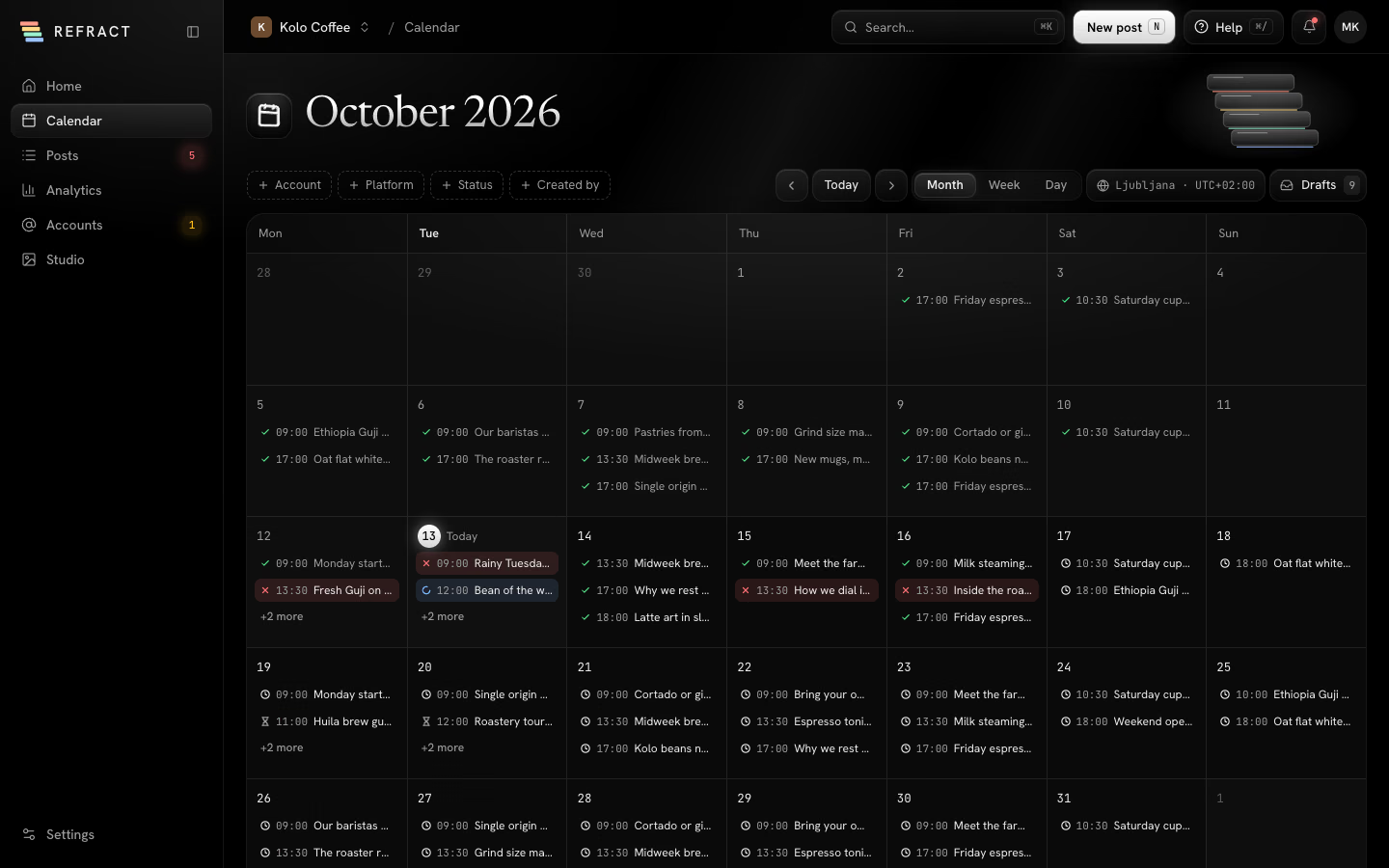
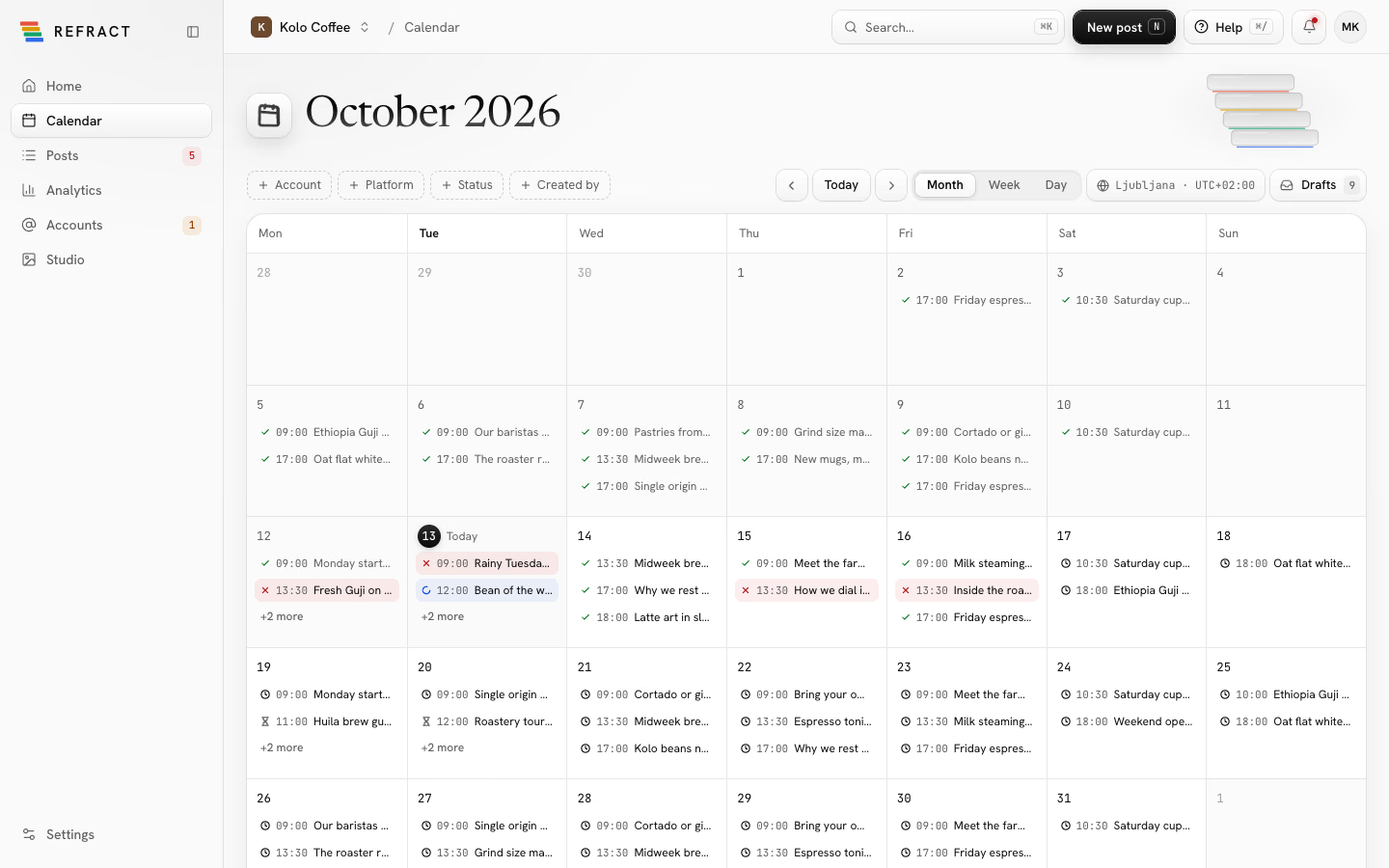
Tip: Every time on the calendar uses the workspace's time zone. To look at the week in another time zone, use the Time zone control in the toolbar; the reset option takes you back to the workspace's.
Posts you published directly on a network, outside Refract, also show up so your calendar is complete. Refract can't edit or delete those.
Reschedule a post by dragging
- In Week or Day view, drag a post to a new time.
- While you drag, a chip shows where it will land. If the time is one of your posting times, it says fills queue slot.
- Let go. A message confirms the new time, with Undo if you change your mind.
To make a copy instead of moving the post, hold Shift while you drag. The copy goes to the new time and the original stays where it was.
A few things can't move:
- Posts that are publishing right now or have already gone out. Duplicate them to post them again.
- Anything dragged into the past: Refract says Can't schedule in the past and leaves the post where it was.
If you move a post that's waiting for approval, it still needs approval at its new time.
Schedule a draft from the tray
- Click Drafts in the calendar toolbar. The tray lists your drafts and when each was last edited.
- Drag a draft onto the calendar. It's scheduled for that time.
Click New draft in the tray to start one. Drafts only go out once you schedule them.
Open a post's details
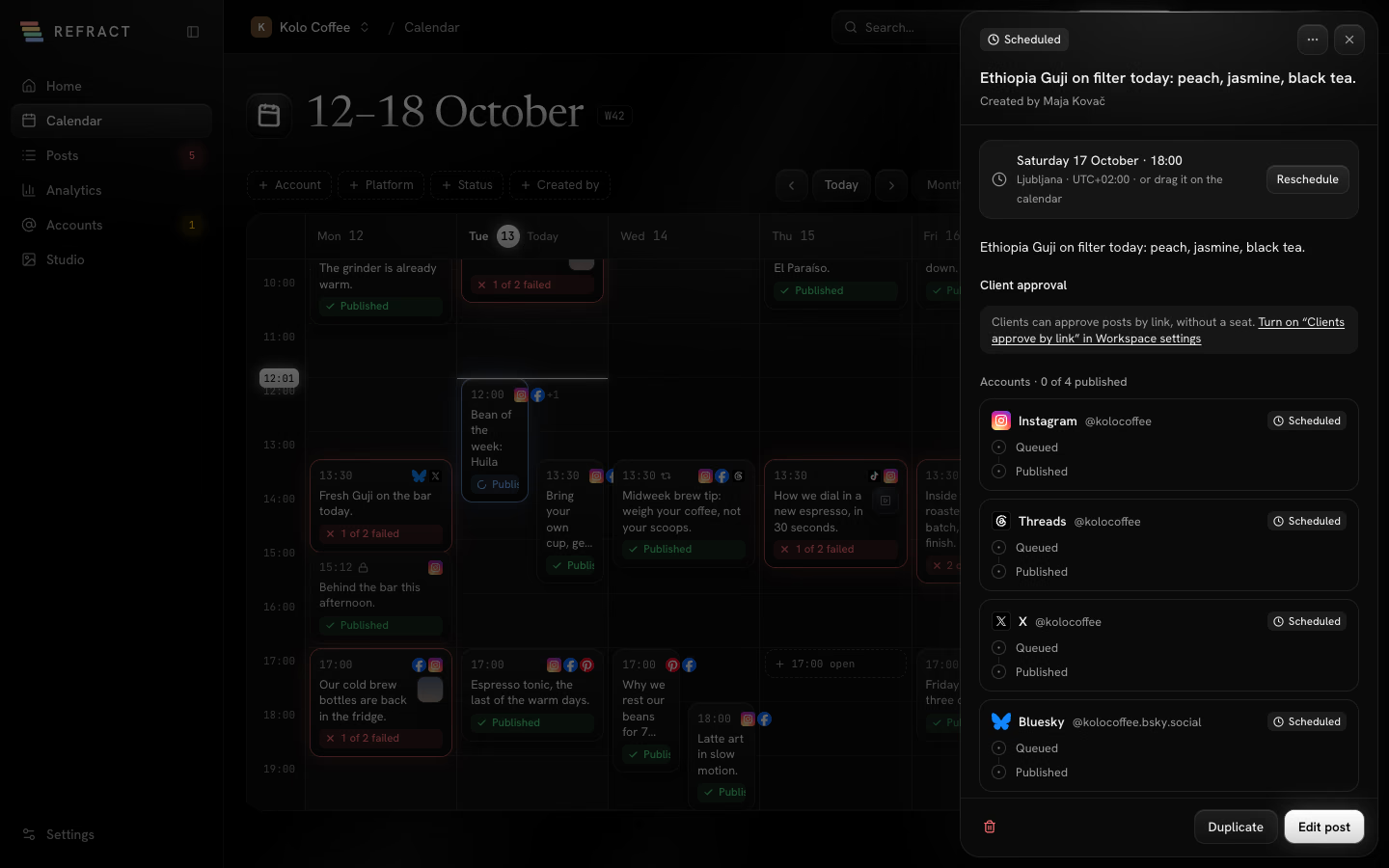
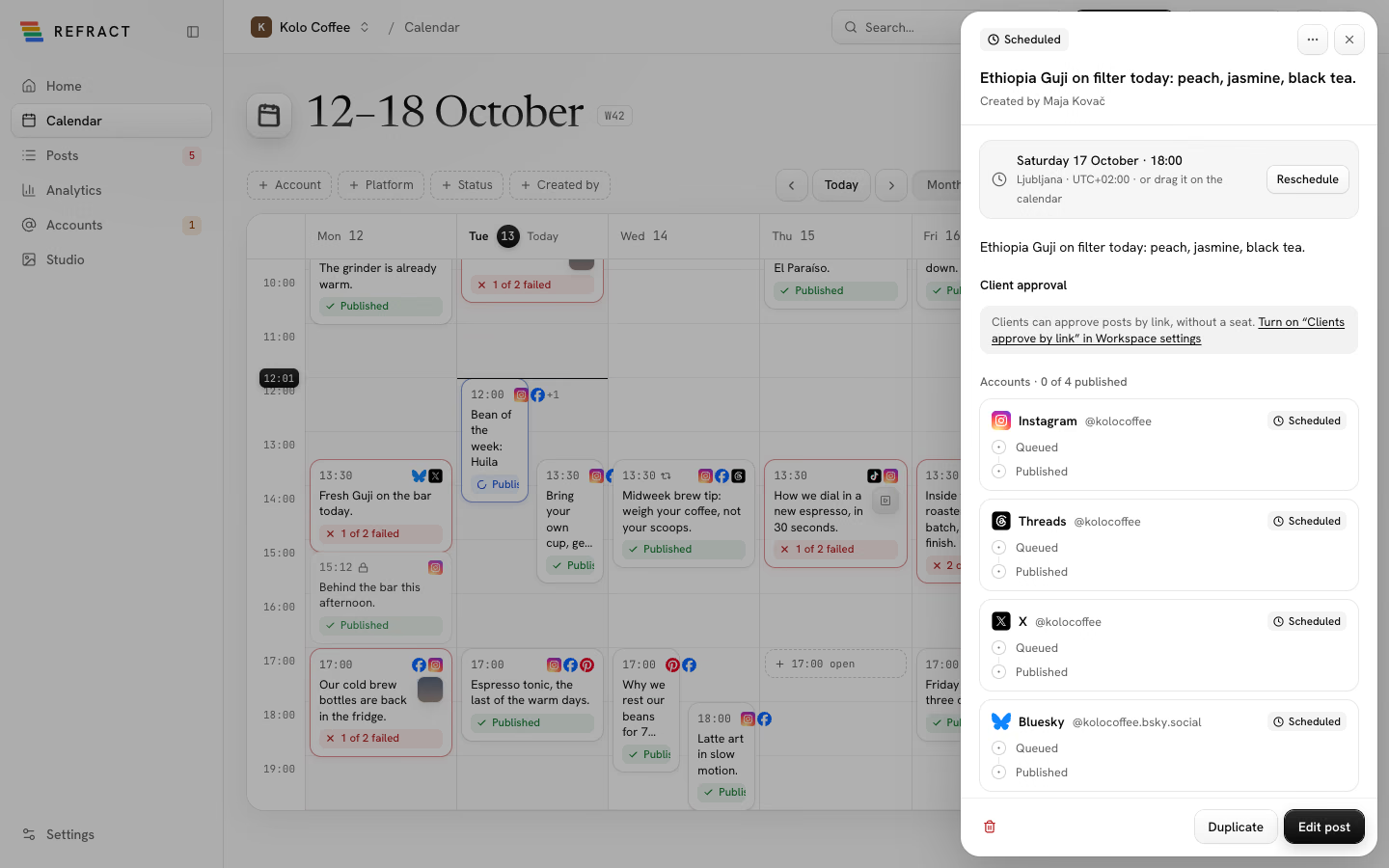
Click any post, on the calendar or in Posts, to open its detail panel. It shows:
- When it goes out, in which time zone, with Reschedule to pick a new day and time.
- The text and media.
- A card for each account with where it is right now: Queued, Uploading, Processing, Published or Failed after 3 tries. Once a post is out, the card links to it with View on Instagram (or the network's name) and shows its stats. Stats arrive within an hour of posting.
- History: everything that happened to the post and who did it.
- At the bottom: Delete, Duplicate, and the main action for the post's state (Retry failed, Schedule or Edit post).
If you can see a post but your role doesn't let you change it, the panel says You can see this post but not change it. See Team and approvals.
Edit, copy or delete a post
- Edit post opens it in the composer. See Writing posts.
- Duplicate makes a copy you can change and schedule again. It's the way to post something again once it has gone out.
- Delete removes it. A post that hasn't gone out yet won't go out. A post that's already published stays on the networks and only leaves Refract.
You can also do all of this from the menu at the end of each row in Posts: Open, Edit, Duplicate, Move to drafts and Delete.
Edit or remove a post after it's out
Where the network allows it, you can change a published post on one account without touching the others. Admins and Editors can; Contributors and Viewers can't.
- Edit: in the post's details, open an account's … menu and select Edit on {Network} (or use the menu at the end of the row in Posts). The composer opens with that one copy. Change the text and select Save to {Network}. The card shows the edit while it's saved, or what went wrong and how to fix it.
- Remove: select Remove from {Network} and confirm. The card says Removing from {Network}… until the network answers; meanwhile the copy can't be edited or removed again. The post comes down from that network and stays in Refract, marked Removed with the time and who removed it. Its numbers until then stay in Analytics. The post's other accounts keep it. While an edit is being saved, the copy can't be removed.
Each edit and removal is in the post's history. Some networks set limits: X edits within 30 minutes and 5 times, Telegram removes within 48 hours. See Edit and remove after publishing for each network.
Edits from API tokens and AI tools wait for approval when the workspace asks for approval from AI agents and tokens. They show under Needs attention on Home with Edit on {Network} and the new text; Approve saves it to the network, Request changes drops it and keeps your reason in the history.
Use the Posts tabs
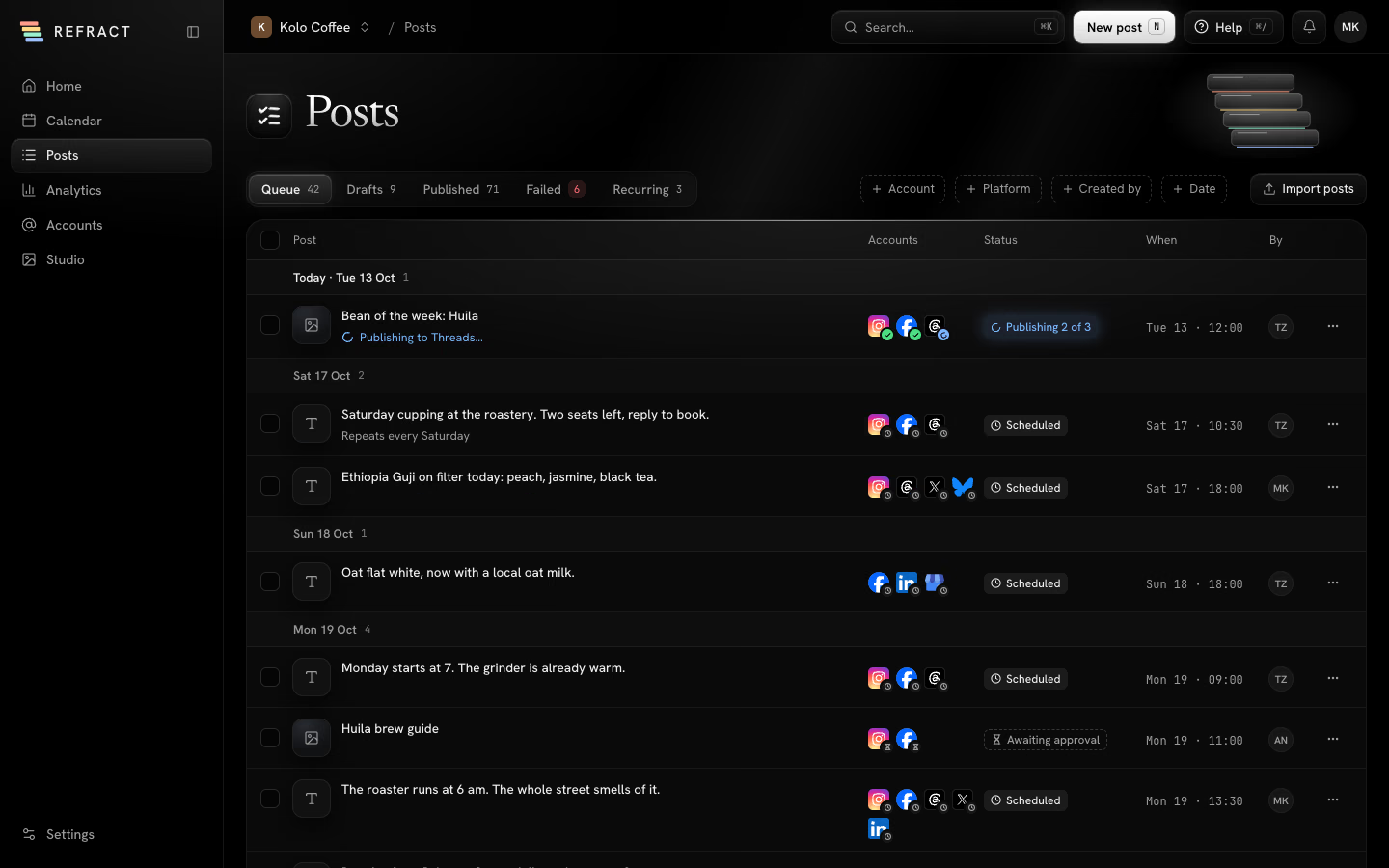
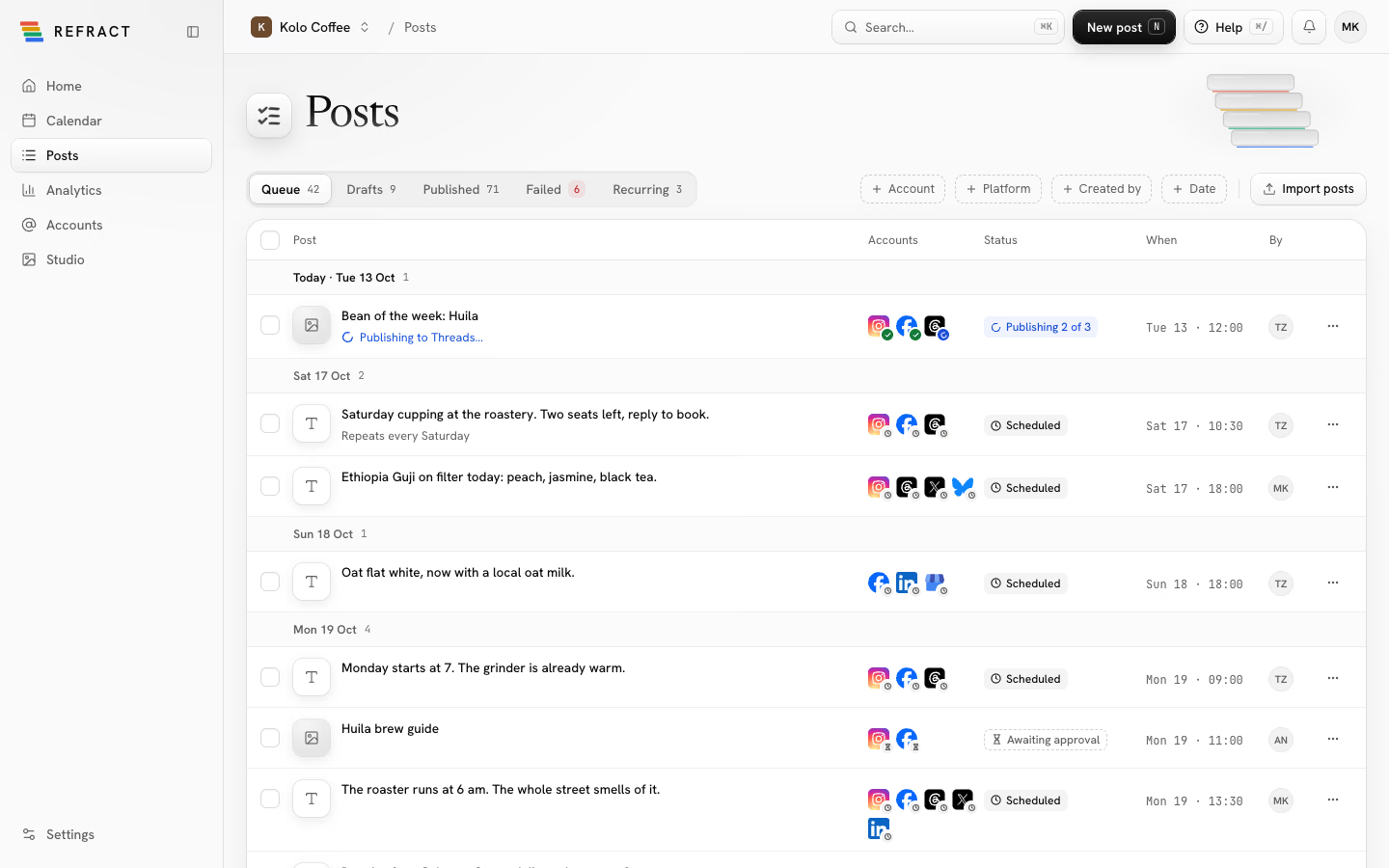
Open Posts in the sidebar. The tabs sort your posts by status:
| Tab | What's in it |
|---|---|
| Queue | Everything scheduled or waiting for approval, by time. |
| Drafts | Drafts you saved from the composer, waiting to be scheduled. |
| Published | Posts that went out. |
| Failed | Posts that didn't go out, and posts that will fail unless you act. |
| Recurring | Each repeating series, with its next post. |
Filter by Account, Platform, Created by and Date. Import posts brings in many posts at once from a file.
Change many posts at once
- Tick the posts you want, or tick the box in the header to select every post shown.
- A bar appears with Reschedule, Duplicate, Move to drafts and Delete.
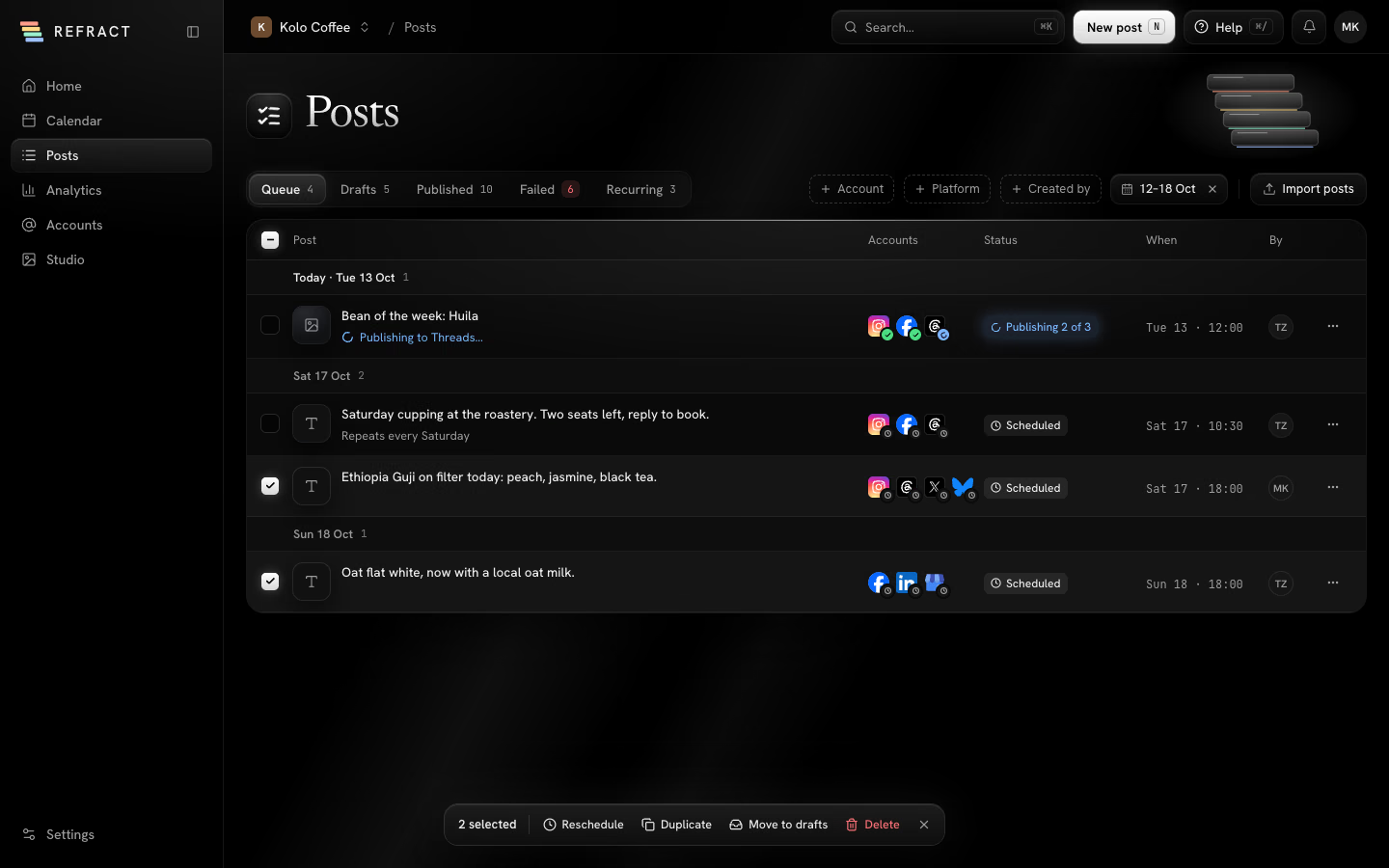
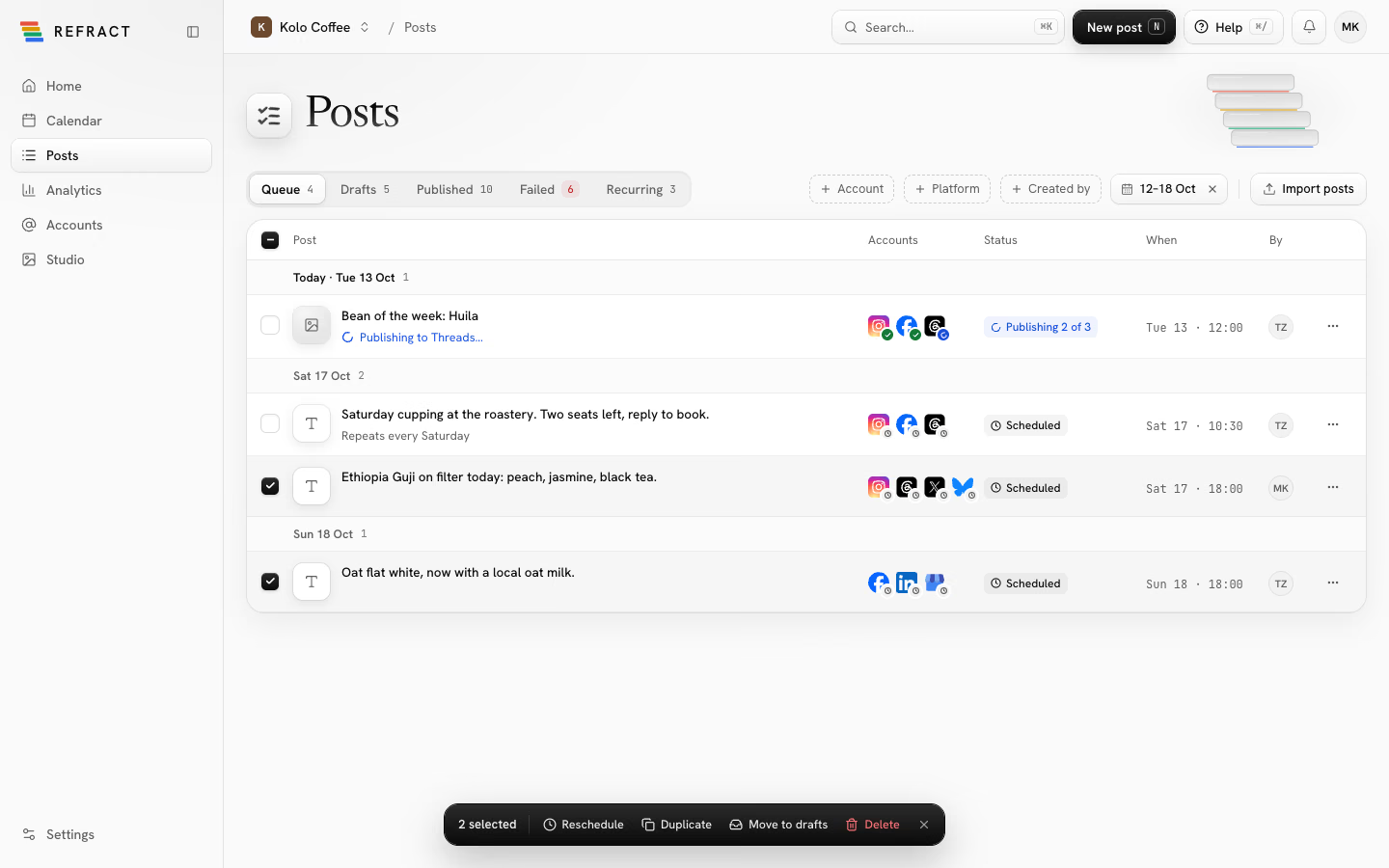
- Reschedule asks for a day and time. With one post, it moves there. With several, the earliest moves there and the others keep their spacing.
- Duplicate copies the posts as drafts.
- Move to drafts takes them off the schedule.
- Delete asks you to confirm first.
Posts that can't change, for example ones already publishing or out, stay as they were, and the message tells you how many and why.
Set up a repeating post
- In the composer, open the send button's When menu and choose Repeat.
- Under Every, pick Day, Week, Month or Year, how often, which days and the time.
- Choose when it Starts and when it Ends: Never, On a date, or After a number of posts. The composer shows the dates it works out.
- Click Schedule series.
Each series appears in Posts › Recurring, with its rule and its next post. Click Pause to stop it for a while and Resume to start it again. Posts that fall due while a series is paused are skipped.
Fix a failed post
When a post can't go out, Refract tries each account 3 times over 15 minutes first. If the network asks Refract to wait before trying again, Refract waits that long instead, up to an hour; when it asks for longer, the account fails at once and the reason says how long to wait. If it still fails, the post goes to Posts › Failed, shows up on Home under Needs attention, and you get a notification. Retrying one account never posts again to the others.
Some networks allow only so many posts a day per person. A post that would go over waits instead of failing: Posts › Failed lists it under Didn't go out with the limit and when Refract sends it, and its card says Waiting for the daily limit to reset. It goes out by itself when the limit resets, without using up a try.
The Failed tab has two groups: Didn't go out and Will fail unless you act (for example, posts going to an account that's signed out).
Each failure says why in plain words, with a fix when there is one:
| Fix | When you'll see it |
|---|---|
| Retry network now | The network was down or busy. The buttons name the account's network. |
| Shrink and retry network | A photo was over the network's size limit. |
| Crop to 4:5 and retry | A photo's shape wasn't one the network takes. |
| Reconnect network | The account signed out or lost permission to post. |
| Edit post | The text or media has to change, for example it's too long. |
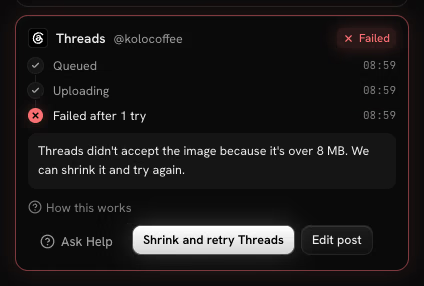
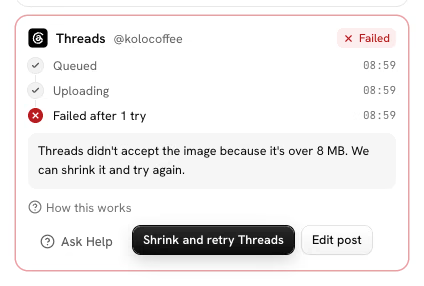
In the detail panel, Retry failed (with the number of failed accounts) tries every account that failed again.
Note: A post started from a note goes out only when all of its versions are approved. If one wasn't when the time came, open the post, approve the versions, then retry. See Notes and versions.
Posting times and the queue
Your queue is a set of posting times for each day of the week. Add to queue in the composer puts a post in the next free one, so you don't have to pick a time each time.
- Go to Settings › Workspace and find Posting times.
- Click Add under a day to add a time, or remove one you don't need.
- Copy Monday to all weekdays saves some clicking.
- Click Save posting times.
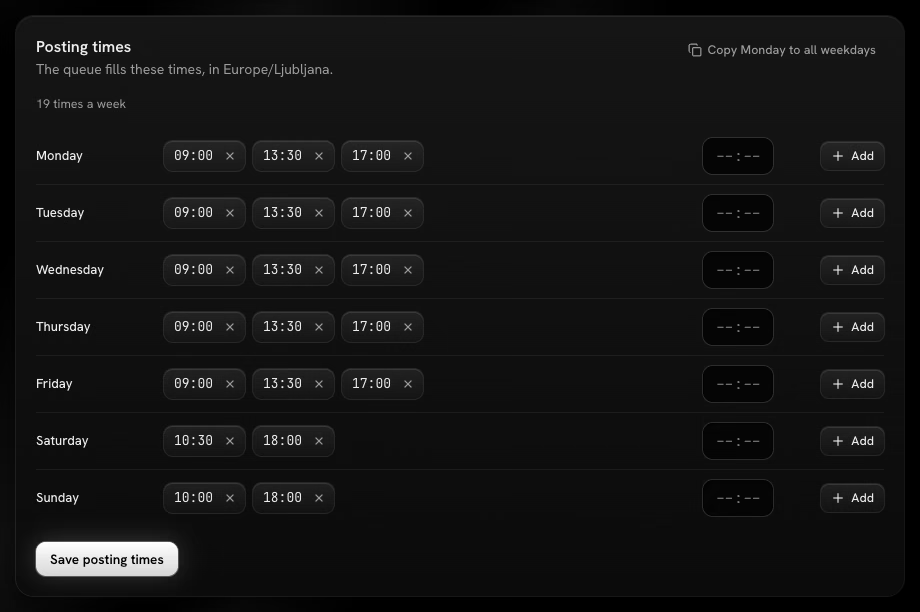
Times use the workspace's time zone. If there's no free posting time in the coming days, Refract asks you to add posting times or pick a date instead.
Home shows Queue health: how many days of posts each account has scheduled, and when it runs out. Fill queue helps you add posts where it's running low.